Getting Started
This guide walks through the Jaxon platform's core workflow using screenshots. By the end, you'll understand how documents, rulesets, datasets, and runs fit together to verify text content against formal policies.
Dashboard and the Workspace Menu
After signing in you land on the Dashboard — a summary of your workspace: headline stats (projects, rulesets, runs this week) and your favorite and recently updated projects.
The left-side workspace menu is always present at this level:
- Dashboard — the summary described above
- Projects — browse and enter your projects
- Documents — every document across your workspace, including ones not yet in a project. A count badge shows the total.
- Rulesets — every ruleset across your workspace, including ones not yet in a project. A count badge shows the total.
- Datasets — every dataset across your workspace, including ones not yet in a project
- Activity — one feed of runs and data changes across your projects
- Corpus — the design-time corpus. It opens on Corpus Health, the report on whether your rules are coherent with each other; a tab strip switches to the Vocabulary Workbench, where the claim registry, the merge queue and the axioms that align rules across sources live
- Documentation / API Reference — external references, opened in a new tab
Documents, rulesets, and datasets are created directly from their workspace pages (see below), so the menu carries no separate Create or Import actions. At the workspace level, a Select a project ▾ picker in the top header bar lets you jump straight into any project.
Projects
A project is a container that groups documents, rulesets, datasets, and runs for one piece of work. Documents, rulesets, and datasets don't have to live in a project — they can be unaffiliated (created at the workspace level) and added to a project later — but runs are always project-scoped. The Projects page lists your projects with search, sort, and a card/list view toggle. Click the star on a project to mark it as a favorite; favorites surface on the Dashboard.
- Returning users see their projects with search and sort. Click a project to enter it.
- First-time users (no projects yet) see a welcome screen with a single Create Project action.
To delete projects, switch the Projects page to list view and use the checkboxes to select one or more, then Delete selected. Deleting a project also deletes the documents, rulesets, and datasets inside it, so the confirmation dialog shows those counts and asks you to type delete. A project with an active or pending run can't be deleted until that run finishes.
Entering a project swaps the left menu to the project menu — Documents, Rulesets, Datasets, Units, Runs, and Analysis — with the project's name shown at the top and a grid button beside it that returns to the workspace level. The Projects breadcrumb in the top header bar also returns to the workspace, and the project name in the breadcrumb switches directly to another project.
Units opens the project's Unit Library, where you choose which built-in unit standards apply to the project and define its own unit aliases and conversions. Most projects never need to change it — see Units for when you do.
Workspace Documents, Rulesets, and Datasets
The workspace-level Documents, Rulesets, and Datasets pages list assets across every project plus any that are unaffiliated. Each row carries a project chip: a linked asset shows its project (click to open it there), while an unlinked asset shows an Unaffiliated tag with an Add to project control.
A document, ruleset, or dataset belongs to at most one project. Adding it to a project moves editing into that project — an affiliated asset opened from the workspace page is read-only, with a link to open it in its project. To reuse an asset in another project, Duplicate it from the row's ⋮ menu (the copy defaults to [name]-copy and can target any project or none).
Removing a document from its project is done from within the project's Documents page (Remove from project in the ⋮ menu). Machine-generated (silver) documents, and documents that back a ruleset or dataset in the project, are permanent members of that project and can't be removed. Rulesets can be disassociated directly from the workspace Rulesets page via the chip's × control.
Tip
Create a dedicated project for experimentation so your work doesn't mix with existing data.
Policy Documents
Every ruleset begins with a policy — the set of requirements you want to enforce. In the platform, policy content is stored as a Document.
The Documents page, accessible from the sidebar, lists all documents in your project.
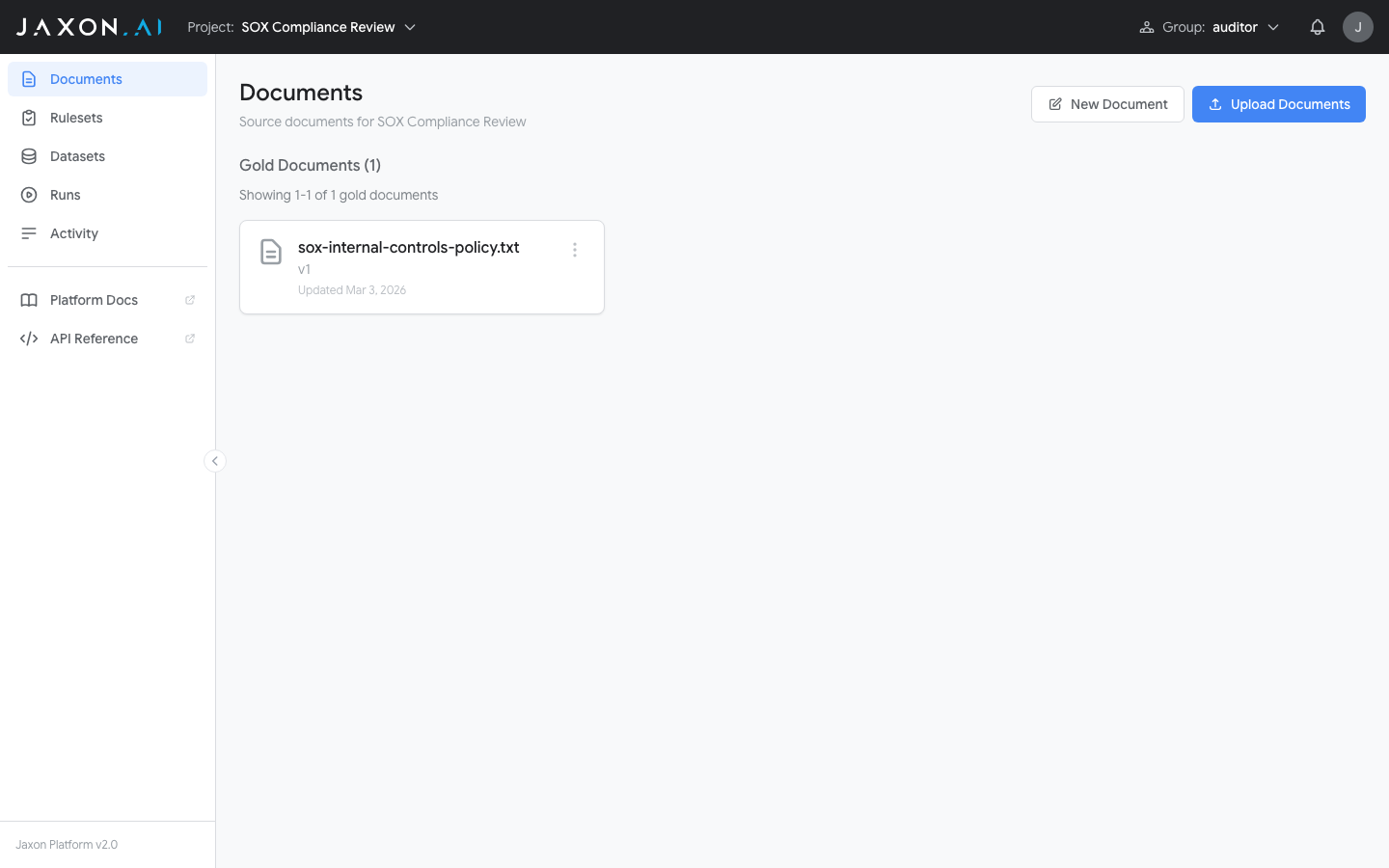
Documents are organized into Gold and Silver sections. Gold documents have been reviewed and verified by a human. Silver documents are machine-generated and not yet human-reviewed; they are created when synthetic documents are generated to expand the breadth of a Dataset. Once a silver document is reviewed and approved, it can be promoted to gold. All documents are versioned and immutable. Once saved, a version cannot be changed, ensuring that ruleset evaluations are always reproducible.
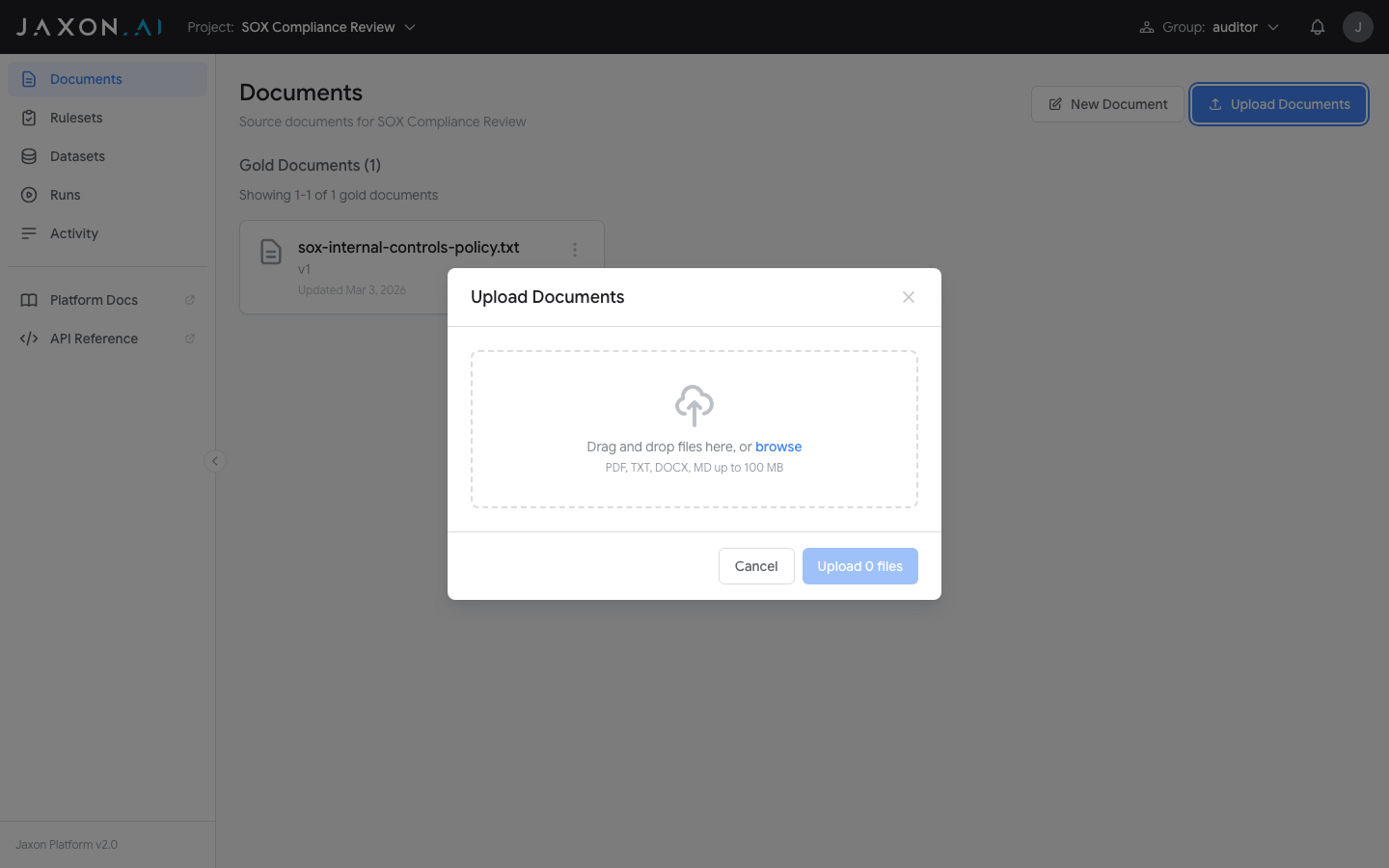
The Import Documents button opens the import interface, which accepts PDF, DOCX, TXT, MD, and CSV files. Create Document opens an editor to type or paste content directly.
Rulesets
With a policy document uploaded, you can create rulesets that encode its requirements as verifiable rules. A Ruleset is a collection of individual rules that each check one specific compliance requirement.
The Rulesets page, accessible from the sidebar, lists all rulesets in your project.
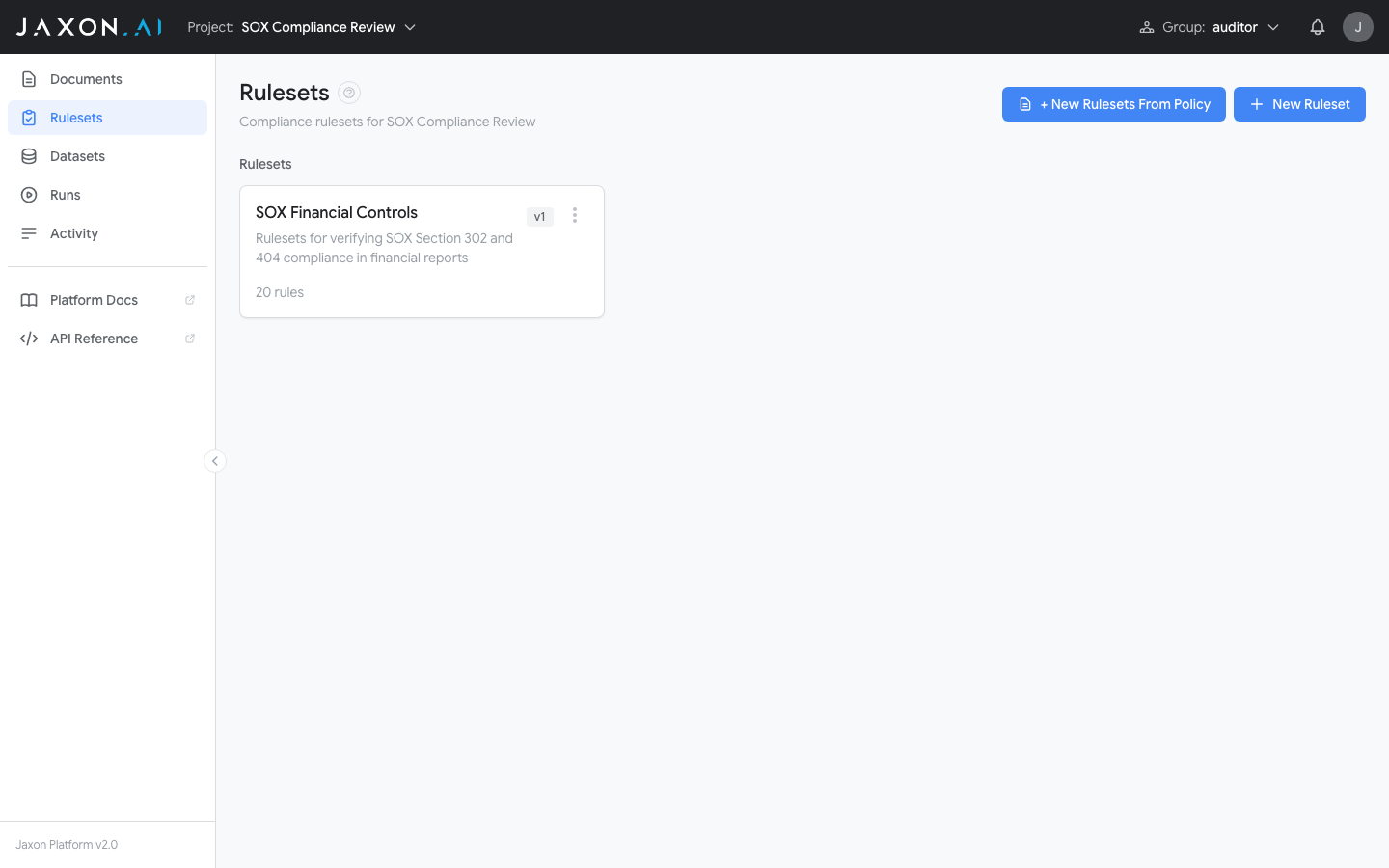
Click Create Ruleset to open the creation wizard. In the Type step, choose how to build your ruleset:
- From Policy Documents derives rulesets and rules automatically from an existing policy document. This is the recommended starting point when you have a policy to encode.
- Empty Ruleset creates a blank ruleset where rules are defined manually in the Ruleset Studio.
Creating Rulesets From Policy
When you select From Policy Documents, the wizard walks through five steps:
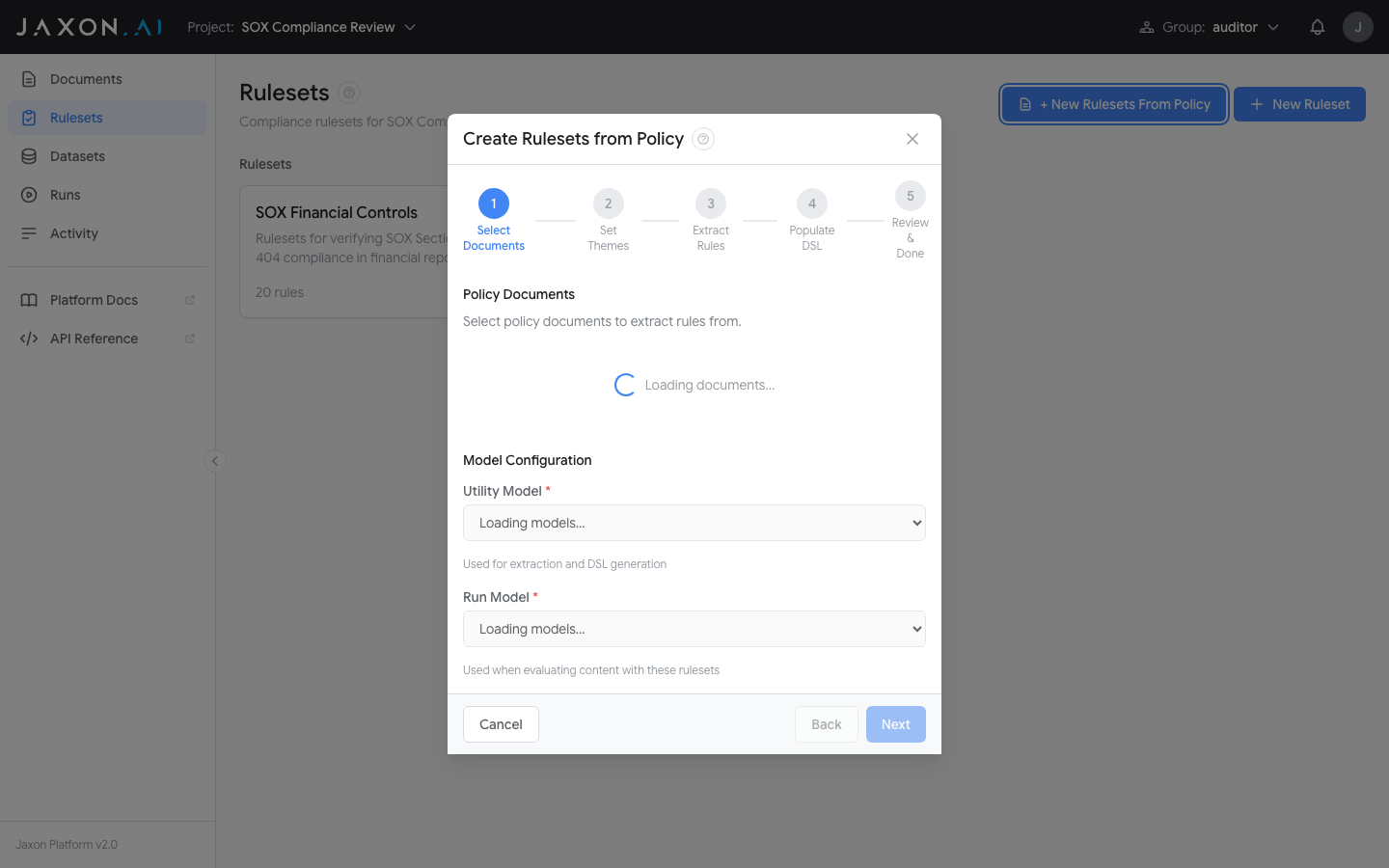
- Step 1 — Details
- Enter a name and optional description for the ruleset.
- Step 2 — Type
- Select From Policy Documents.
- Step 3 — Models
- Select the Inference Model (used when evaluating content with the ruleset) and the Configuration Model (used for extraction and DSAIL generation).
- Step 4 — Select Documents
- Choose the policy document(s) to extract rules from.
- Step 5 — Create Rules & DSAIL
-
Choose an extraction method:
- Basic — Reads each document end-to-end and enumerates rules directly. Recommended for one document or a small corpus.
- RAG — Retrieval-augmented extraction that indexes your documents and pulls the passages most relevant to your theme. Use for large or multi-document corpora.
For Basic and RAG, define a Theme (a title plus optional context) to guide extraction — or click Suggest to auto-generate one from the selected documents.
Click Start to extract rules. DSAIL Language code and data extraction questions are then generated automatically for each extracted rule, and when generation completes the wizard opens the finished ruleset directly in the Ruleset Studio. Both stages can run in the background.
Creating an Empty Ruleset
When you select Empty Ruleset in the Type step, the wizard collects a name, description, and model selections, then creates the ruleset immediately.
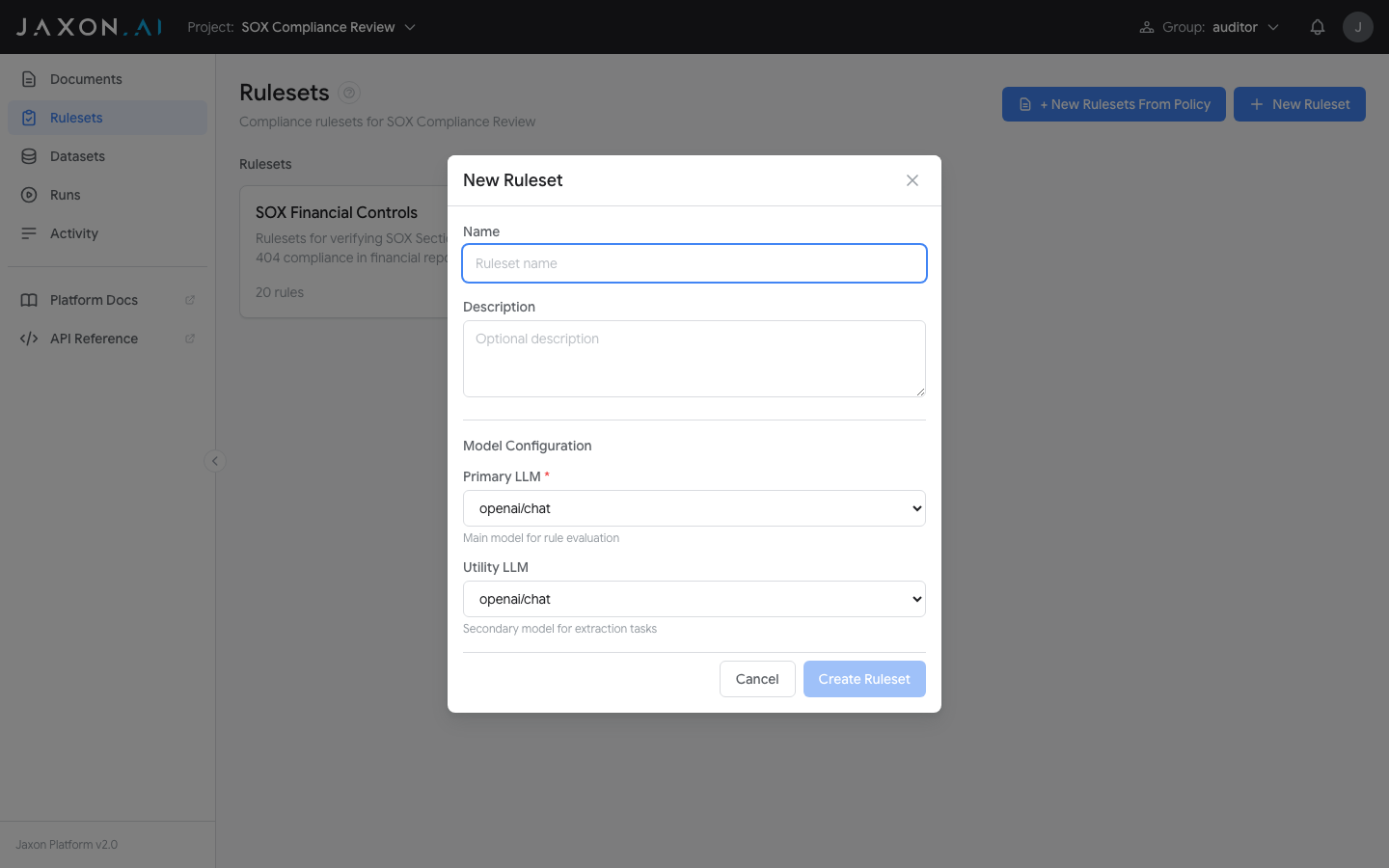
Once created, the ruleset opens in the Ruleset Studio where you define individual rules manually. This gives you full control over each rule's natural language description and DSAIL code, without deriving them from a policy document.
The Ruleset Studio
After the wizard creates rulesets, opening one takes you to the Ruleset Studio — the editing environment for viewing, modifying, and refining rules.
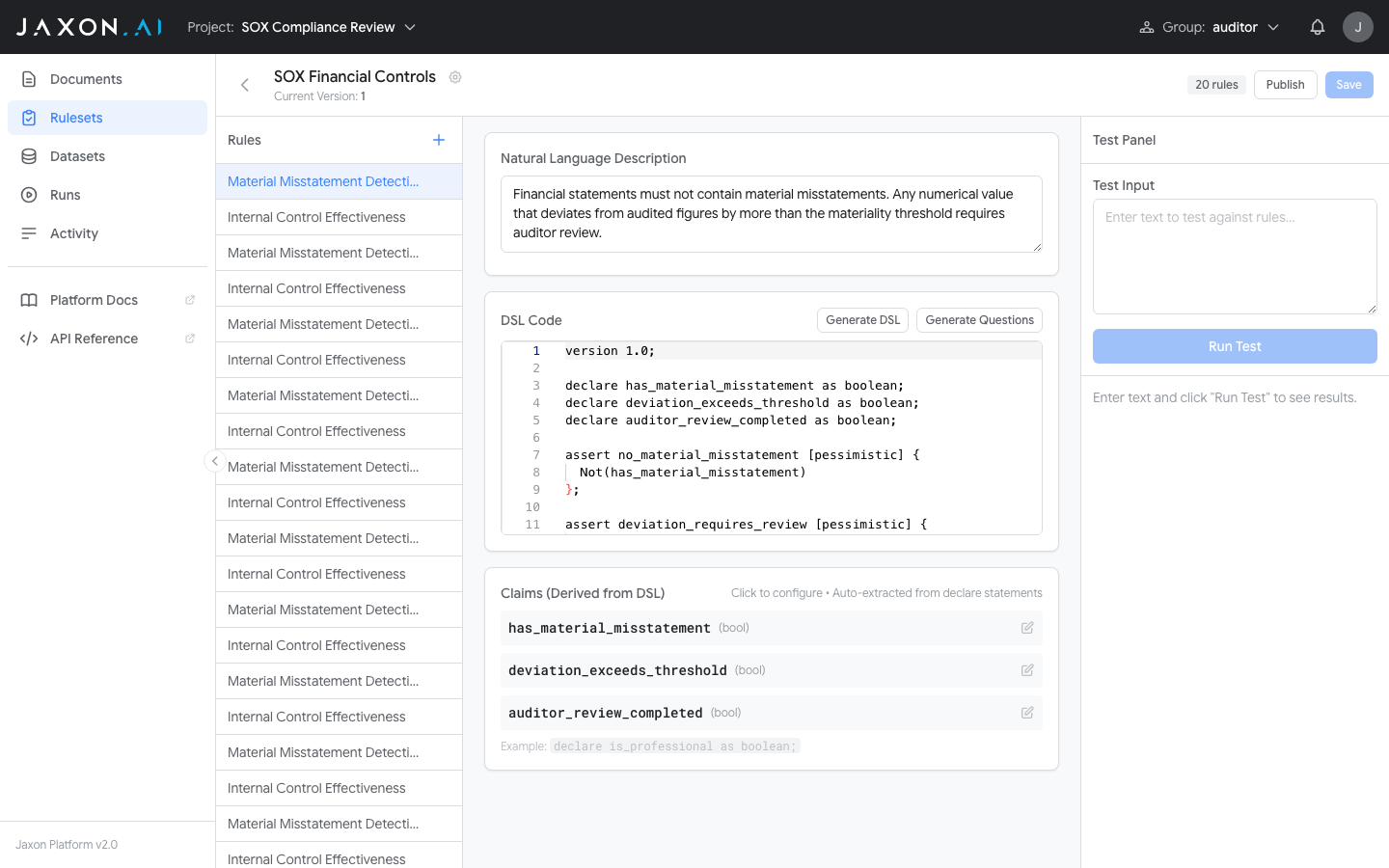
The Studio has a three-panel layout:
- Rule list (left) — Navigate between rules. The "+" button adds new rules.
- Rule editor (center) — Edit the natural language description and DSAIL code. Generate All (or Regenerate All once DSAIL exists) generates DSAIL code from the description and then the claim questions, in one chained action.
- Test panel (right) — Enter test input, run a test, and see per-assertion results immediately.
The DSAIL Editor
Selecting a rule opens its details, including the DSAIL code editor.
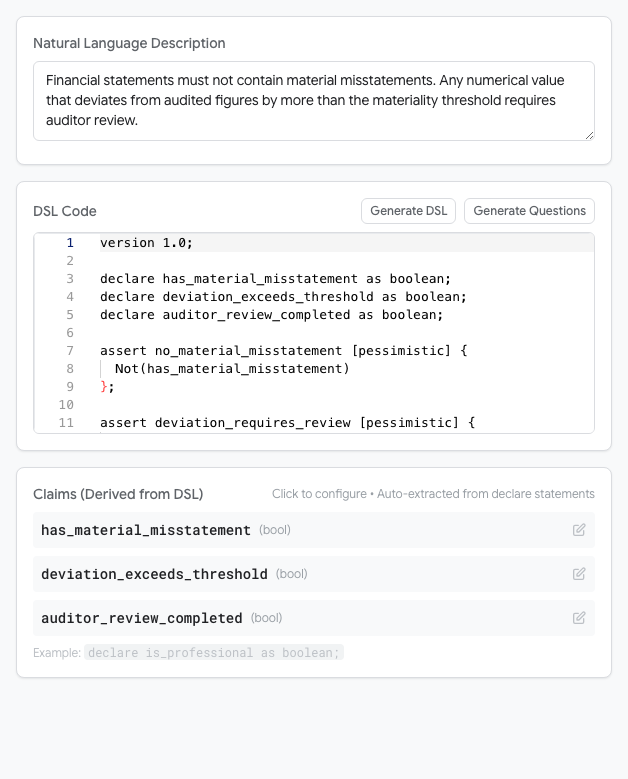
Each rule's DSAIL code contains declarations (variables representing facts about the input text) and assertions (logical expressions that must hold true for compliance). The [pessimistic] annotation tells the solver to treat unknown values as failures — the recommended setting for compliance checking.
Datasets
With a ruleset configured, test data measures how it performs across a range of inputs. A Dataset groups documents together for batch testing.
The Datasets page, accessible from the sidebar, shows all datasets in your project.
The workspace Datasets page in the sidebar lists every dataset across the workspace, including unaffiliated ones that are not in any project. Like documents and rulesets, a dataset belongs to at most one project, and the chip beside it adds it to a project or removes it again.
One restriction is specific to datasets: a dataset that has already been used in a run cannot be removed from its project, because those runs reference the project. Duplicate the dataset if you need an unaffiliated copy.
The Create Dataset button creates an empty dataset with a name and optional description.
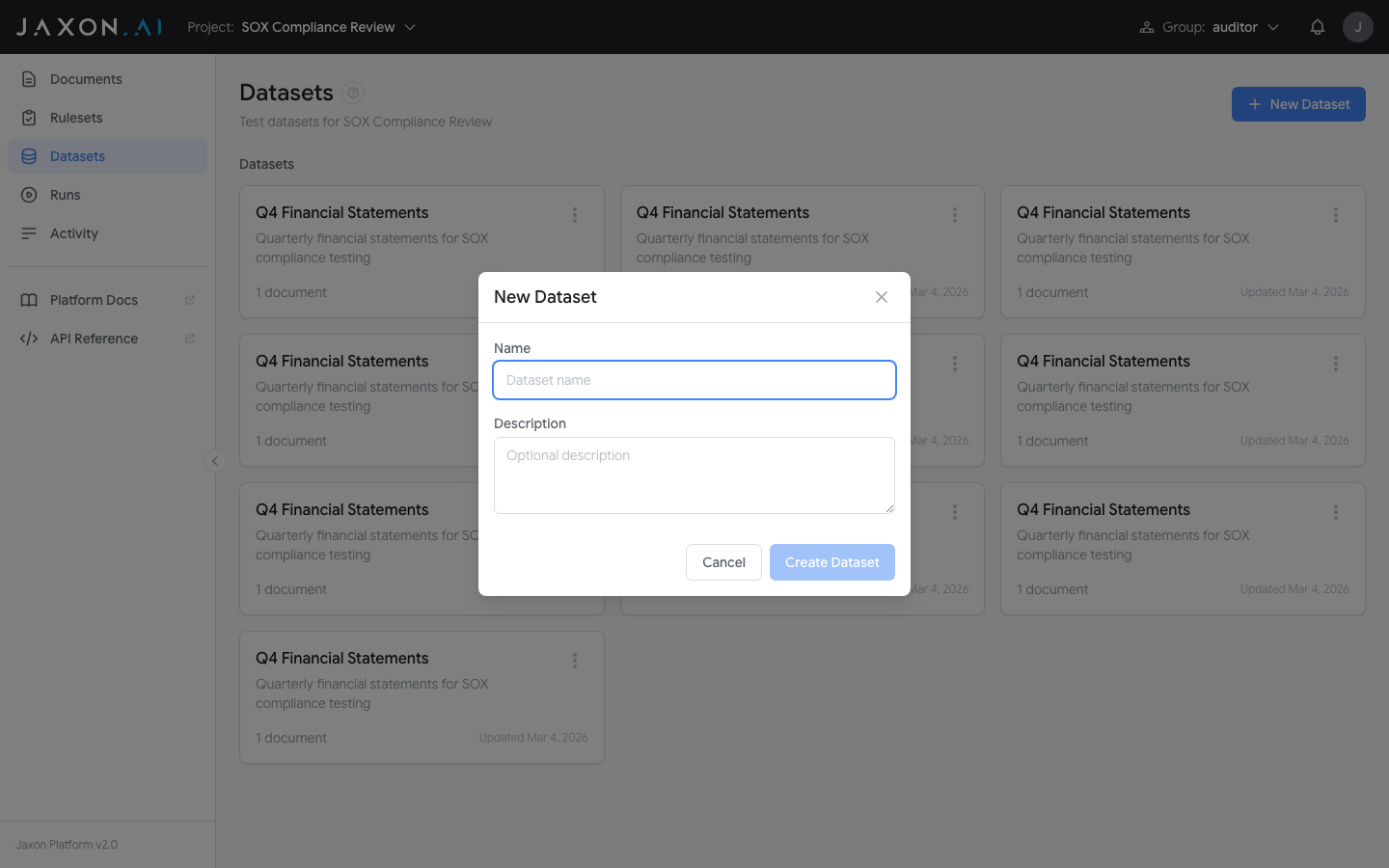
Once a dataset exists, click on it to open its detail view. From here you can populate the dataset with documents using three methods:
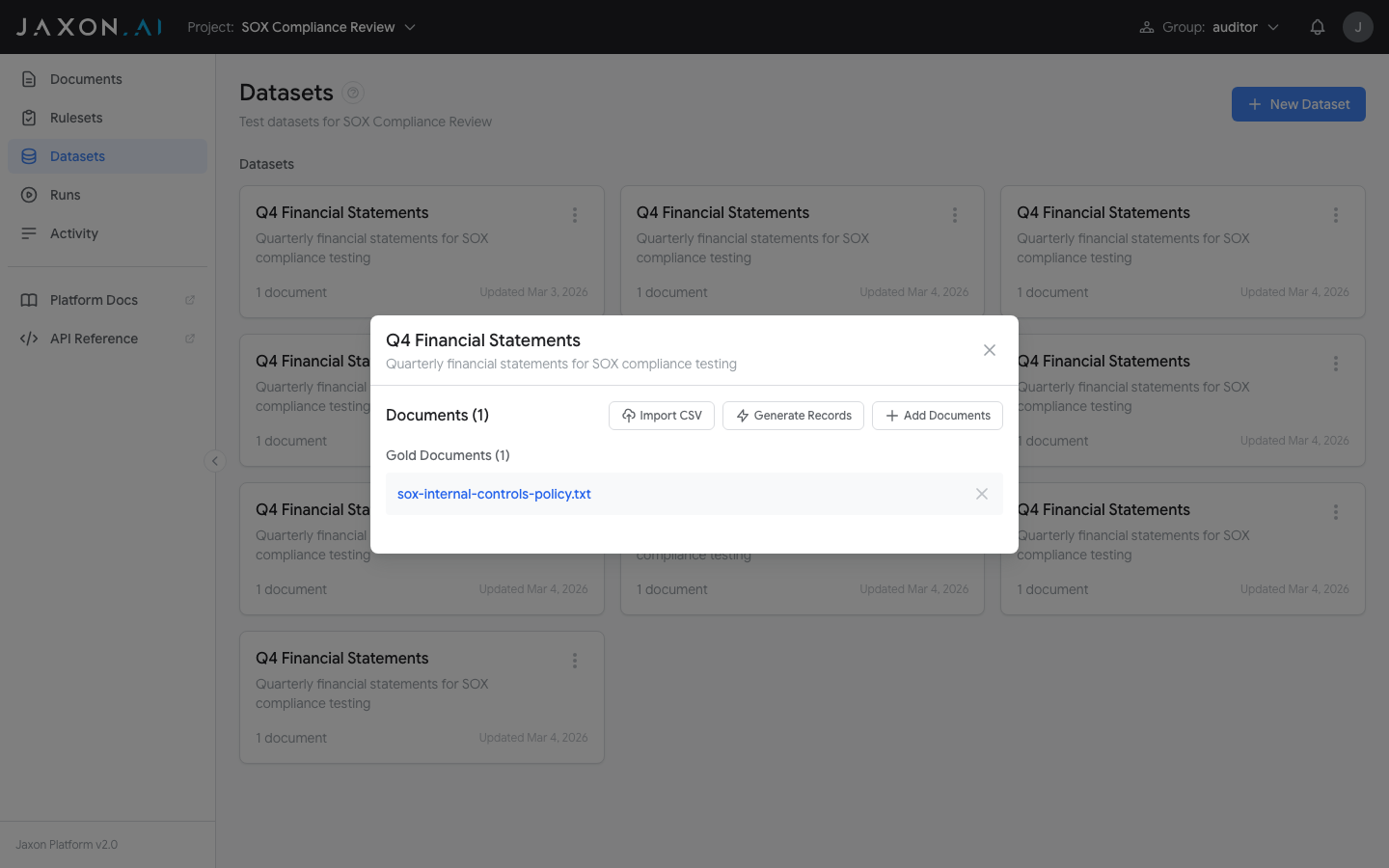
- Import CSV converts each row of a CSV file into a new document in the dataset.
- Generate Records creates new synthetic documents (silver documents) from existing documents in the dataset, using an LLM to expand test coverage.
- Add Documents lets you select documents that have already been uploaded to the Documents section and include them in the dataset.
For meaningful testing, include a mix of compliant and non-compliant examples.
Runs
With a ruleset built and test data prepared, runs execute the ruleset against documents and produce detailed results. A Run is a single evaluation session.
The Runs page, accessible from the sidebar, shows all runs in your project.
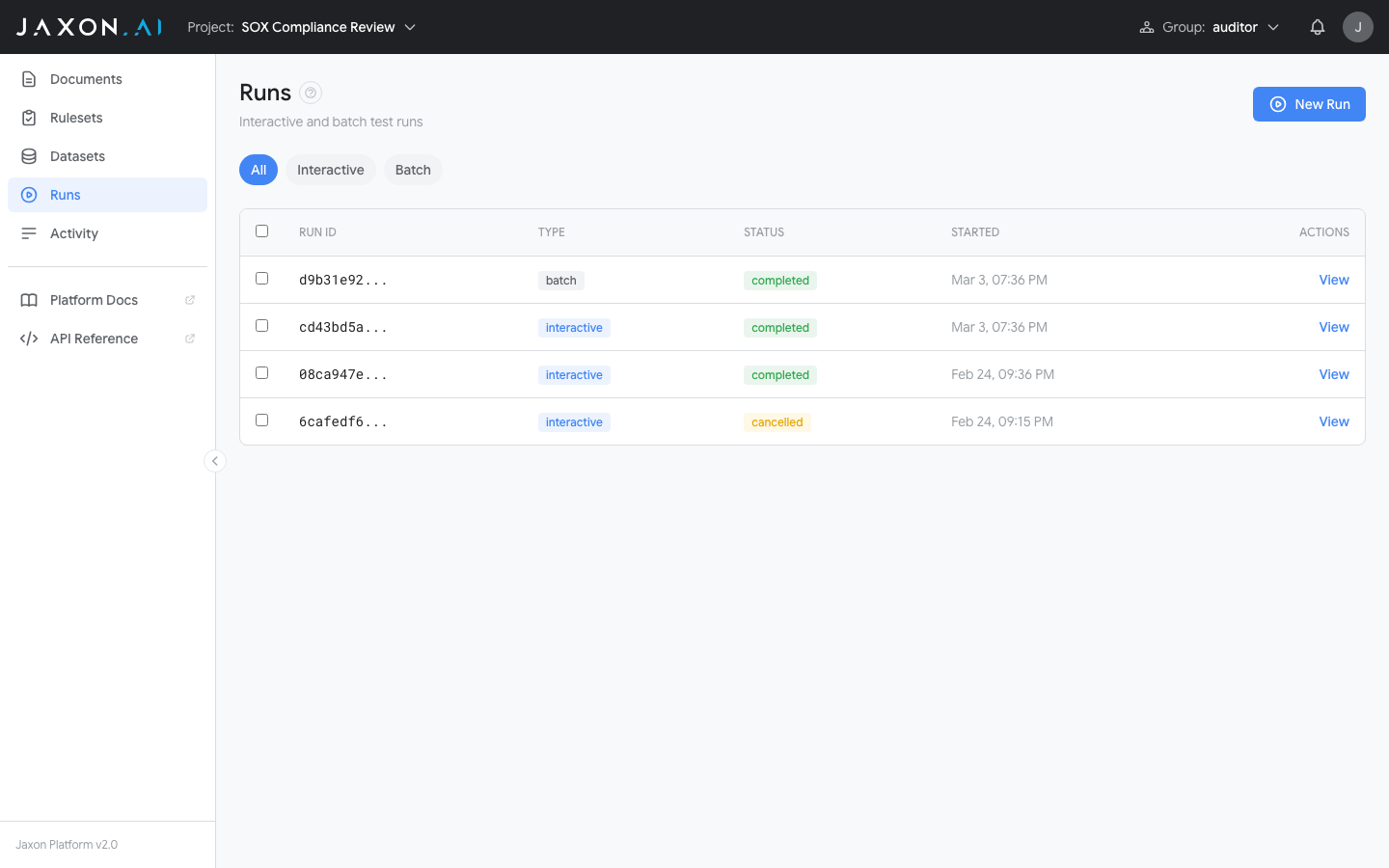
The New Run button opens the configuration dialog.
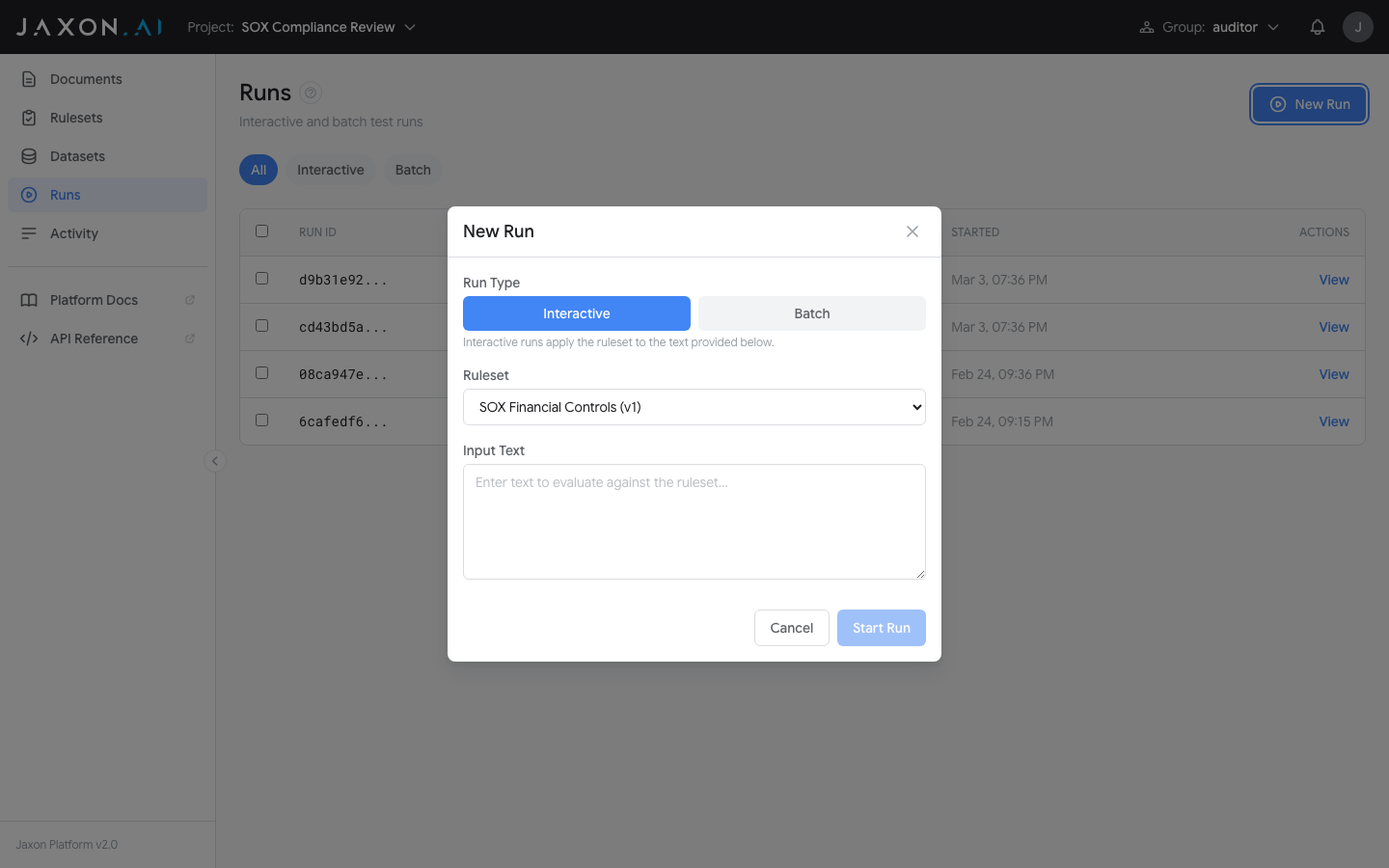
Select a ruleset, then choose a run type:
-
Batch — Select a dataset to run the ruleset against. The two most common test modes are:
- Evaluate produces results for each rule against each document in the dataset.
- Variance Test measures the performance of derived questions and claims over a specified number of runs by analyzing variability in the results.
Additional diagnostic modes (Ablation Test, Counterfactual Test, and the Full Quality Audit) are described on the Runs concept page. - Interactive — Run the ruleset against provided input text. The platform evaluates each rule in the ruleset against that content and returns the results immediately.
Understanding Results
After a run completes, the detail view shows per-rule sections for each document:
- Assertions — Each shows TRUE (compliant), FALSE (violation found), or UNKNOWN (insufficient information)
- Claims — The questions asked of the document and the LLM's extracted answers
If a variance test was included, the Variance tab shows how consistent results were across iterations, with color-coded variance percentages for each claim. See Runs for a detailed explanation of variance results.
Analysis
The Analysis page asks the corpus questions about a project's finished runs. A run is one ruleset, but the corpus reasons across rulesets over one subject at a time — so this is where the two meet.
Choose what you are asking about:
- About one document — questions about a case: what if an answer were different, what would have to change to reach an outcome, which answers the outcome is load-bearing on, whether the rulesets disagree about it, and which values would keep the outcome. Select one or more completed runs — each names a ruleset and version, and a badge flags any run whose ruleset has since moved on — then pin a document present in all of them. The claim values come from those runs.
- About these rulesets — questions about the rules over every possible subject: whether the rulesets can ever contradict each other, what a proposed rule would break, whether an outcome is reachable at all, whether a rule is already redundant, and which values are consistent with an outcome. No run is needed. Tick the corpus rulesets to reason across, and ask — this works on a project with nothing evaluated yet.
The two question sets are separate and worded differently, so you cannot ask a question of the wrong scope. Every answer names the rulesets and versions it was computed over, carries an Advisory — not a determination badge, and offers a "what exactly did I ask?" disclosure with the slice hash and full attestation.
A Corpus rulesets in play row shows which corpus rulesets the selected runs put into scope, and — when those rulesets carry an ordered verdict claim such as a severity or classification level — a mark chip shows the level the rules force for the pinned document, computed from the values the runs extracted.
Analysis reads run results; it never evaluates a ruleset, never extracts a claim, and never writes anything. If you need a determination rather than an advisory answer, create a run. See Analysis for all ten questions, worked examples, and how to read each part of an answer.
Activity
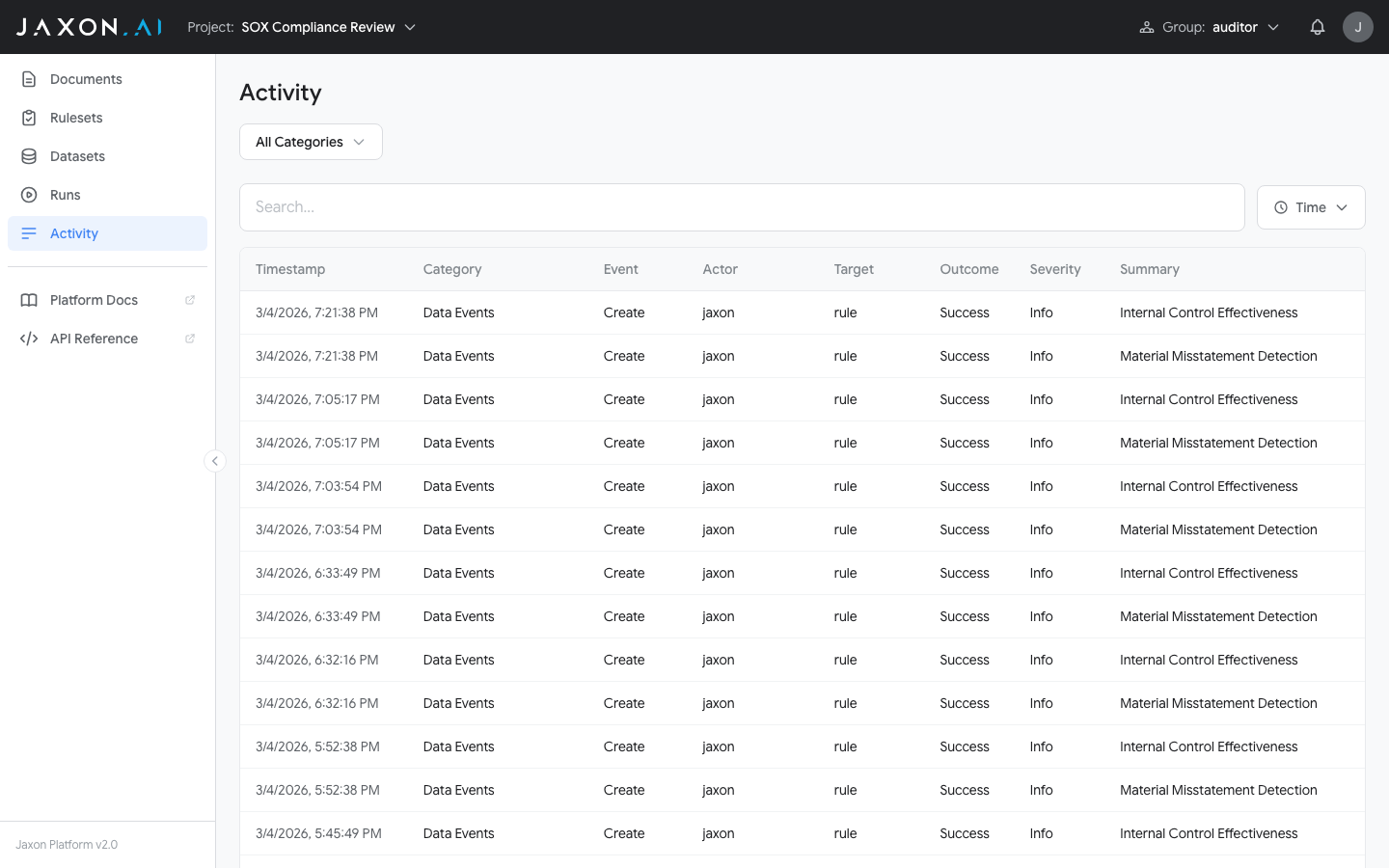
The Activity page, in the workspace menu, is a single feed of everything that has happened across your projects, newest first. It mixes two kinds of entry:
- Runs — one card per ruleset run, showing the outcome (pass, fail, or partial), the ruleset and dataset involved, the pass counts, and when it ran. Clicking the card opens the run's detail view inside its project.
- Data changes — one card per change to a versioned asset: documents, rulesets, and datasets being created, updated, deleted, reverted, or copied. Each card describes the change in a sentence — for example "a.reyes@jaxon.ai updated the ruleset SOX Quarterly Review, creating version 4." — alongside the entity and version, the user responsible, and when it happened. Deletes are flagged High and reverts Moderate. Where a change recorded a payload, Details expands the recorded changes and metadata.
A row of filters sits above the feed, with a search box beneath them. They read left to right in priority order, and each one narrows the choices offered by the ones to its right — so the dropdowns only ever present values that can actually return results:
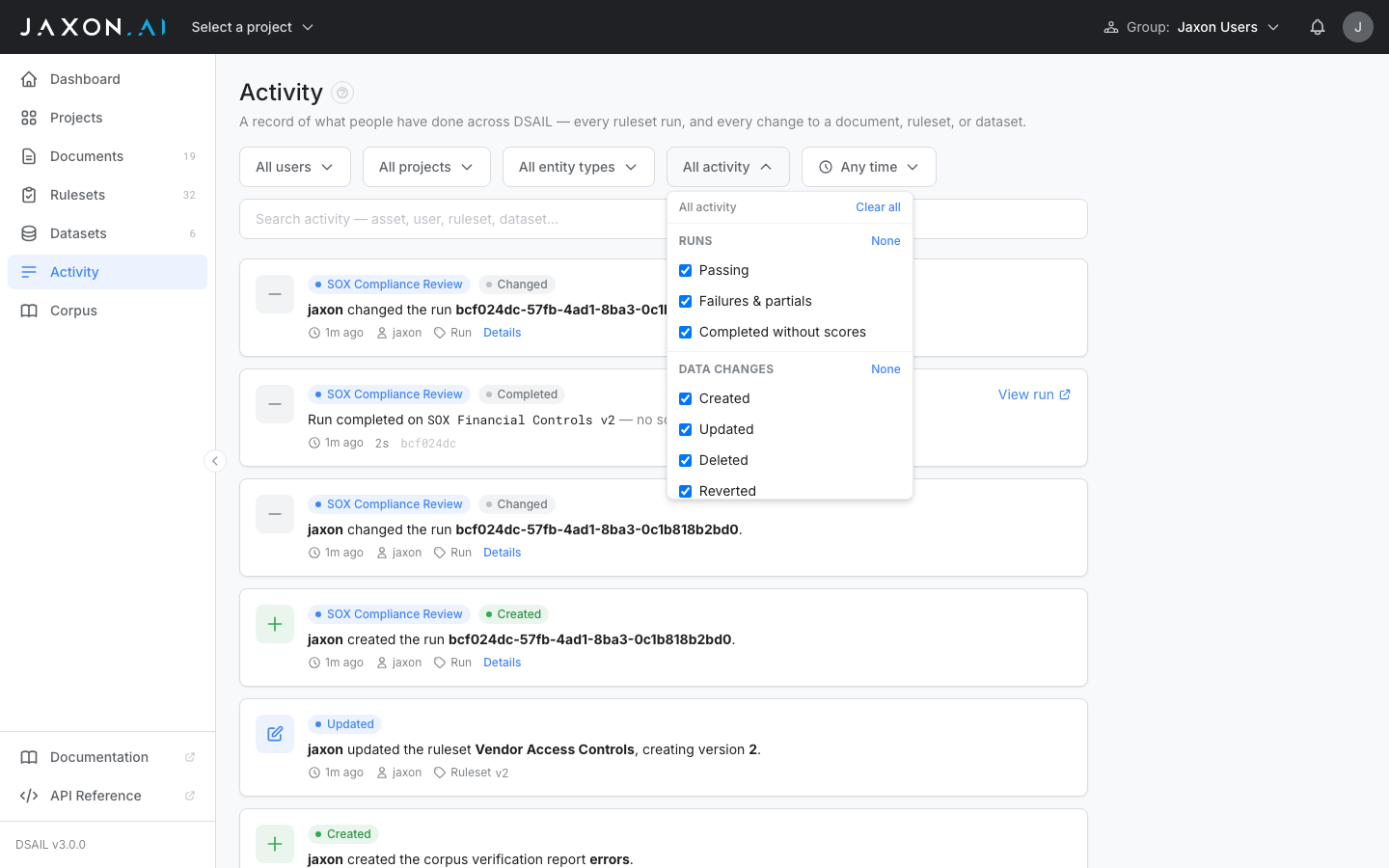
- User — restricts to activity by one or more people. Runs are not attributed to a user in the API, so selecting any user shows data changes only.
- Project — scopes the feed to one or more projects. With users selected, only the projects those users have touched are listed.
- Entity type — restricts to one or more kinds of asset: claims, datasets, documents, projects, rules, rulesets, and runs. The full set is always listed, whether or not anything of that type has changed recently.
The user, project, entity type, and activity filters each accept multiple values, and all four start with everything selected — you narrow the feed by unchecking what you do not want. Each dropdown carries Select all and Clear all actions — use Clear all and then tick one option when you want to see a single user, project, or type, rather than unticking everything else. An active filter shows a count badge on its button so a narrowed dropdown is obvious without opening it.
The user, project, and entity type dropdowns also show how many entries each option would match, given whatever the other filters have selected. An option matching nothing reads 0 and is dimmed, so it is clear before clicking that choosing it would empty the feed. - Activity type — a checklist grouped into Runs (passing, failures & partials, completed without scores) and Data changes (created, updated, deleted, reverted, copied, other), so it is always clear which options apply to which kind of entry. Group headers toggle a whole group at once. A group is hidden when the entity type has already ruled it out. - Time — a preset window looking back from the present (15m, 1h, 6h, 24h, 7d) or a custom start and end. - Search — free text across both kinds of entry: asset names, users, rulesets, datasets, and recorded change payloads. Search narrows the results the filters above have already produced rather than replacing them.
When any filter is active, the feed reports how many entries matched and offers Clear all filters. If a selection higher in the chain makes a lower one impossible, the lower one is cleared rather than left in place returning nothing.
Every card is clickable and opens the page most relevant to it:
| Card | Opens |
|---|---|
Run summary, or a run change |
That run's detail view inside its project |
| Ruleset change | The Ruleset Studio for that ruleset |
| Document change | The Documents list it belongs to |
| Dataset change | The Datasets list it belongs to |
| Project change | That project |
Changes to a deleted asset open the containing list rather than the removed asset. Changes to individual rules and claims are not clickable: those records identify only themselves, with no pointer back to the ruleset or run that contains them.
Activity is a workspace-level page only — to review a single project's activity, use the project filter.
What's Next
That covers the core workflow: policy documents, rulesets created with the wizard, rule refinement in the Studio, test datasets, and evaluation runs.
Deepen your understanding:
- Documents — Versioning, content management, and the two roles documents play
- Rulesets — Rulesets, rules, DSAIL code, and the Ruleset Studio
- Datasets — Organizing test data for batch testing
- Runs — Batch testing, variance analysis, and interpreting results
- DSAIL Language — The formal logic language behind the verification engine
- The Corpus — Claims, axioms, scopes, ordered verdicts, and the design-time layer beside production
- Analysis — The ten questions, the two modes, and how to read an answer
- Vocabulary Workbench — The registry, the merge queue, promoting a rule's claim into the shared vocabulary, and authoring claims, corpus rules and axioms
- Corpus Health — What static verification checks, and what it deliberately does not
Follow a hands-on tutorial:
- SEAD-4 Tutorial — Build a security clearance adjudication workflow using SEAD-4 alcohol guidelines
- SOX Compliance Tutorial — Step-by-step tutorial building a SOX compliance verification setup
- SCG Portion Marking Tutorial — Build a two-guide classification corpus, find the disagreement between the guides, and mark a document
Optimize your rulesets:
- Best Practices — Techniques for improving rule accuracy and getting the most from the platform