Connect Claude to DSAIL
Set up the connection, make sure it works, and check your first policy, step by step. It takes about ten minutes.
What you'll do
DSAIL turns a written policy into rules a program can check, and it gives the same answer every time you check the same facts. This guide adds DSAIL to Claude from the plugin directory and walks you through a small expense policy from start to finish.
How the pieces fit
You write the policy in plain English. Claude turns it into rules and, later, pulls the facts out of each document you submit for review. DSAIL compiles the rules, checks the facts, and reports a result for every rule. DSAIL's logic evaluation never calls an AI model, so the same facts always get the same results.
In this guide you'll type the facts yourself. In real use, Claude reads them from your documents.
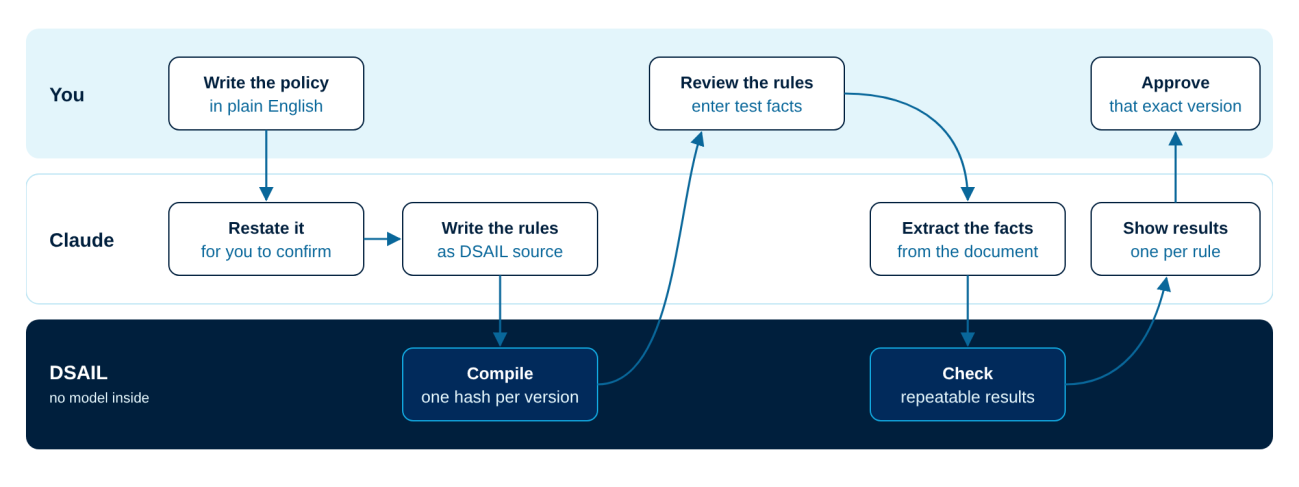
Figure 1. Who does what. DSAIL only compiles and checks; you approve.
Before you start
- A Claude account, using the Claude desktop app or claude.ai in a browser.
- No Jaxon account needed in advance. You create one during Step 3.
- Team or Enterprise plan? If DSAIL doesn't appear when you search in Step 1, ask your organization's admin whether plugins from the directory are allowed.
Use example data only on the shared service
Rulesets you save on the shared DSAIL service can be seen by other users of that service. Don't put confidential policies, customer data, or controlled information there. For real work, contact Jaxon about your options.
Part 1: Add DSAIL to Claude
Step 1. Add the DSAIL plugin
- Open the Plugins page:
- In the desktop app: open Settings (click your name at the bottom-left of the sidebar, then Settings; or press Ctrl + comma on Windows, Cmd + comma on Mac). Then select Plugins, under Customize in the Settings sidebar.
- On the web (claude.ai): select Customize in the left sidebar, then the Plugins tab.
- Type
dsailin the search box. - Find DSAIL: Rules Engine for Written Policy (from Anthropic Directory) and click Add.
- If a box warns that installing grants access to Cowork, click Continue.
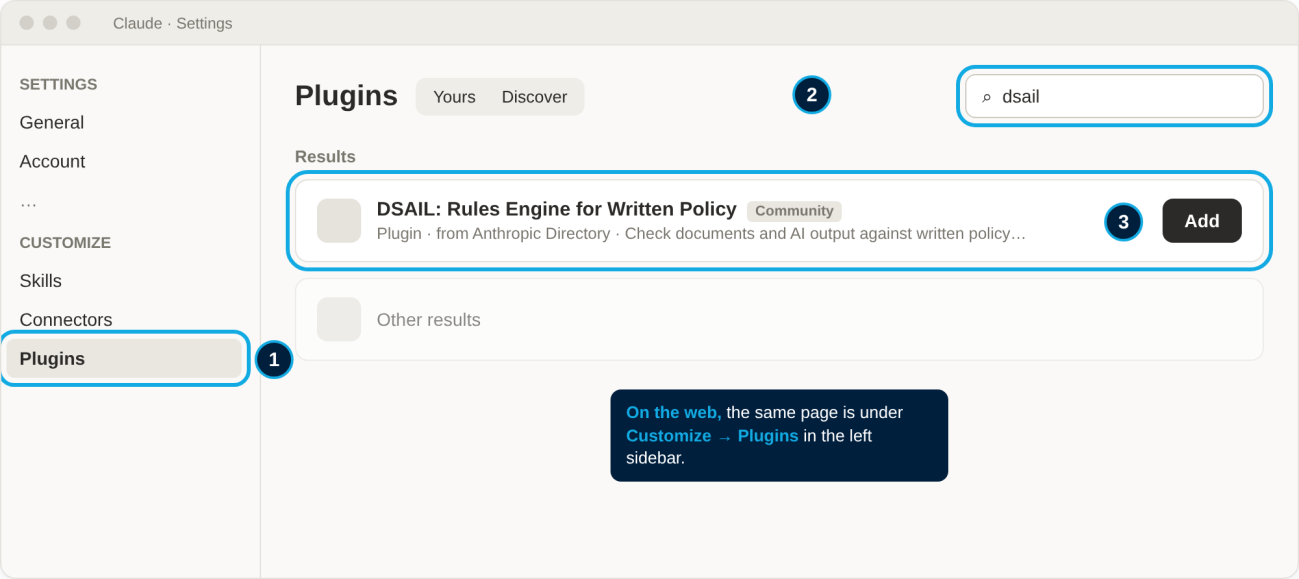
Figure 2. Adding the plugin (illustration). Your other search results will be different.
Step 2. Connect DSAIL
- If the plugin's page didn't open when you clicked Add, click DSAIL: Rules Engine for Written Policy in the Plugins list to open it.
- Below the plugin's title, select the Connectors tab (it shows as Connectors · 1). This tab is on the plugin's own page; it isn't the Connectors item in the Settings sidebar.
- Next to dsail, click Connect. Your browser may open right away.
- If Claude instead shows a Continue button and a short form, click Continue, then Add (keep the defaults), then Connect. Your browser then opens.
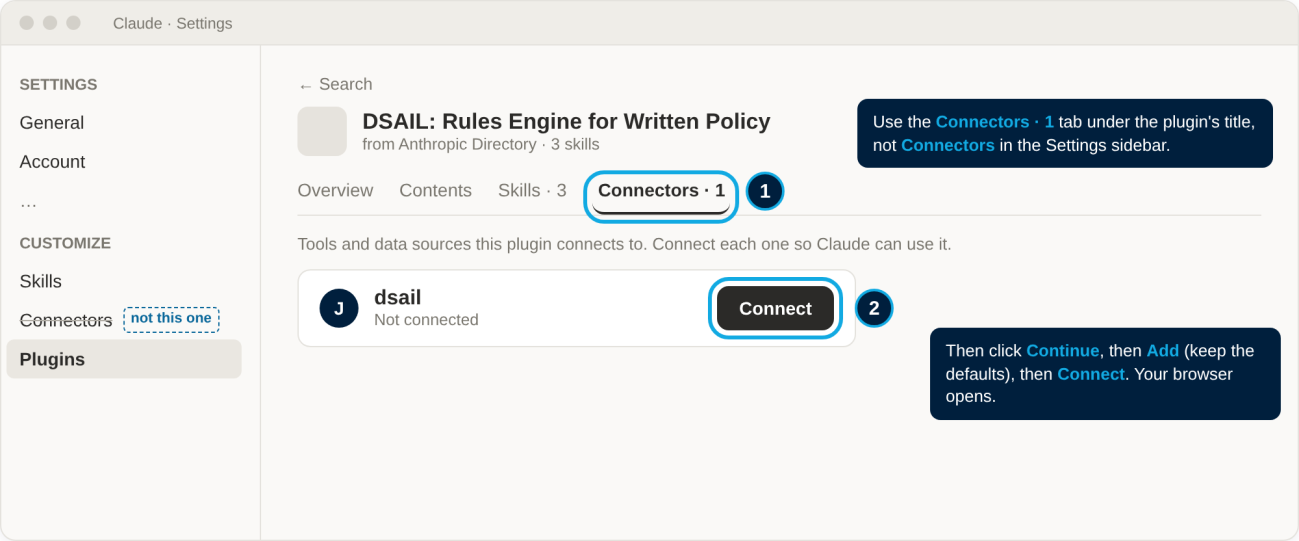
Figure 3. The Connectors · 1 tab on the plugin's page (illustration). It's under the plugin's title, not in the Settings sidebar.
Step 3. Create your account and approve
In the browser:
- Click Continue connecting.
- If you don't have a DSAIL account yet, create one with Google, GitHub, Microsoft, or email.
- Click Approve.
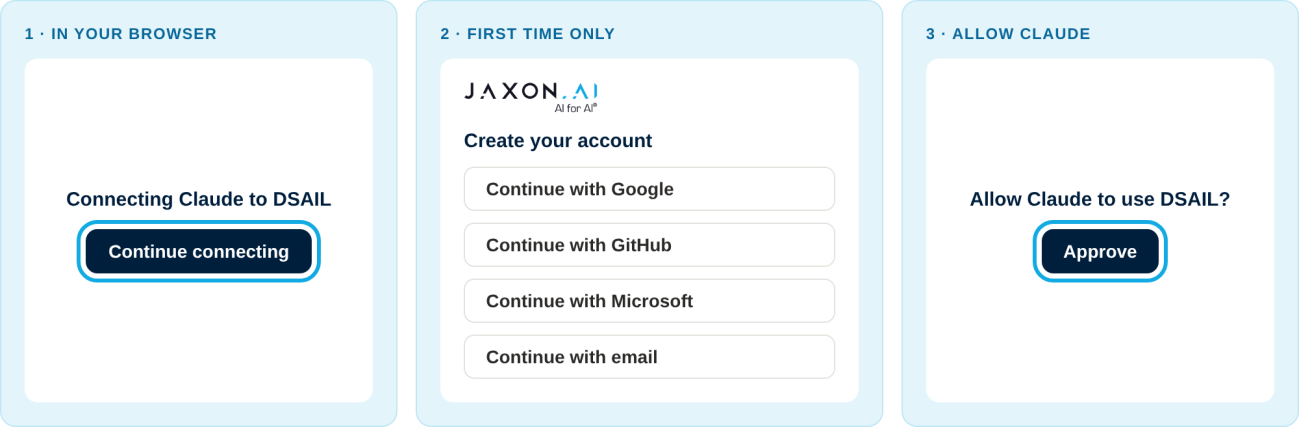
Figure 4. What happens in your browser (simplified illustration; the real pages look different).
Back in Claude, the plugin's Connectors tab now shows dsail as Connected.
Part 2: Make sure it works
Step 4. Ask for your account status
Start a new chat. DSAIL is switched on for new chats by default, so there's nothing to turn on. Send this message:
Using DSAIL, check my account status and tell me whether I'm signed in.
Claude asks permission to use a DSAIL tool. Click Always allow.
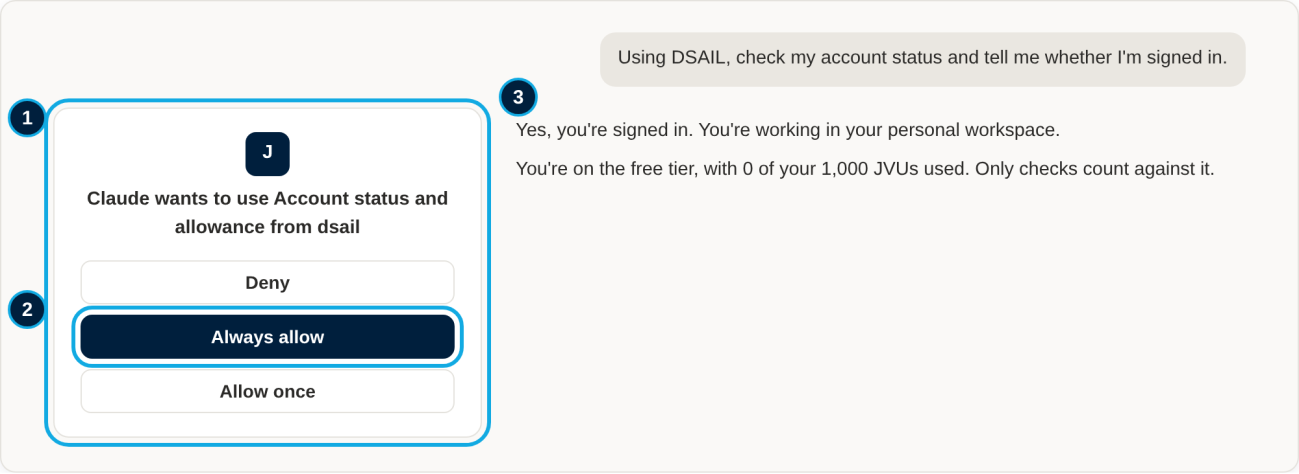
Figure 5. The first permission prompt and a typical reply (illustration).
Expect a few more permission prompts
The first time Claude uses each DSAIL tool (for example, to compile rules, open the review panel, or run a check), it asks again. Choose Always allow each time. If you choose Allow once instead, Claude asks again on every call. To change these later, go to Settings > Connectors (this time, the one in the sidebar), click dsail, then Tool permissions.
It's working if Claude reports:
- that you're signed in,
- your plan and how much of your allowance you've used (for example, "free tier, 0 of 1,000 JVUs used"; JVUs are DSAIL's usage units, explained under Usage and limits), and
- your personal workspace (rather than a team's).
If Claude says it has no DSAIL tools, see Troubleshooting.
Part 3: Try it with an expense policy
This example comes from the DSAIL quickstart for claude.ai. It has two rules:
- An expense over 75 USD needs an itemised receipt.
- No single expense claim may exceed 5,000 USD.
Step 5. Paste the policy
In the same chat, send:
Turn this into rules a program can check: Expenses over 75 USD need an itemised receipt. No single claim may exceed 5,000 USD.
Claude may restate the policy in its own words and ask you to confirm it, or it may go straight to writing the rules. Both are normal.
If Claude asks, read its restatement carefully. For example, "over 75 USD" means a 75.00 USD expense does not need a receipt; if that's not what you meant, say "75 USD or more". In our test, Claude also asked whether an expense and a claim are the same thing. A reply that settles both:
Yes, that's right. Each claim is one expense with one amount, checked against both rules.
Step 6. Review the rules
Claude writes the rules, and DSAIL compiles them, meaning it turns them into a ruleset a program can check. Compiling also gives the ruleset a unique ID, called a hash, that changes if even one character changes. Claude then opens the review panel (Figure 6), which lists each rule. Each rule starts collapsed; click the arrow next to it to expand it and see the questions it asks:
- What is the total amount of this expense claim, in USD?
- Is an itemised receipt attached to this claim? (yes, no, or unknown)
The panel calls these questions claims. Claude names the rules itself, so yours may be worded differently, such as "Itemised receipt over 75" and "Claim within 5000 cap". If the panel doesn't appear in your app, Claude shows the same information as text, and everything below still works by chat.
Step 7. Check a test expense
- In the review panel, open the receipt rule.
- Enter
120for the amount. The unit is already set to USD. - Choose No for the receipt.
- Click Check inside the rule, or Run check at the bottom of the panel.
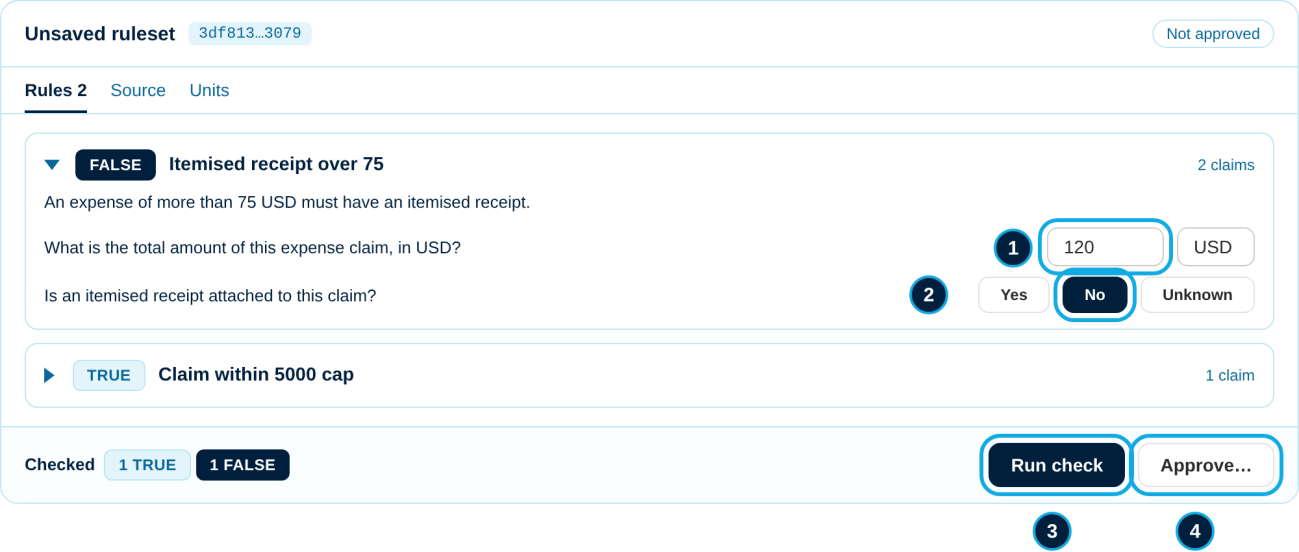
Figure 6. The review panel after a check (simplified illustration with real results). (1) Enter the amount. (2) Choose No. (3) Run the check. (4) Approve when you're satisfied.
You should see:
| Rule | Result | Why |
|---|---|---|
| Receipt rule | FALSE | The expense is over 75 USD and has no receipt. |
| Cap rule | TRUE | 120 USD is under the 5,000 USD cap. |
Reading the results, below, explains what each result means.
No panel?
Ask Claude instead: "Check an expense of 120 USD with no itemised receipt."
Try a few more
We ran these cases against the expense rules. You should get the same results.
| Amount | Receipt? | Receipt rule | Cap rule | Why |
|---|---|---|---|---|
| 120 USD | No | FALSE | TRUE | Over 75 USD with no receipt |
| 75 USD | No | TRUE | TRUE | Exactly 75 is not over 75 |
| 240 USD | Unknown | UNKNOWN | TRUE | The receipt rule can't be decided without that fact |
| 1,250 USD | No | FALSE | TRUE | Over 75 USD with no receipt; still under the cap |
| 6,200 USD | Yes | TRUE | FALSE | Receipt attached, but over the cap |
Step 8. Approve and save
When the rules behave the way you expect, click Approve… at the bottom-right of the review panel, next to Run check (or tell Claude you approve), and give the ruleset a name, such as expense-policy.
You're approving the ruleset itself, not the results of any checks. Your approval is tied to the exact version you reviewed. If a rule changes, the hash changes, and the updated ruleset needs to be reviewed and approved again. After you approve, the Approve button stays greyed out. That's expected; you approve the ruleset once, not each check.
In a future chat, ask Claude to "list my DSAIL rulesets" to find it again.
What's next? Try a policy of your own. Paste it the same way you did in Step 5, confirm Claude's reading of it, and check a few test cases before you approve.
Reading the results

Figure 7. Each rule returns exactly one of three results.
- One result per rule, and no overall verdict. DSAIL doesn't say "approved" or "rejected". Deciding what a FALSE means for your process is up to you.
- "Unknown" is a valid answer. If a fact isn't in the document, it should be answered "unknown", not guessed. Any rule that needs that fact returns UNKNOWN.
- Same facts, same results. Checking the same facts against the same approved version always gives the same answer, whether you run it today or months from now.
- Claude reads the documents; DSAIL decides. DSAIL never sees your files. Claude extracts the facts, using a set of questions DSAIL generates. DSAIL checks only the values it's given.
DSAIL also has a fourth result, AMBIGUOUS, but a check from the review panel never returns it.
Usage and limits
- Only checks count toward your allowance. Compiling, reviewing, saving, and approving rulesets are free.
- Checks are measured in Jaxon Verified Units (JVUs). One JVU is one rule checked against up to 1,000 characters of facts. Checking one expense against both rules uses about two JVUs.
- The free tier included 1,000 JVUs when this guide was written. Ask Claude for your DSAIL account status to see your current allowance.
- When the allowance runs out, checks stop and Claude gives you a link to upgrade. Everything else keeps working.
Troubleshooting
Claude usually explains a problem in plain words. Sometimes it also quotes a DSAIL error code, which is listed in the last column so you can match it.
| What you see | What to do | Error code Claude may mention |
|---|---|---|
| DSAIL doesn't appear when you search Plugins | Check the spelling (dsail). On a Team or Enterprise plan, ask your admin whether directory plugins are allowed. |
|
| Claude says it has no DSAIL tools | Click + in the message box, choose Connectors, and make sure dsail is switched on. Then start a new chat. | |
| Claude asks permission every time | You chose Allow once. Choose Always allow next time, or change it under Settings > Connectors > dsail > Tool permissions. | |
| Claude says you need to sign in, or your sign-in expired | On the plugin's page, open the Connectors tab, disconnect dsail, and connect again (Steps 2 and 3). | CREDENTIAL_REQUIRED, CREDENTIAL_INVALID |
| Claude says you've used your check allowance | Follow the upgrade link Claude gives you. Compiling and saving still work. | ENTITLEMENT_EXCEEDED |
| Claude says a value was in the wrong format | A fact was the wrong type, such as text where a number belongs. Correct it and check again; Claude lists every field that failed. | VALIDATION_REJECTED |
| Claude says the rules didn't compile | Ask Claude to fix the rules and compile again. | COMPILE_FAILED |
| The review panel doesn't appear | Your app doesn't show the panel. Claude shows the same information as text, and you can review, check, and approve by chat. |
Appendix: the rules Claude wrote
These are DSAIL rules we compiled for this guide. Claude words the rules a little differently each time, which gives them a different hash, but they should behave the same way.
version 1.3;

// @ask amount What is the total amount of this expense claim?
// @unit amount USD
// @range amount 0..10000000
declare amount as numeric;
// @ask hasItemisedReceipt Is an itemised receipt attached to this expense claim?
declare hasItemisedReceipt as boolean;

// An expense over 75 USD must have an itemised receipt attached.
assert receipt_over_75 { IF amount > 75 "USD" THEN hasItemisedReceipt ELSE True END };
// No single expense claim may exceed 5,000 USD.
assert within_cap { amount <= 5000 "USD" };
Ruleset hash: 5de543b087b2dbfb678e2af58866036b467f33a8510c2b698d989fd99b069f4d
Learn more
- DSAIL quickstart for claude.ai
- DSAIL MCP tools reference
- DSAIL error codes
- Getting started with connectors in Claude
- DSAIL support
- Connect ChatGPT to DSAIL
Figures 2 through 6 are simplified illustrations. Claude's and Jaxon's screens change over time, so labels and layouts may differ from what you see. The check results in Figure 6 and in the tables come from live checks run on DSAIL in October 2026.