Datasets
Datasets are collections of Documents assembled for batch testing. They answer the question: "How does my ruleset perform across a range of inputs?"
Rather than testing one document at a time, a dataset lets you run a ruleset against many documents in a single batch, producing results you can compare and analyze systematically.
What Datasets Are For
With a dataset, you can:
- Batch test — Run a ruleset against many documents at once instead of one at a time
- Measure consistency — Use variance testing to see how stable results are across repeated runs
- Organize test data — Group documents by scenario, compliance area, or testing purpose
- Iterate systematically — Modify DSAIL rules or questions, re-run against the same dataset, and compare results
How Datasets Work
The typical workflow for using datasets is:
- Create a dataset with a name and description
- Add documents from your project's document library
- Optionally generate synthetic records to expand coverage
- Run tests against the dataset using Runs
Gold and Silver Documents
Documents in a dataset are classified by quality tier:
- Gold documents
- Documents you created or uploaded yourself. Gold data is considered authoritative because a human has provided or reviewed the content.
- Silver documents
- Synthetic records generated by an LLM. Silver data is useful for expanding a dataset quickly, but should be reviewed for accuracy since it is machine-generated.
Working with Datasets
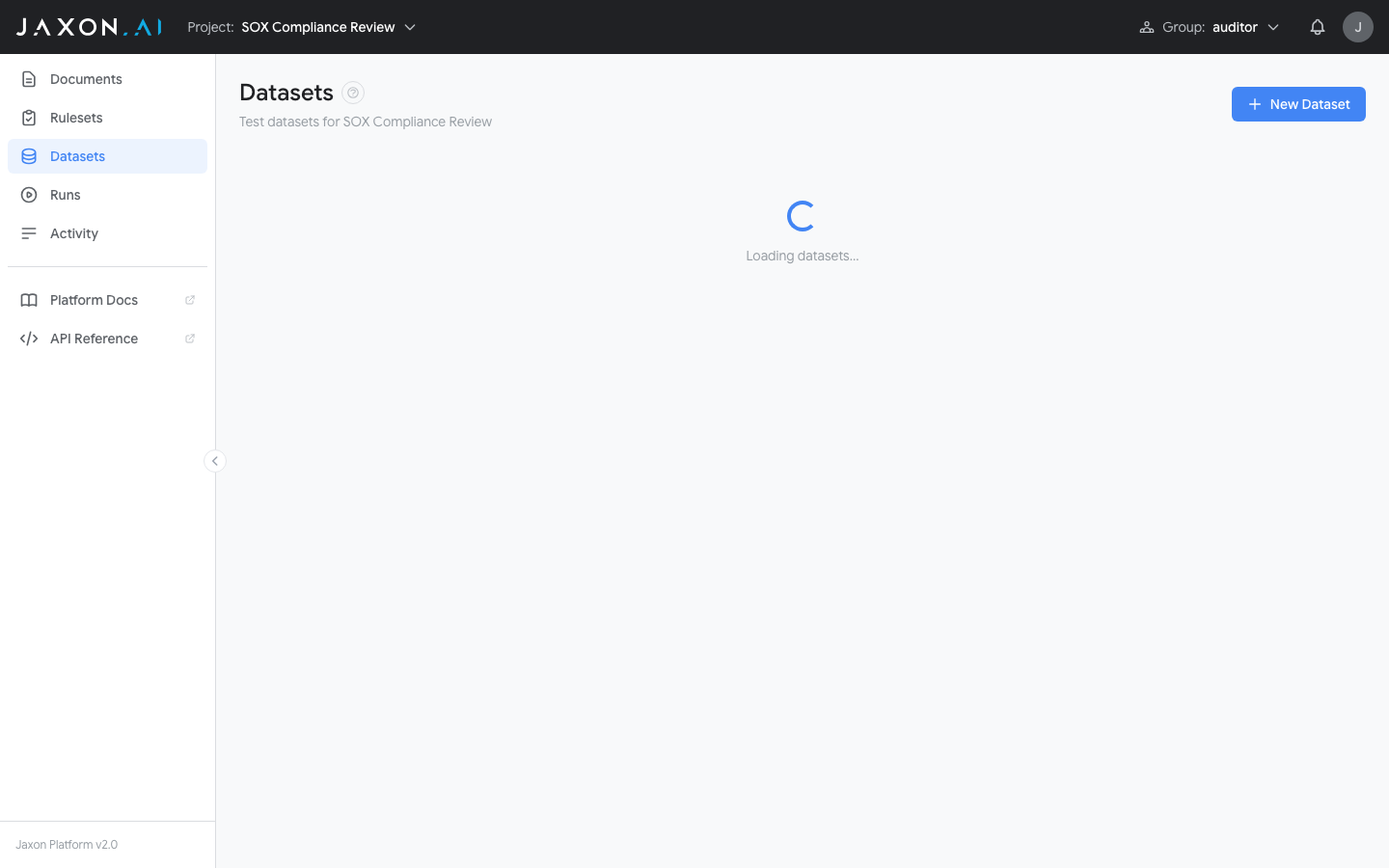
There are two Datasets views. The project Datasets page (inside a project) shows that project's datasets.
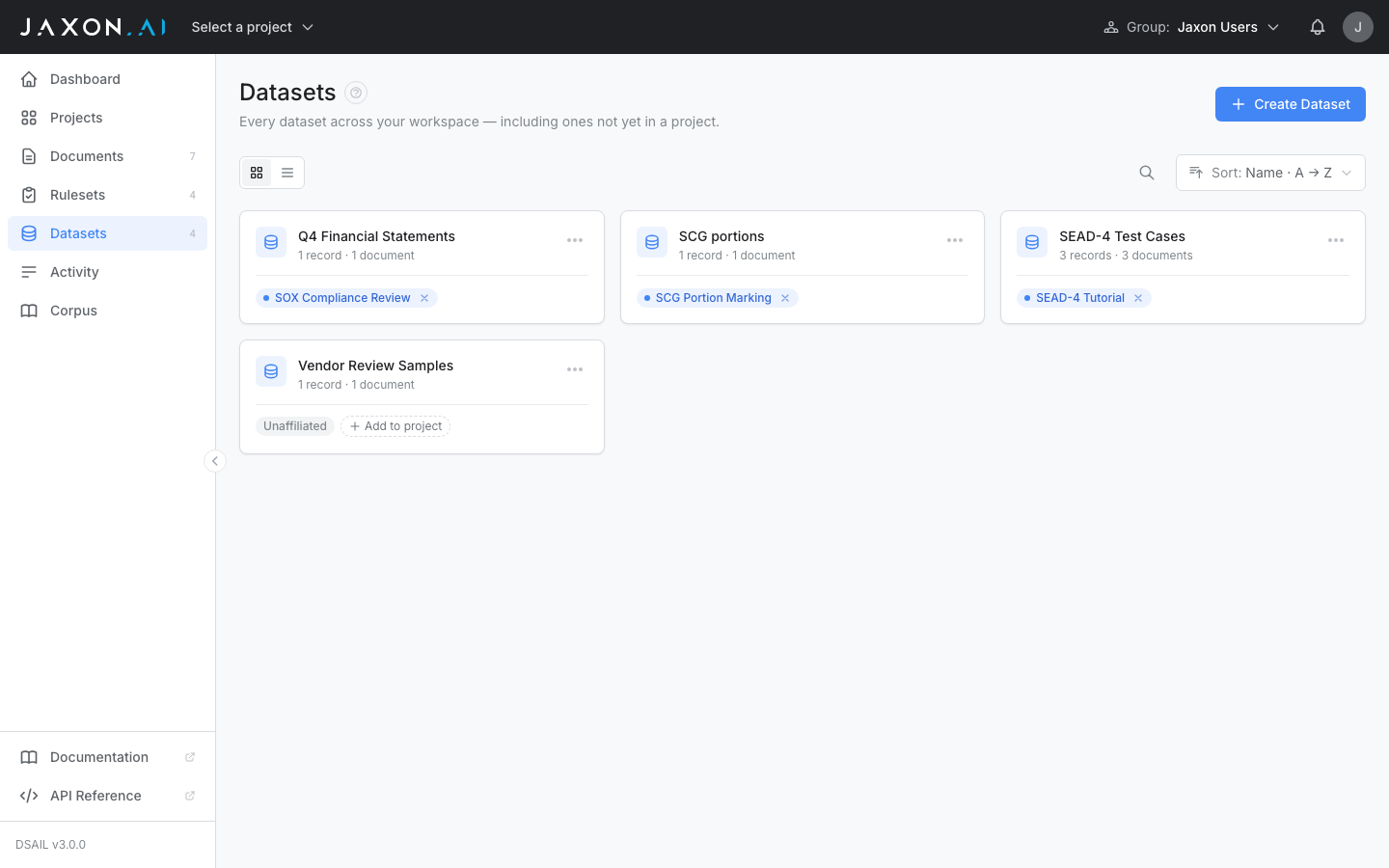
The workspace-level Datasets page shows every dataset across your workspace, including unaffiliated datasets that aren't in any project yet.
Datasets and Projects
A dataset belongs to at most one project. Datasets created from the workspace Datasets page start unaffiliated; you can add one to a project with the row's Add to project control, or remove it again with the × on its project chip.
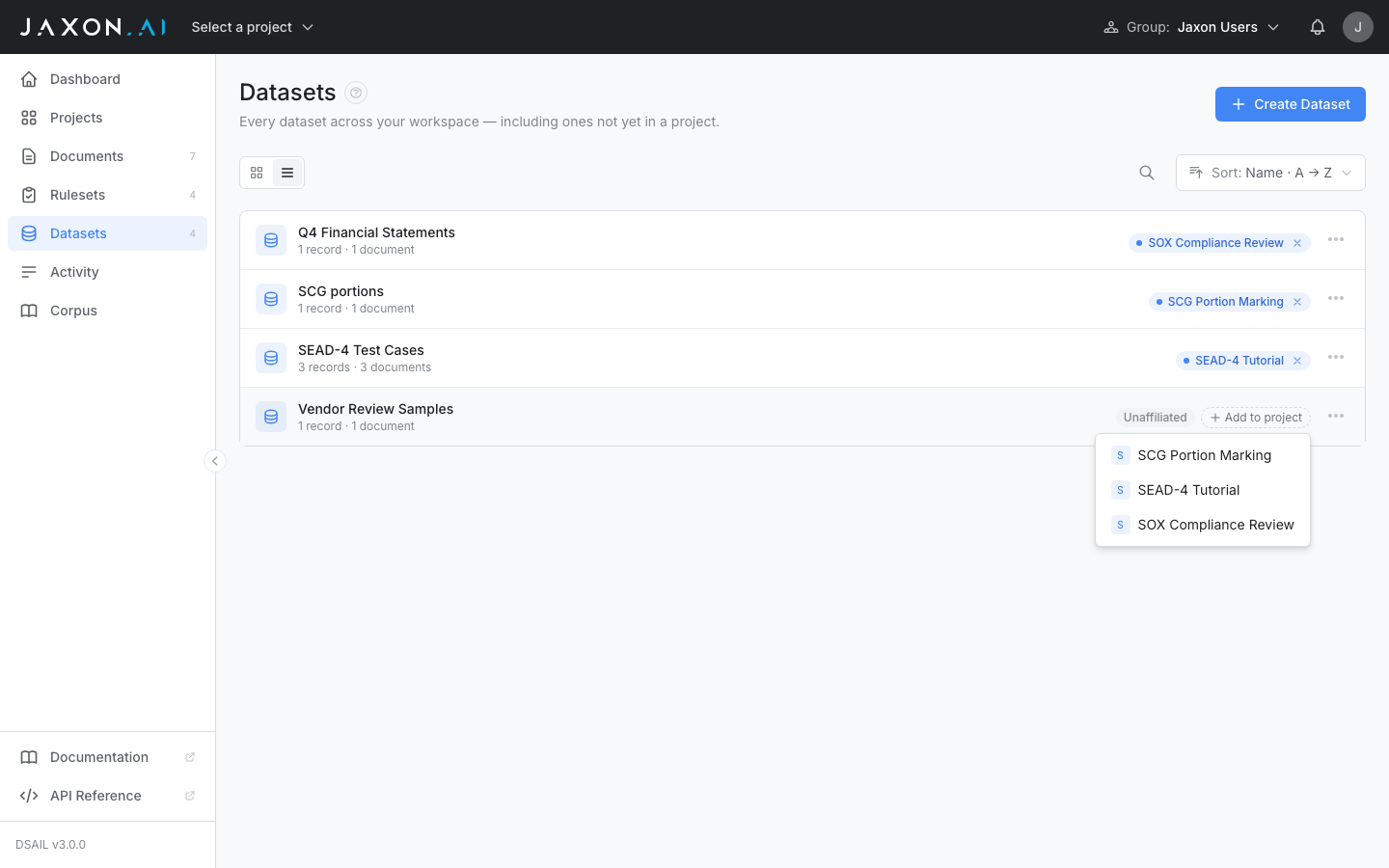
Association determines what you can do with a dataset. Batch runs are project-scoped, so only datasets that belong to the project appear in the New Run dialog's dataset list — an unaffiliated dataset must be added to a project before you can run a ruleset against it.
Once a dataset has been used in a run, it cannot be removed from its project, because those runs reference the project. The platform tells you this when you add the dataset, not only when you try to remove it.
Creating a Dataset
- Navigate to the Datasets page using the sidebar — either the project page or the workspace page
- Click Create Dataset
- Enter a name and optional description
A dataset created from the workspace page starts unaffiliated; one created inside a project belongs to that project.
Adding Documents
After creating a dataset, open it to view its contents. Documents are organized into Gold and Silver sections. Click Add Documents to select documents from the library. You can add the same document to multiple datasets.
Importing Documents
You can create documents in bulk by importing a CSV file. Each row in the CSV becomes a new document added to the dataset as gold data.
To import documents:
- Open an existing dataset by clicking on it
- Click Import CSV in the dataset detail modal
- Select a CSV file where each row represents a new document
- The platform creates a new document for each row and adds it to the dataset
The CSV should be a single column of text, one document per row. A header row (a first row whose value is a column name such as document_text, text, or content) is detected and skipped automatically, so it does not become a document.
This is useful when you have a large number of test cases prepared in a spreadsheet and want to load them all at once rather than creating each document individually.
Generating Synthetic Records
To expand a dataset without manually creating every document, use synthetic data generation. The dataset must already contain at least one gold or silver record to serve as a basis for generation.
- Click Generate Records from the dataset's menu
- Select the LLM model to use for generation
- Choose how many records to create (1, 10, or 100)
- Optionally check "Gold only" to generate from gold documents only
Generated records are tagged as silver data and should be reviewed for accuracy.
Deleting Datasets
Datasets are deleted from the project Datasets page, one at a time from a row's menu or several at once. Bulk selection is available in list view only — switch away from card view to see the checkboxes — and only if your active group has write access. The workspace Datasets page does not offer bulk selection.
Select one or more datasets and click Delete selected. The confirmation dialog lists what you are deleting, notes how many records go with it, and requires you to type delete before the button activates. Deleting a dataset also deletes its runs and their results.
A dataset that is still generating synthetic records can't be selected at all until generation finishes. A dataset with an active or pending run blocks the deletion: the dialog switches to a "Can't delete these datasets" panel naming each blocked dataset and why. Deletion is all-or-nothing, so nothing in the batch is deleted until every dataset in it can be. Wait for the run to finish, then try again.
Deletion cannot be undone from the interface, and it removes the dataset for everyone in your group.
Related Concepts
- Rulesets define the rules that are tested against dataset documents
- Documents provide the content that appears in datasets
- Runs execute rulesets against datasets for batch testing
- DSAIL Language defines the assertions evaluated during test runs