SEAD-4 Tutorial
In this tutorial, you will build a security clearance adjudication workflow based on the 2017 SEAD-4 Adjudicative Guidelines. You will create a policy document for alcohol-related security concerns, generate a ruleset from it, refine the rules in the Ruleset Studio, build a test dataset, and run a batch evaluation. By the end, you will have a working ruleset that can evaluate investigative reports for potential security concerns related to alcohol.
Prerequisites
This tutorial assumes you have access to a running Jaxon platform instance. If you have not used the platform before, start with the Getting Started guide for an overview of the workflow.
Step 1: Set Up Your Project
Create a dedicated project so your tutorial work stays separate from other data.
- Click the Project dropdown in the top header bar.
- Select New Project.
- Name it
SEAD-4 Tutorialand click Create Project.
Step 2: Create Your Policy Document
The SEAD-4 Adjudicative Guidelines define conditions that raise security concerns during personnel vetting. You will create a document containing the alcohol-related provisions so the platform can extract verifiable rules from it.
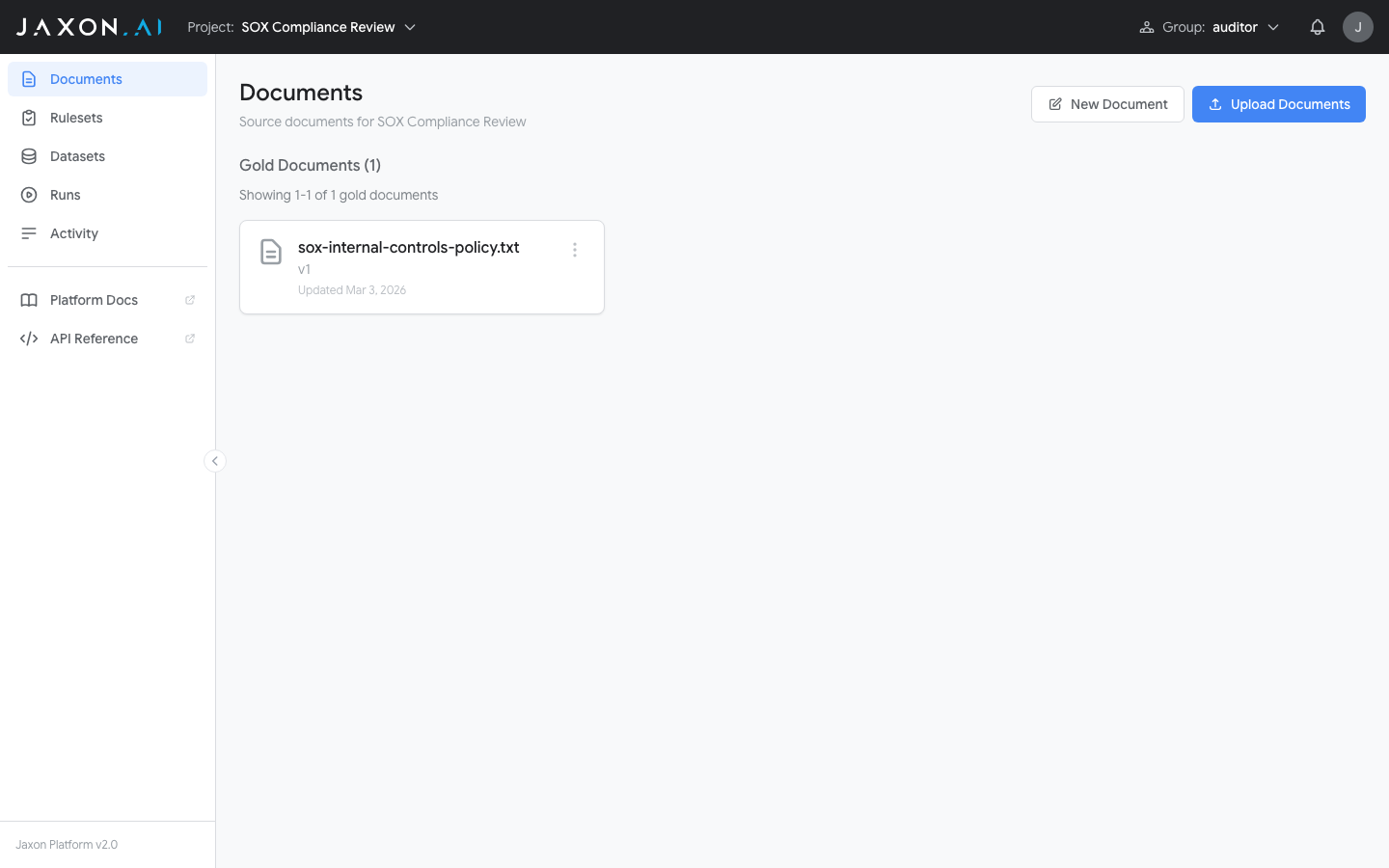
Navigate to Documents in the sidebar.
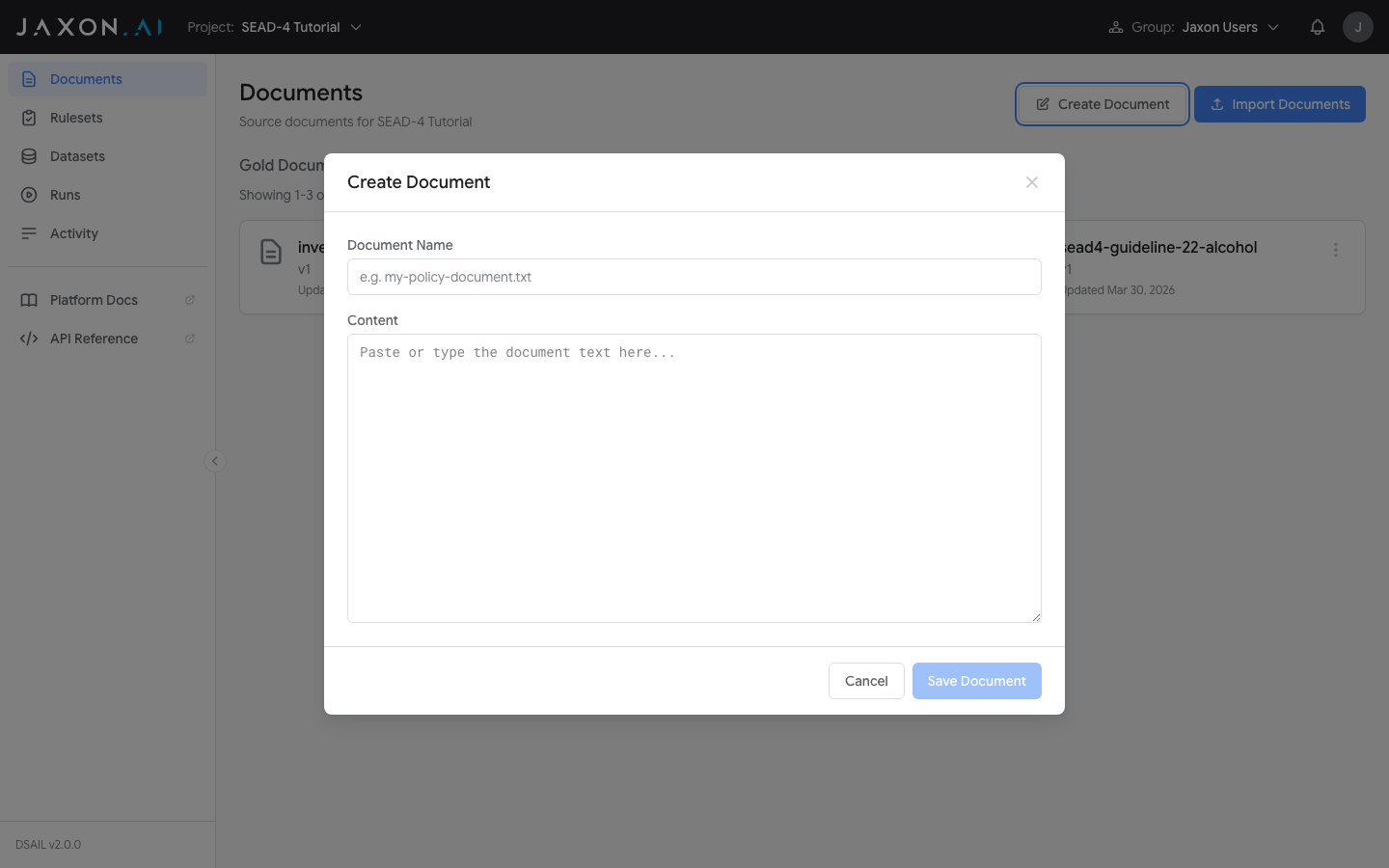
- Click Create Document.
- In the Document Name field, enter
SEAD-4 Guideline 22 - Alcohol. -
Paste the following text into the Content area. This is taken directly from Guideline 22 of the 2017 SEAD-4 Adjudicative Guidelines:
22. Conditions that could raise a security concern and may be disqualifying include: (a) alcohol-related incidents away from work, such as driving while under the influence, fighting, child or spouse abuse, disturbing the peace, or other incidents of concern, regardless of the frequency of the individual's alcohol use or whether the individual has been diagnosed with alcohol use disorder; (b) alcohol-related incidents at work, such as reporting for work or duty in an intoxicated or impaired condition, drinking on the job, or jeopardizing the welfare and safety of others, regardless of whether the individual is diagnosed with alcohol use disorder; (c) habitual or binge consumption of alcohol to the point of impaired judgment, regardless of whether the individual is diagnosed with alcohol use disorder; (d) diagnosis of alcohol use disorder requiring treatment, including but not limited to counseling, medication, or participation in a recovery program; (e) the failure to follow treatment advice once diagnosed; (f) alcohol consumption, which is not in accordance with treatment recommendations, after a diagnosis of alcohol use disorder; (g) failure to provide information or providing dishonest or incomplete information regarding relevant facts about the individual's alcohol use or treatment. -
Click Save Document.
Step 3: Create a Ruleset
Now turn that policy into verifiable rules using the creation wizard.
- Navigate to Rulesets in the sidebar.
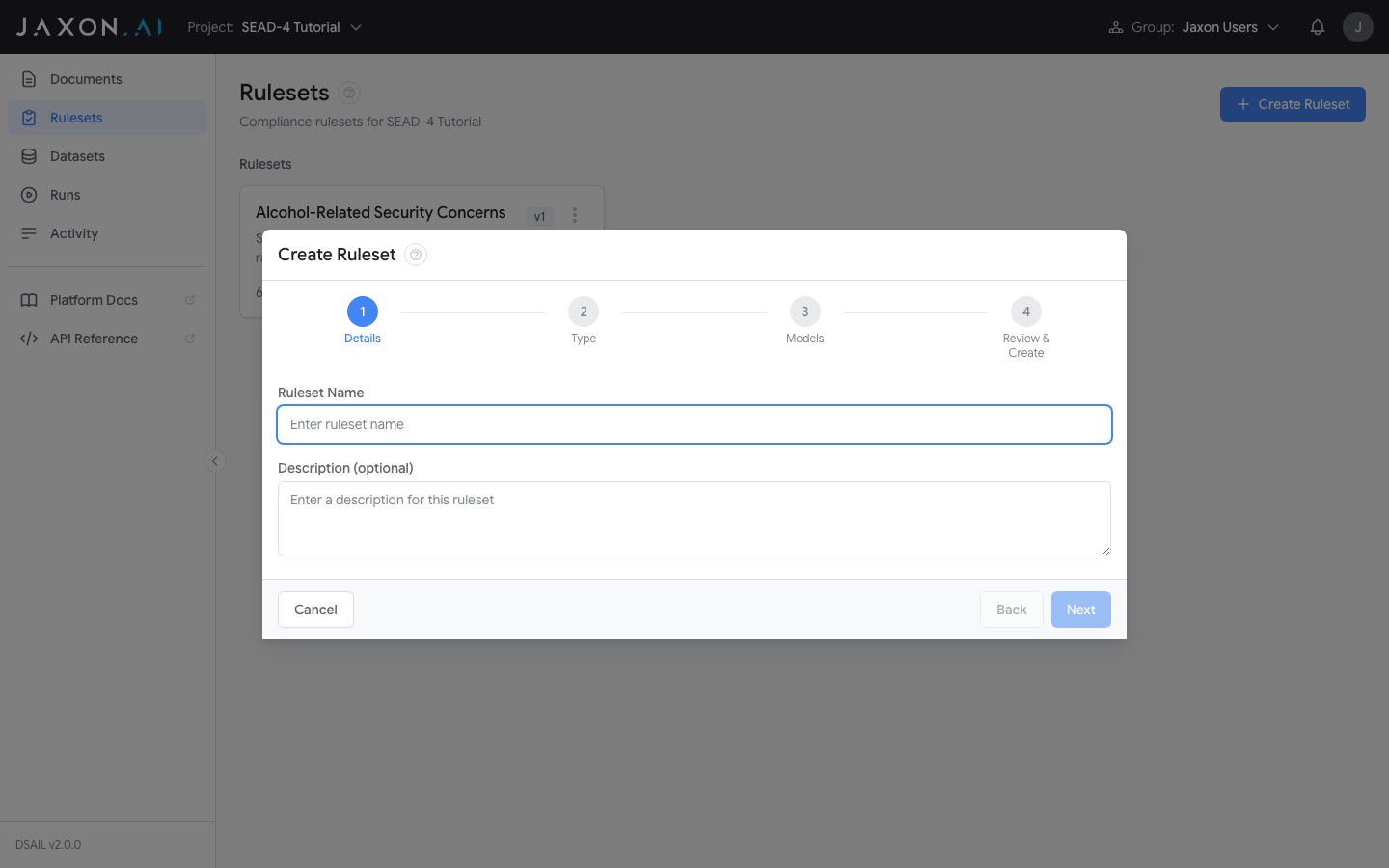
- Click Create Ruleset.
The wizard opens at the Details step.
Step 1 — Details
- Enter the Ruleset Name:
Alcohol-Related Security Concerns - Optionally add a description, e.g.,
SEAD-4 Guideline 22 - Conditions that could raise a security concern related to alcohol. - Click Next.
Step 2 — Type
- Select From Policy Documents.
- Click Next.
Step 3 — Models
- Select a Configuration Model from the dropdown (used for rule extraction and DSAIL generation).
- Select a Run Model from the dropdown (used when evaluating content against the ruleset).
- Click Next.
Tip
If you are unsure which models to choose, select the same model for both. You can change these later from the Ruleset Studio.
Step 4 — Select Documents
- Check the box next to your
SEAD-4 Guideline 22 - Alcoholdocument. - Click Next.
Step 5 — Set Theme
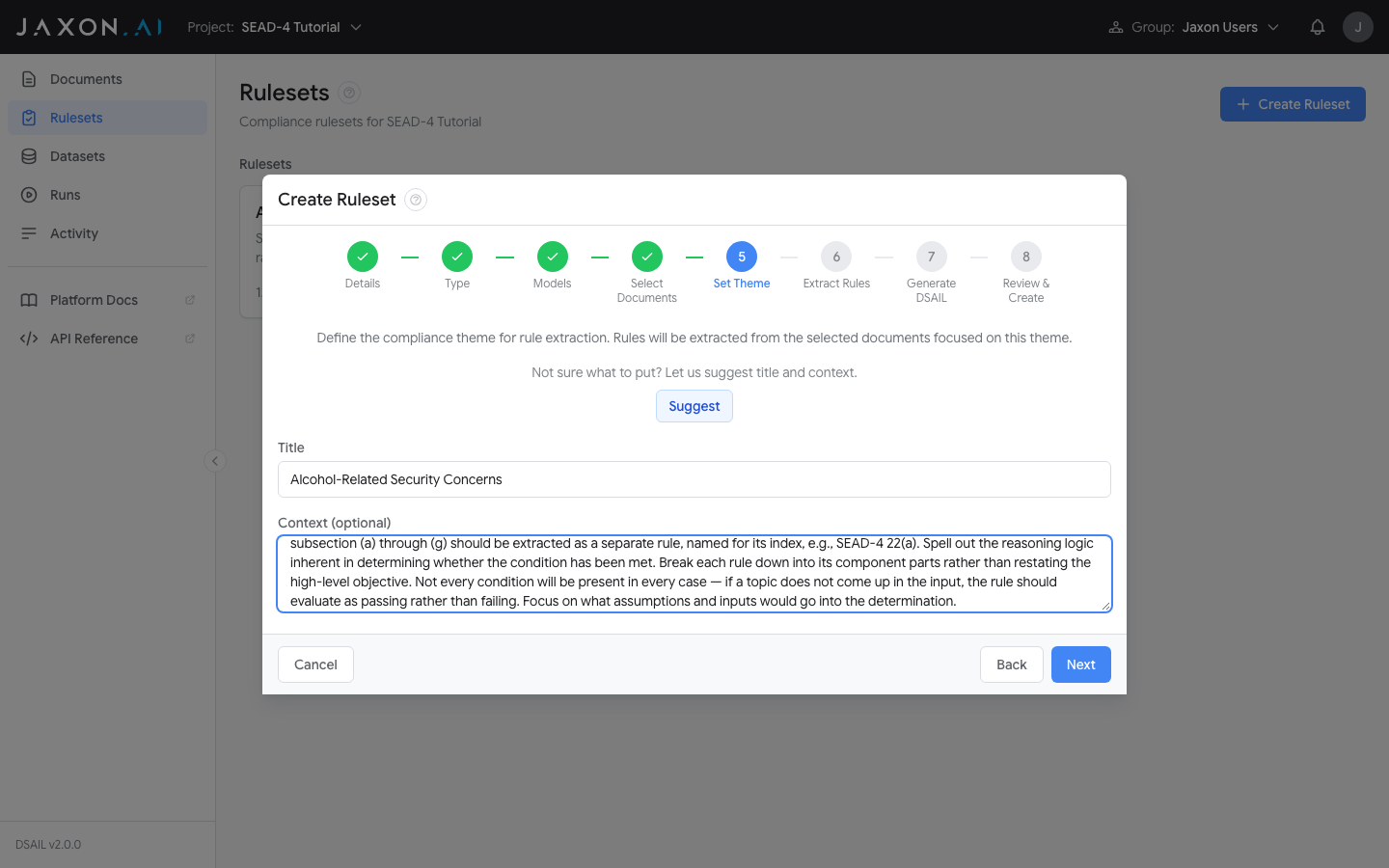
Rather than using auto-extraction, you will define the theme manually to guide the platform toward the specific extraction behavior you want.
-
In the Title field, enter:
Alcohol-Related Security Concerns -
In the Context field, enter the following extraction guidance:
Extract rules about security concerns related to alcohol consumption from the SEAD-4 adjudicative guidelines. Each lettered subsection (a) through (g) should be extracted as a separate rule, named for its index, e.g., SEAD-4 22(a). Spell out the reasoning logic inherent in determining whether the condition has been met. Break each rule down into its component parts rather than restating the high-level objective. Not every condition will be present in every case — if a topic does not come up in the input, the rule should evaluate as passing rather than failing. Focus on what assumptions and inputs would go into the determination. -
Click Next.
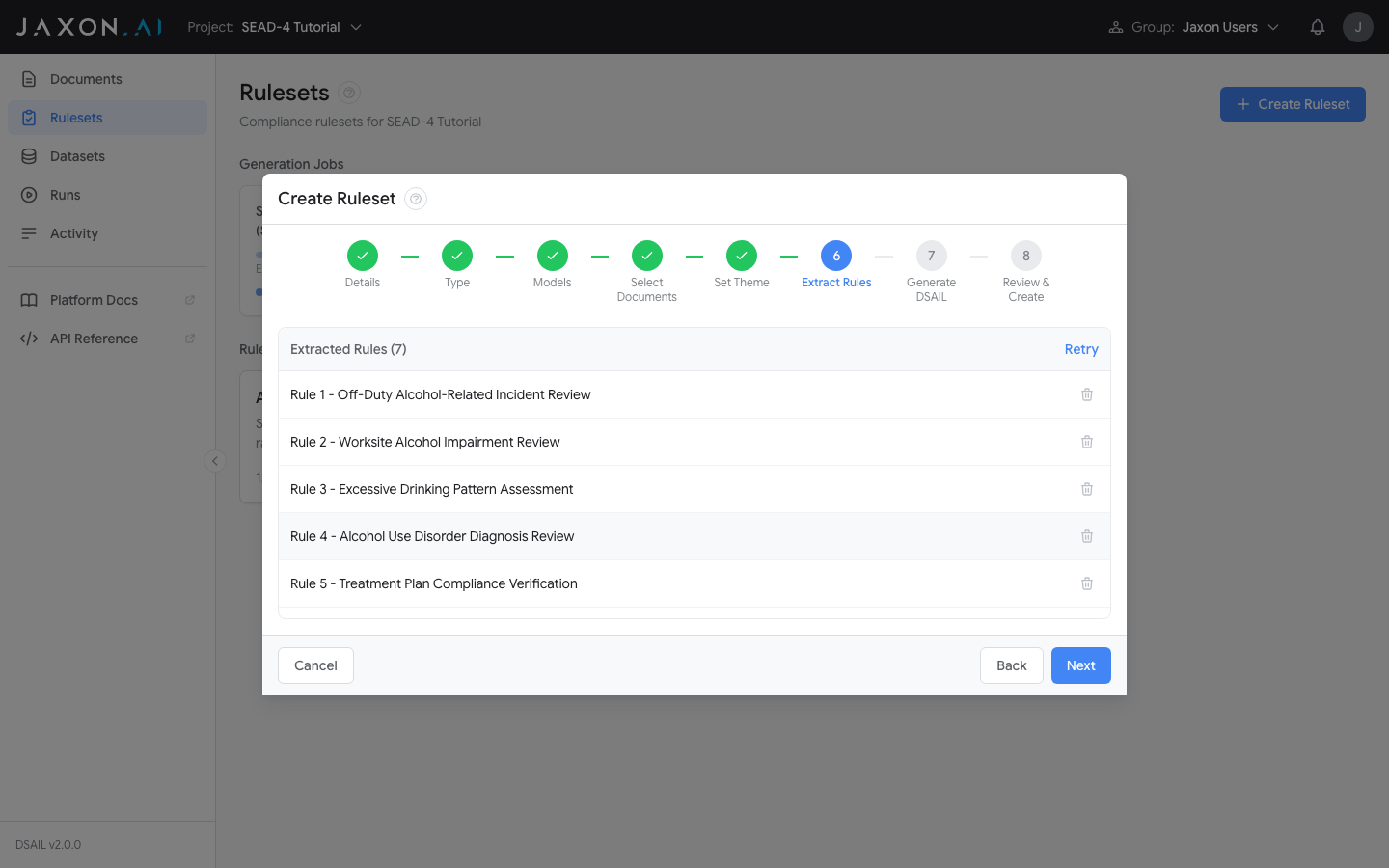
Step 6 — Extract Rules
- Leave the extraction method as Basic (suitable for this document's length and structure).
- Click Start Rule Extraction.
- Wait for extraction to complete. The platform will identify individual rules from each lettered subsection of Guideline 22.
Step 7 — Generate DSAIL
- Click Start DSAIL Generation.
- Wait for generation to complete. The platform generates DSAIL code and data extraction questions for each rule.
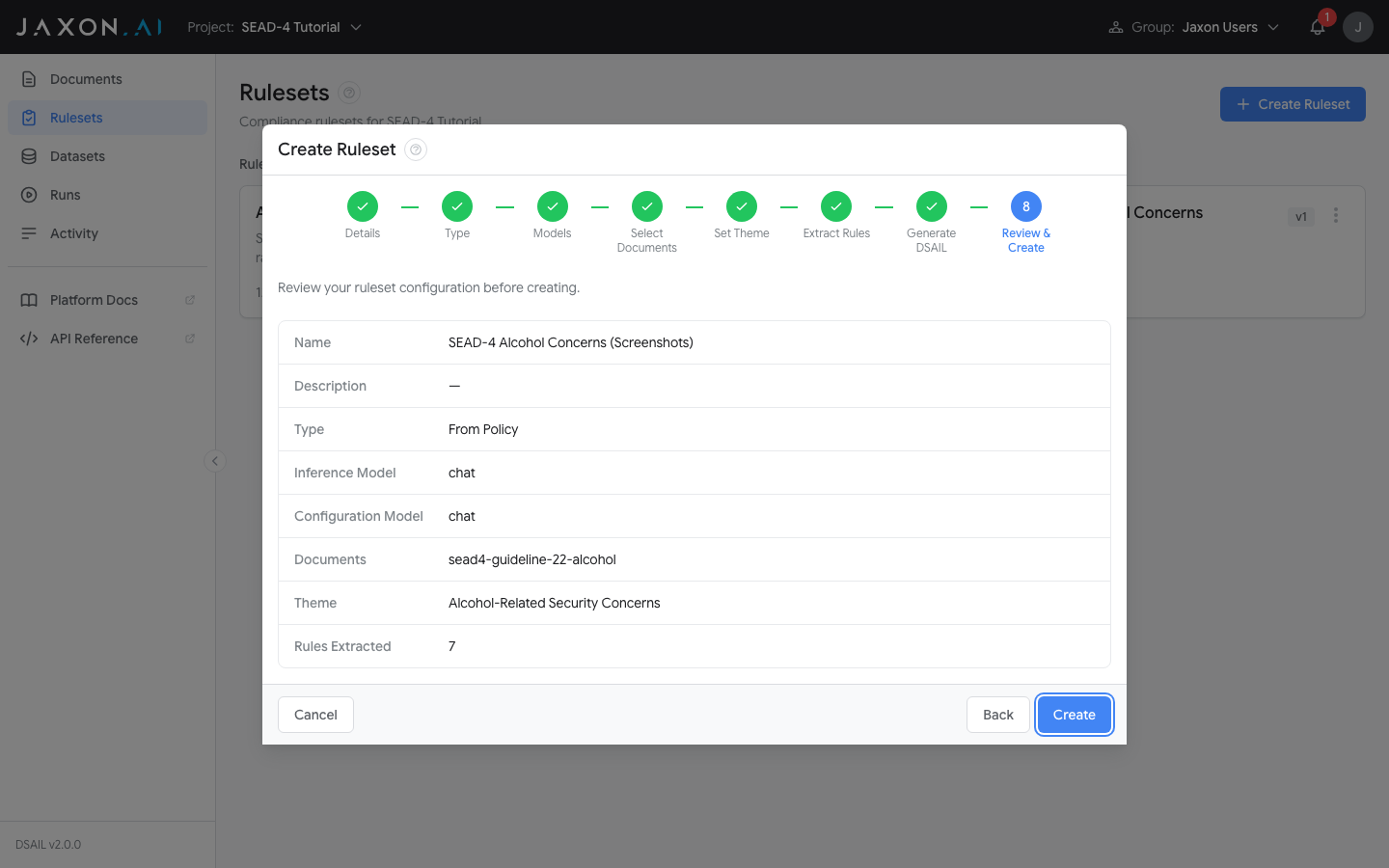
Step 8 — Review & Create
Review the created ruleset. You should see rules corresponding to the lettered subsections of Guideline 22. Click Done.
Step 4: Refine Rules in the Studio
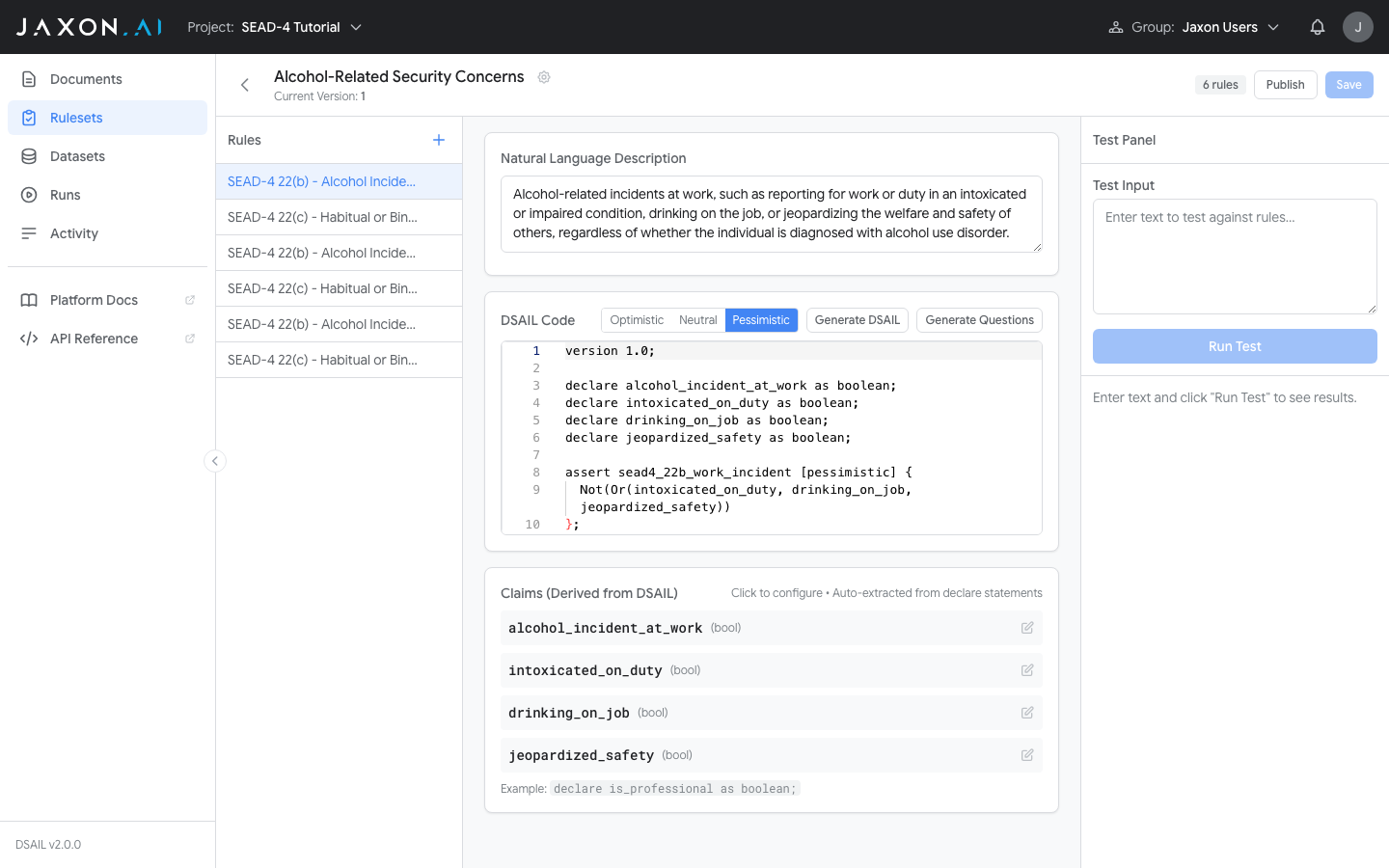
Open your Alcohol-Related Security Concerns ruleset from the Rulesets page to enter the Ruleset Studio.
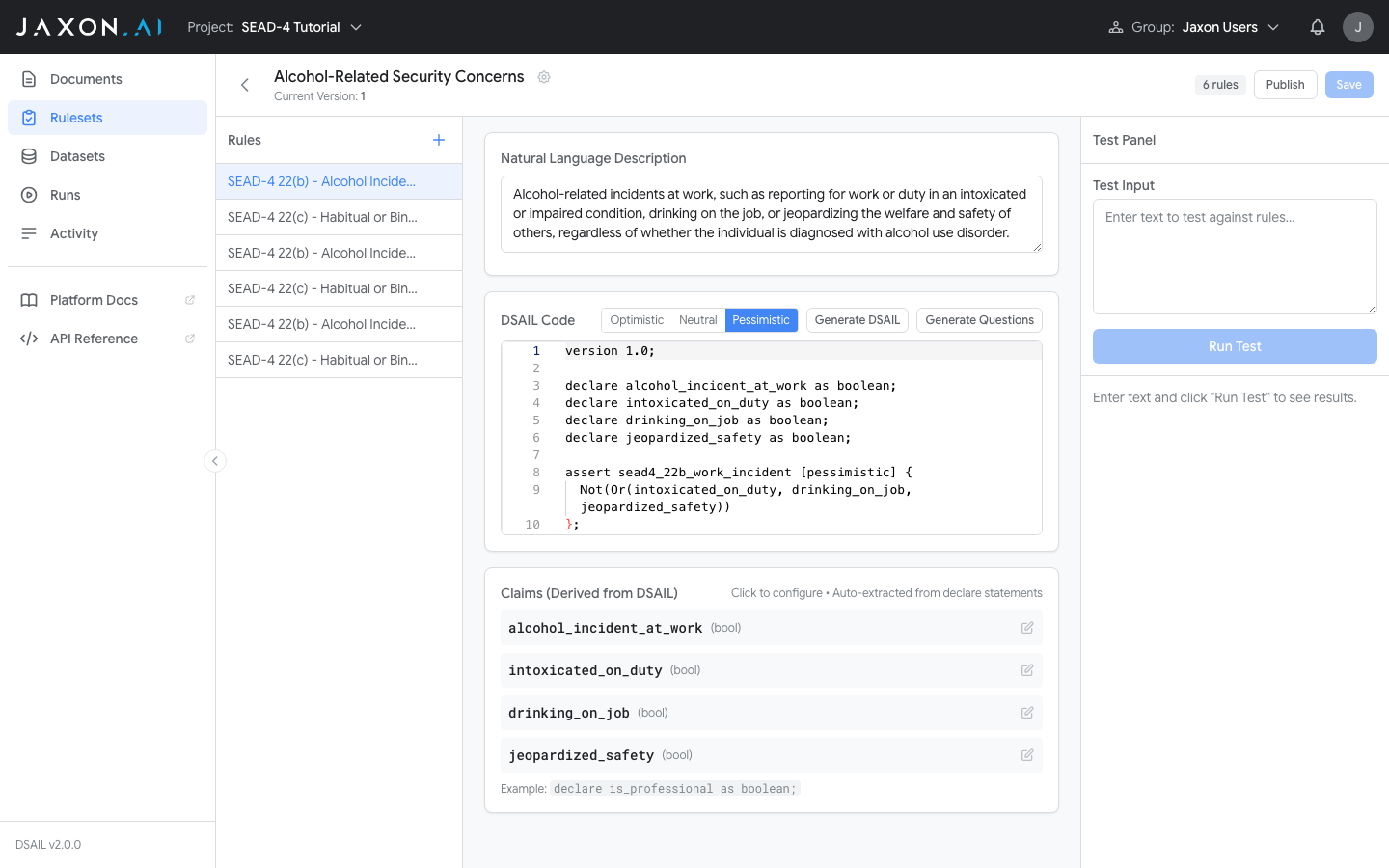
The Studio has three panels:
- Rule list (left) — Navigate between the extracted rules.
- Rule editor (center) — View and edit each rule's natural language description and DSAIL code.
- Test panel (right) — Run tests against individual rules or the full ruleset.
Review Each Rule
Select each rule in the left panel and review its components:
- Natural language description — Does it accurately capture the requirement from the corresponding SEAD-4 subsection?
- DSAIL code — The formal logic that determines compliance. Verify the posture is set to Pessimistic (recommended for security adjudication, where unknown information should count against the subject).
- Claims — The data extraction questions that the LLM will answer when evaluating input text. Are they specific enough to get clear answers?
Tip
If the posture is not already set to Pessimistic, click the Pessimistic button in the posture selector above the DSAIL editor. This updates all assert blocks in the DSAIL code with the [pessimistic] annotation.
Test With Derogatory Information
Paste the following investigative notes — which contain indicators of alcohol-related security concerns — into the Test Input area in the right panel:
2025 investigative notes:

Source met Subject when they were in Tech School together at Hanscom
AFB. Source said as the year progressed Subject's behavior was becoming
increasingly erratic and concerning, particularly in relation to
excessive drinking. Source said Subject often appeared intoxicated
during work hours and social gatherings, slurring speech and displaying
mood swings ranging from irritability to despondence. Source recounted
multiple instances where Subject failed to meet commitments or missed
important meetings after heavy drinking sessions the night before.
Friends and colleagues had begun expressing worry, noting that Subject
frequently minimized or denied the extent of their drinking. Source is
not aware of Subject attending any alcohol treatment programs. Source
lost contact with Subject after graduation, but is connected on
Facebook and Instagram.

EXTERNAL ACTIVITIES/ADDITIONAL INFORMATION
Source is unaware of anything in Subject's background or lifestyle that
can be used for blackmail or coercion. Subject spends his free time
playing baseball and fishing. Source was unable to provide any
additional leads.
Click Run Test. You should see several assertions evaluate to FALSE, indicating the subject exhibits conditions that raise security concerns under Guideline 22. For example, rules covering alcohol-related incidents at work (appearing intoxicated during work hours) and habitual consumption (excessive drinking, erratic behavior) should flag violations.
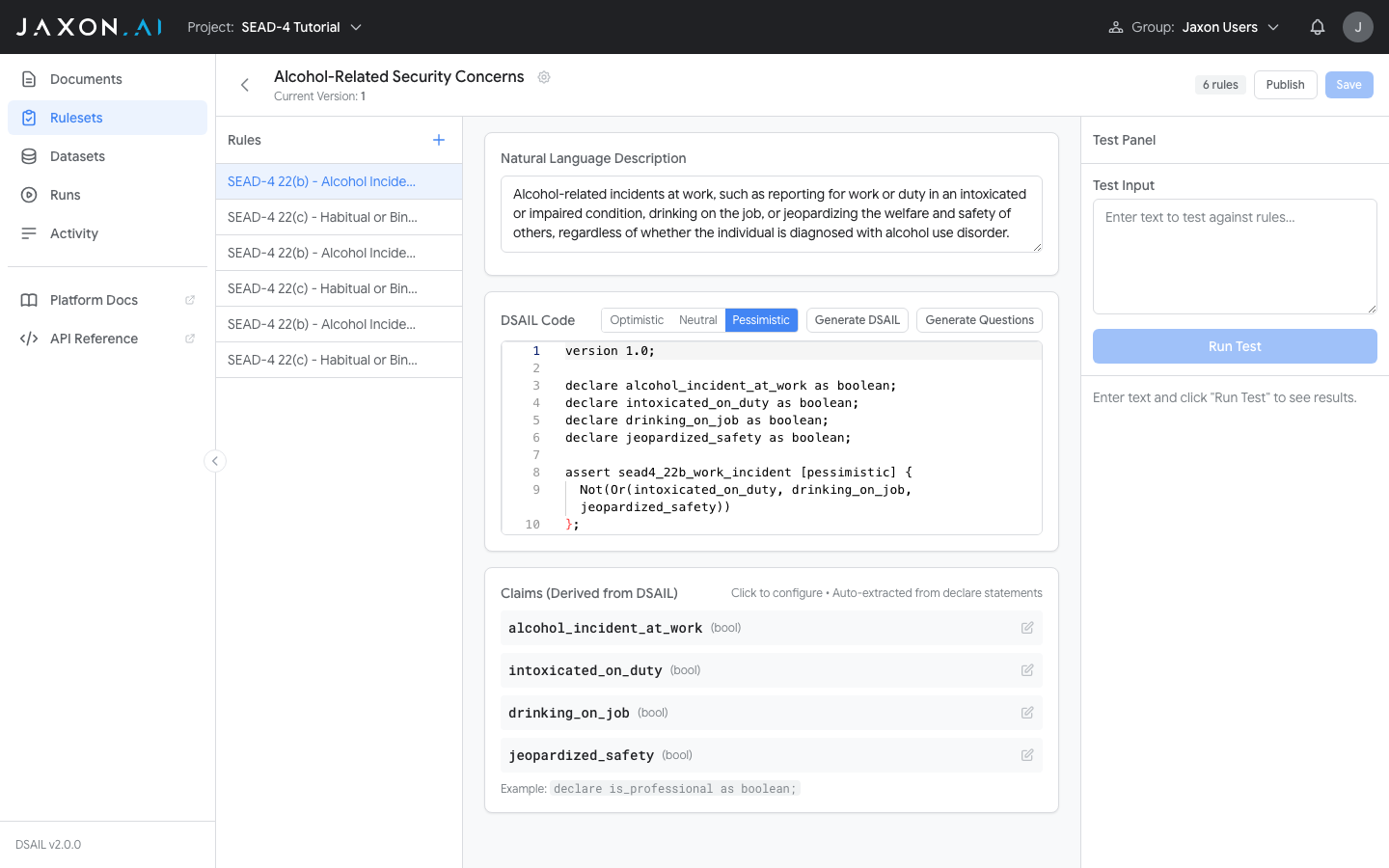
Expand a failing rule to see the claims and extracted answers that led to the determination. This transparency is a key advantage of the platform's neurosymbolic approach — every determination is traceable to specific extracted facts and formal logic.
Test With Clean Information
Now test with input that does not contain alcohol-related concerns:
2025 investigative notes:

Source has known Subject for approximately five years through their
work together in the same department. Source describes Subject as
reliable and professional. Subject consistently meets deadlines and
has received positive performance reviews. Source has attended multiple
social events with Subject and has never observed any concerning
behavior related to alcohol. Subject drinks socially on occasion but
Source has never seen Subject intoxicated or impaired. Source is not
aware of any incidents, treatment, or disciplinary actions related to
alcohol.
Click Run Test. With pessimistic posture, rules that find no evidence of alcohol-related concerns should evaluate to TRUE (passing), since the input actively affirms the absence of concerning behavior.
If results are unexpected, adjust the extraction questions in the Claims section or refine the DSAIL code. Click Save when satisfied, then Publish to create a new version.
Step 5: Build a Test Dataset
Create a dataset to test your ruleset against multiple documents at once.
- Navigate to Datasets in the sidebar.
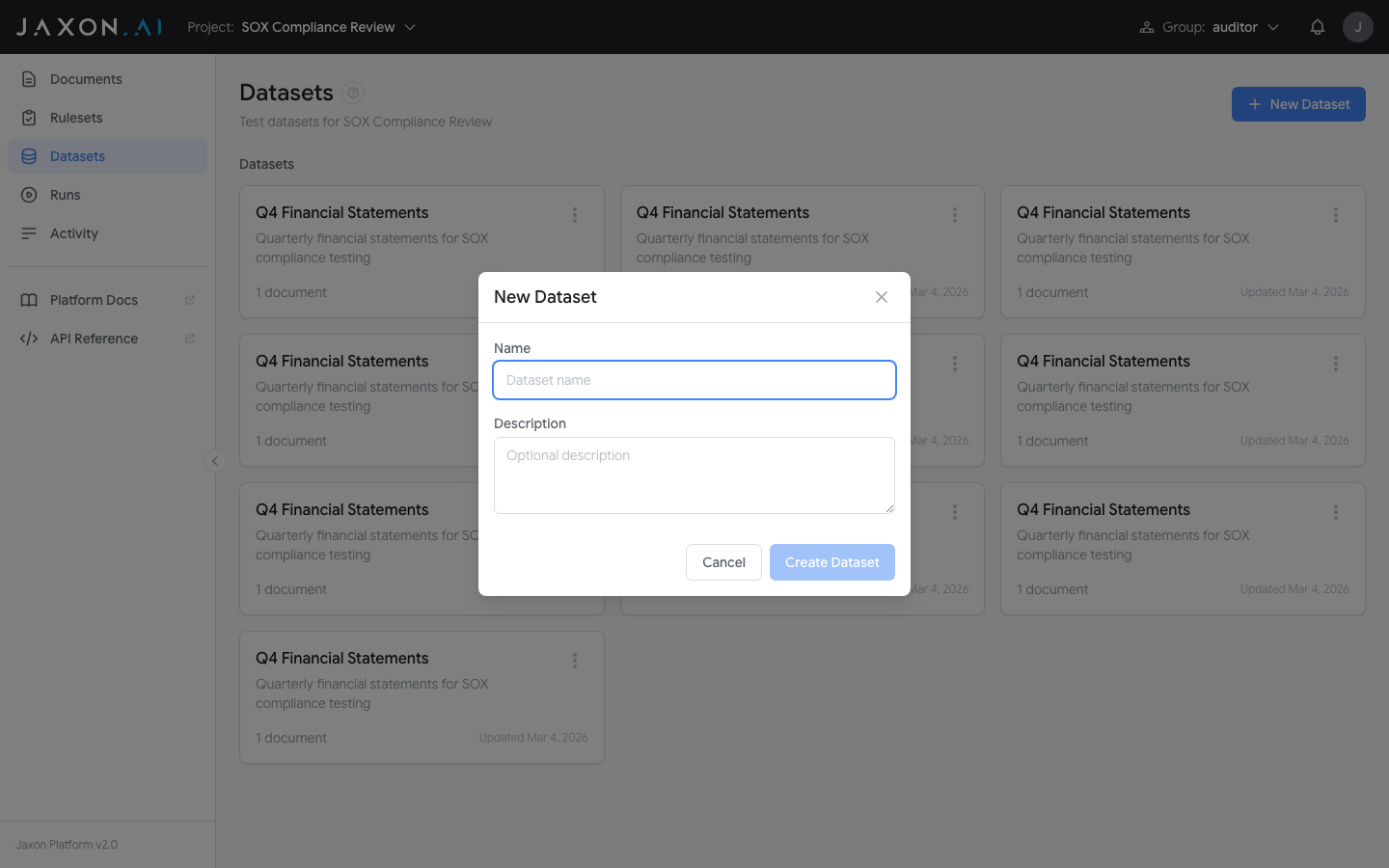
- Click Create Dataset.
- Name it
SEAD-4 Test Casesand click Create Dataset.
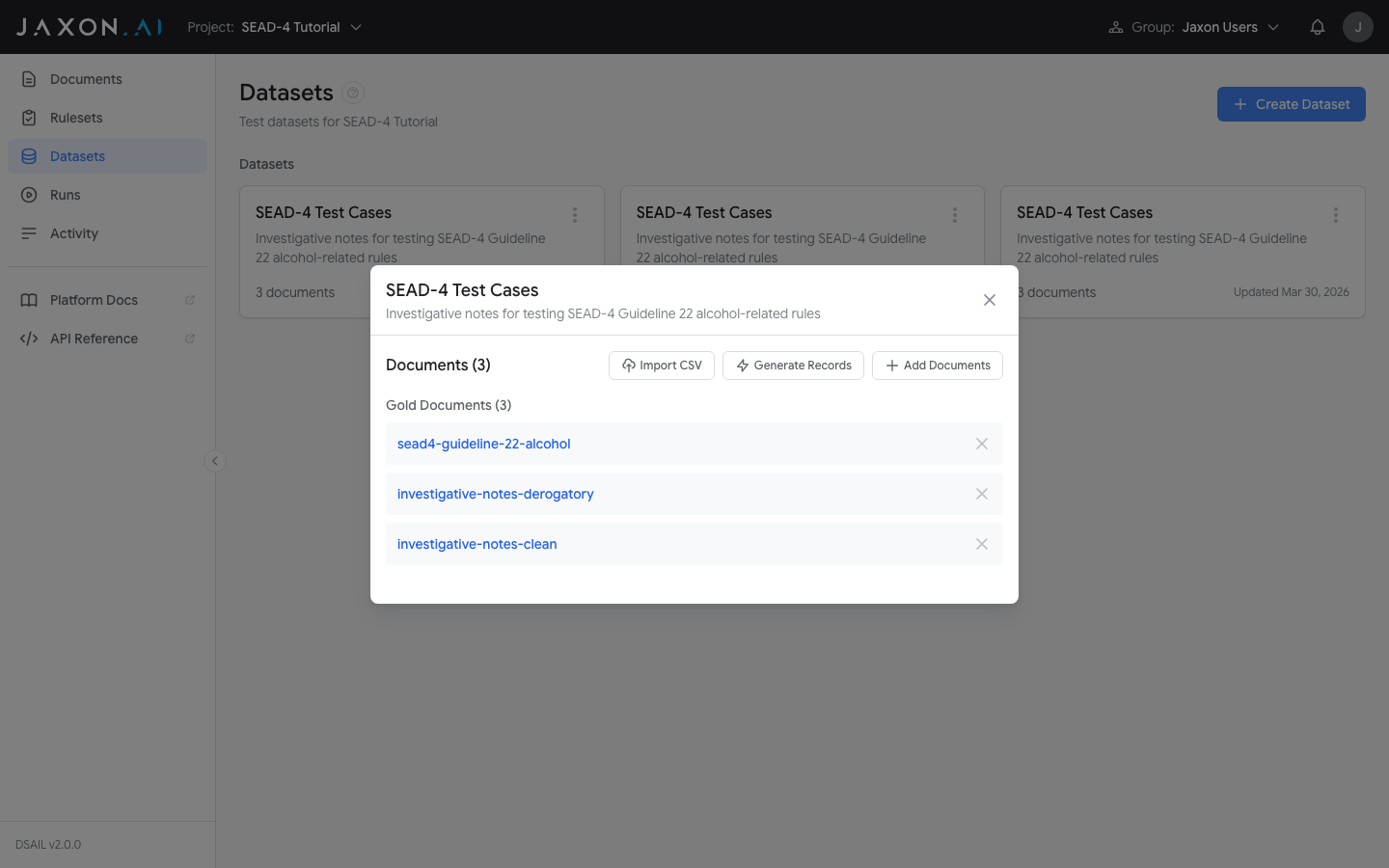
- Open the dataset by clicking on it.
- Click Add Documents to include documents from your project library. You can select the policy document you created earlier, or create additional test documents representing different investigative scenarios.
- To expand the dataset beyond your manually added documents, use Generate Records to create synthetic test documents. The dataset must contain at least one document before you can generate records. Select your LLM model, choose 10 records, and click Generate.
Tip
For meaningful results, include a mix of scenarios: cases with clear alcohol-related concerns, cases with no concerns, and ambiguous cases where some but not all conditions are present.
Step 6: Run a Batch Test
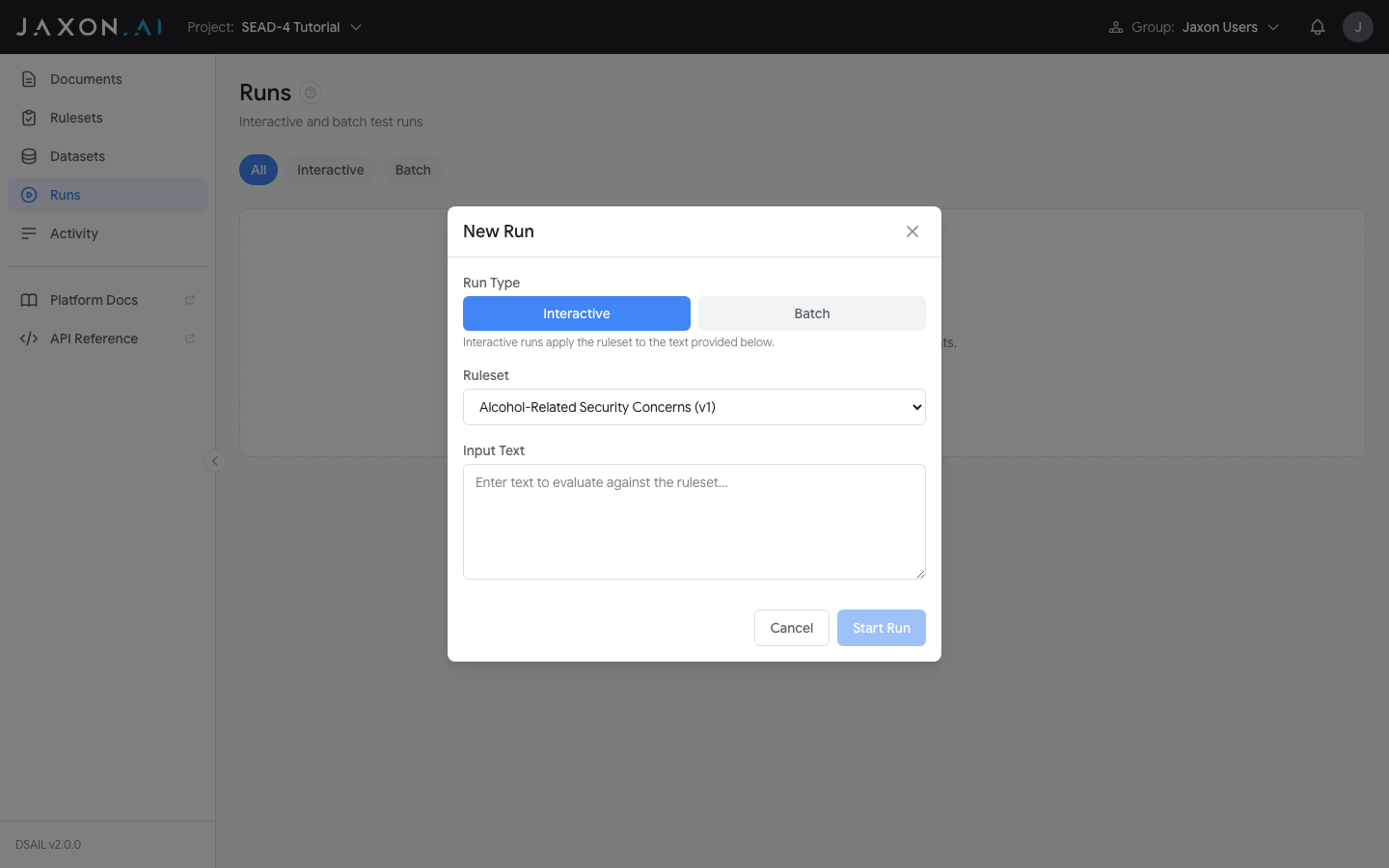
- Navigate to Runs in the sidebar.
- Click New Run.
- Select Batch mode.
- Select your
Alcohol-Related Security Concernsruleset from the dropdown. - Select the
SEAD-4 Test Casesdataset. - Check both Evaluate and Variance Test.
- Set variance iterations to 5.
- Click Start Run.
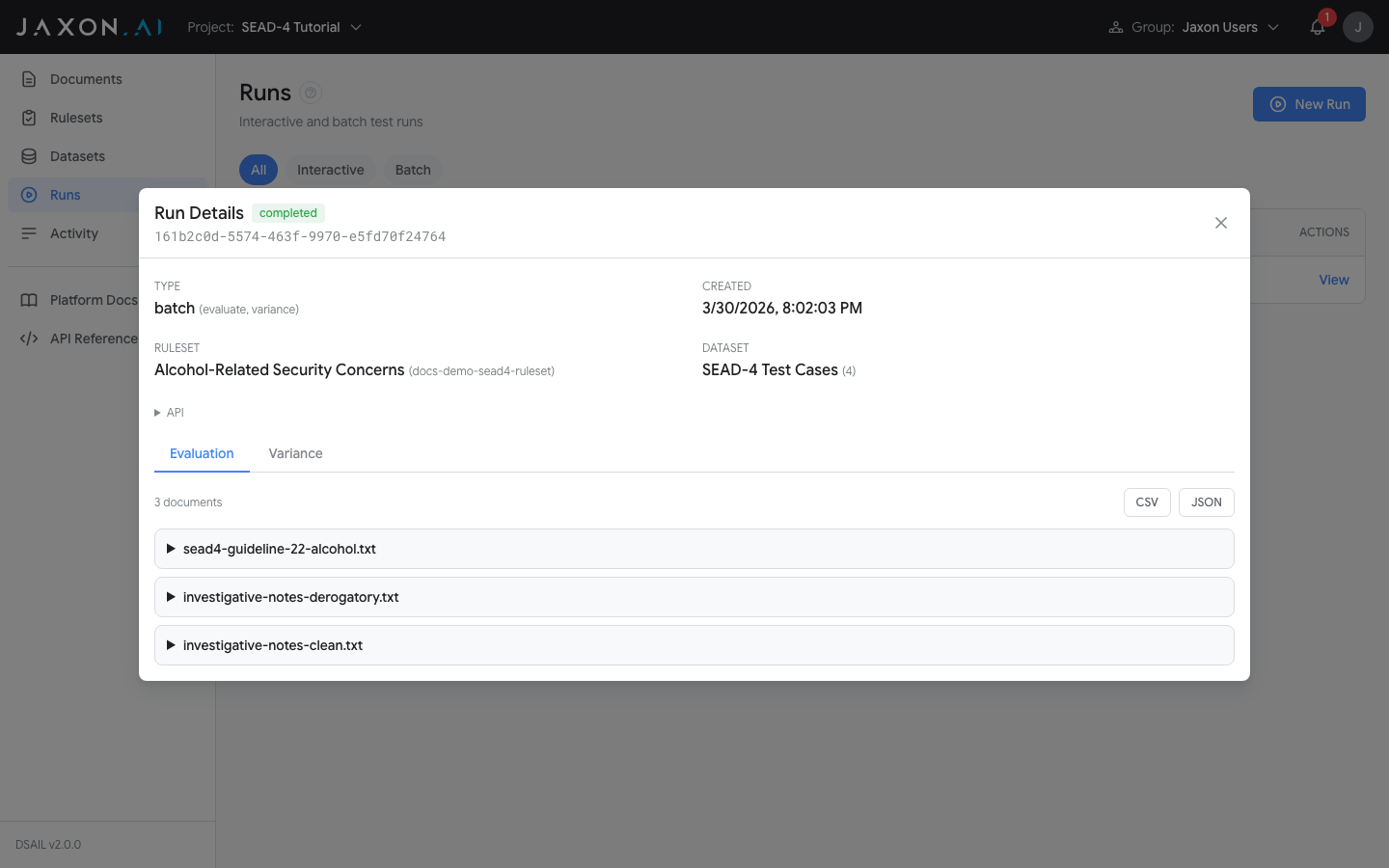
Reviewing Evaluation Results
On the Evaluation tab, expand each document to see per-rule results. For each rule:
- TRUE — The input does not raise this particular security concern
- FALSE — A specific condition from Guideline 22 was identified
- UNKNOWN — The input does not contain enough information to determine whether the condition applies (with pessimistic posture, this counts as a concern)
Reviewing Variance Results
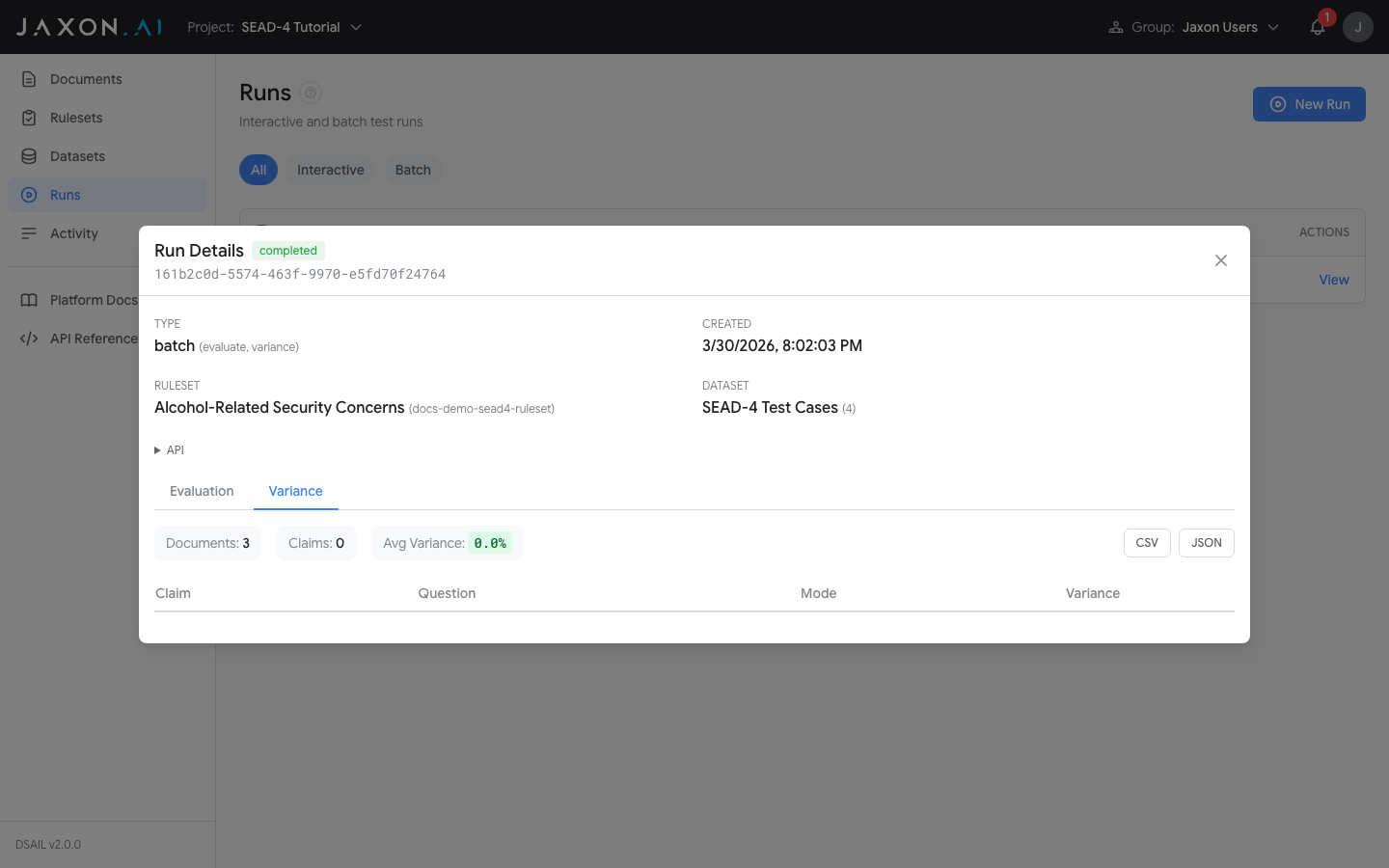
On the Variance tab, check how consistent your ruleset's results are across multiple iterations:
- Green (0%) — Every iteration produced the same answer. The rule is reliable for this document.
- Yellow (< 50%) — Some variation. The question or document content may be ambiguous.
- Red (>= 75%) — Very high variation. The extraction question needs refinement.
Expand individual claims to see per-document, per-iteration answer detail. Answers that differ from the mode are highlighted in orange.
Next Steps
You now have a working security adjudication workflow for SEAD-4 Guideline 22 alcohol-related concerns. From here:
- Add more guidelines — Create additional policy documents for other SEAD-4 guidelines (e.g., financial considerations, foreign influence) and generate rulesets for each
- Refine rules that show high variance or unexpected results by adjusting extraction questions or DSAIL code
- Add more test documents to your dataset for broader coverage across different investigative scenarios
- Export results as CSV or JSON for integration into adjudication workflows
For platform concepts in depth, see:
- Documents — The two roles documents play (policy sources and test inputs)
- Rulesets — Rulesets, rules, and the creation wizard
- Datasets — Organizing test data
- Runs — Batch testing and variance analysis
- DSAIL Language — The formal logic behind every rule