Getting Started
This guide walks through the Jaxon platform's core workflow using screenshots. By the end, you'll understand how documents, rulesets, datasets, and runs fit together to verify text content against formal policies.
Projects
Everything in the platform lives inside a project. The Project dropdown in the top header bar lets you switch between projects or create a new one.
Tip
Create a dedicated project for experimentation so your work doesn't mix with existing data.
Policy Documents
Every ruleset begins with a policy -- the set of requirements you want to enforce. In the platform, policy content is stored as a Document.
The Documents page, accessible from the sidebar, lists all documents in your project.
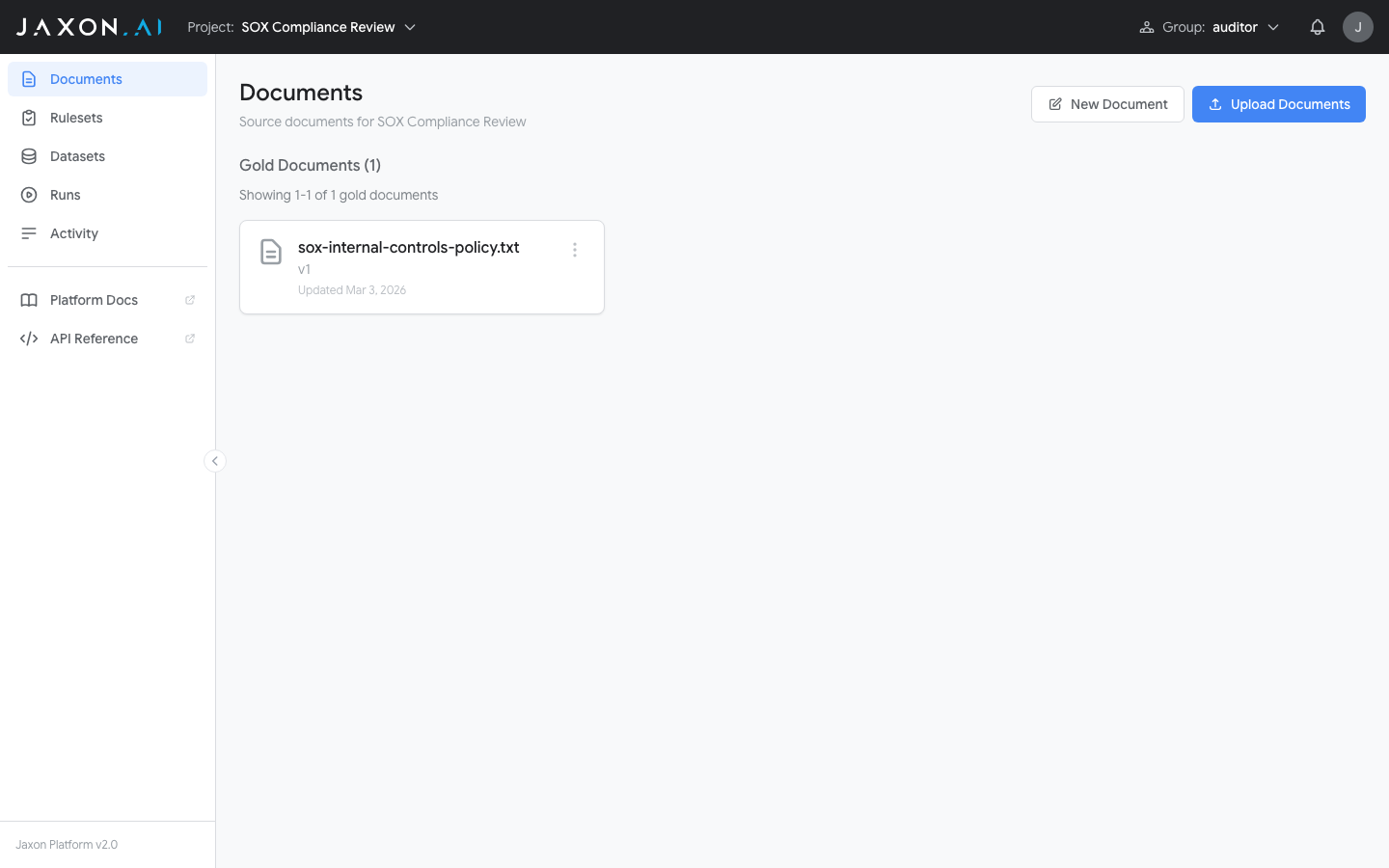
Documents are organized into Gold and Silver sections. Gold documents have been reviewed and verified by a human. Silver documents are machine-generated and not yet human-reviewed; they are created when synthetic documents are generated to expand the breadth of a Dataset. Once a silver document is reviewed and approved, it can be promoted to gold. All documents are versioned and immutable. Once saved, a version cannot be changed, ensuring that ruleset evaluations are always reproducible.
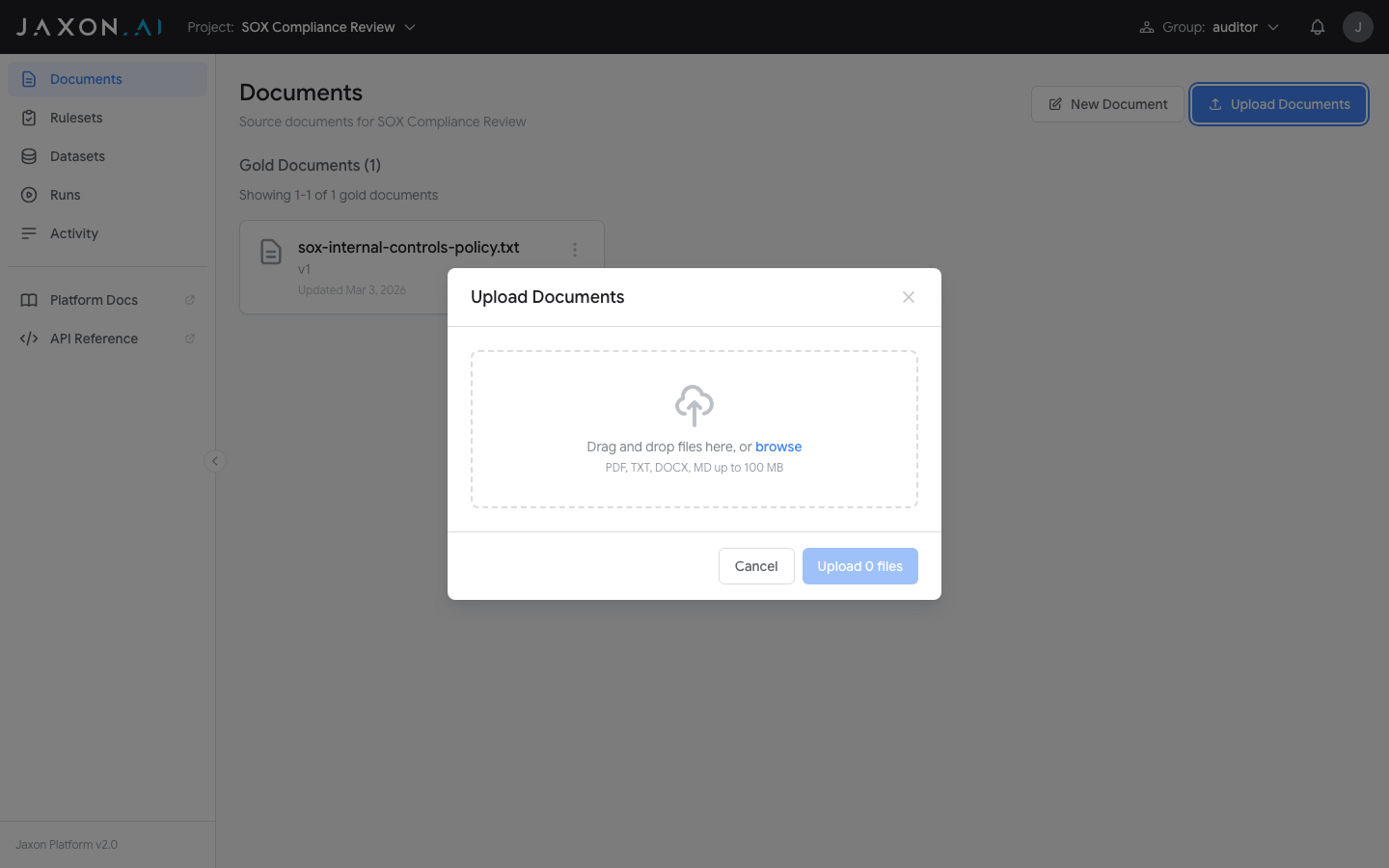
The Import Documents button opens the import interface, which accepts PDF, DOCX, TXT, MD, and CSV files. New Document opens an editor to type or paste content directly.
Rulesets
With a policy document uploaded, you can create rulesets that encode its requirements as verifiable rules. A Ruleset is a collection of individual rules that each check one specific compliance requirement.
The Rulesets page, accessible from the sidebar, lists all rulesets in your project.
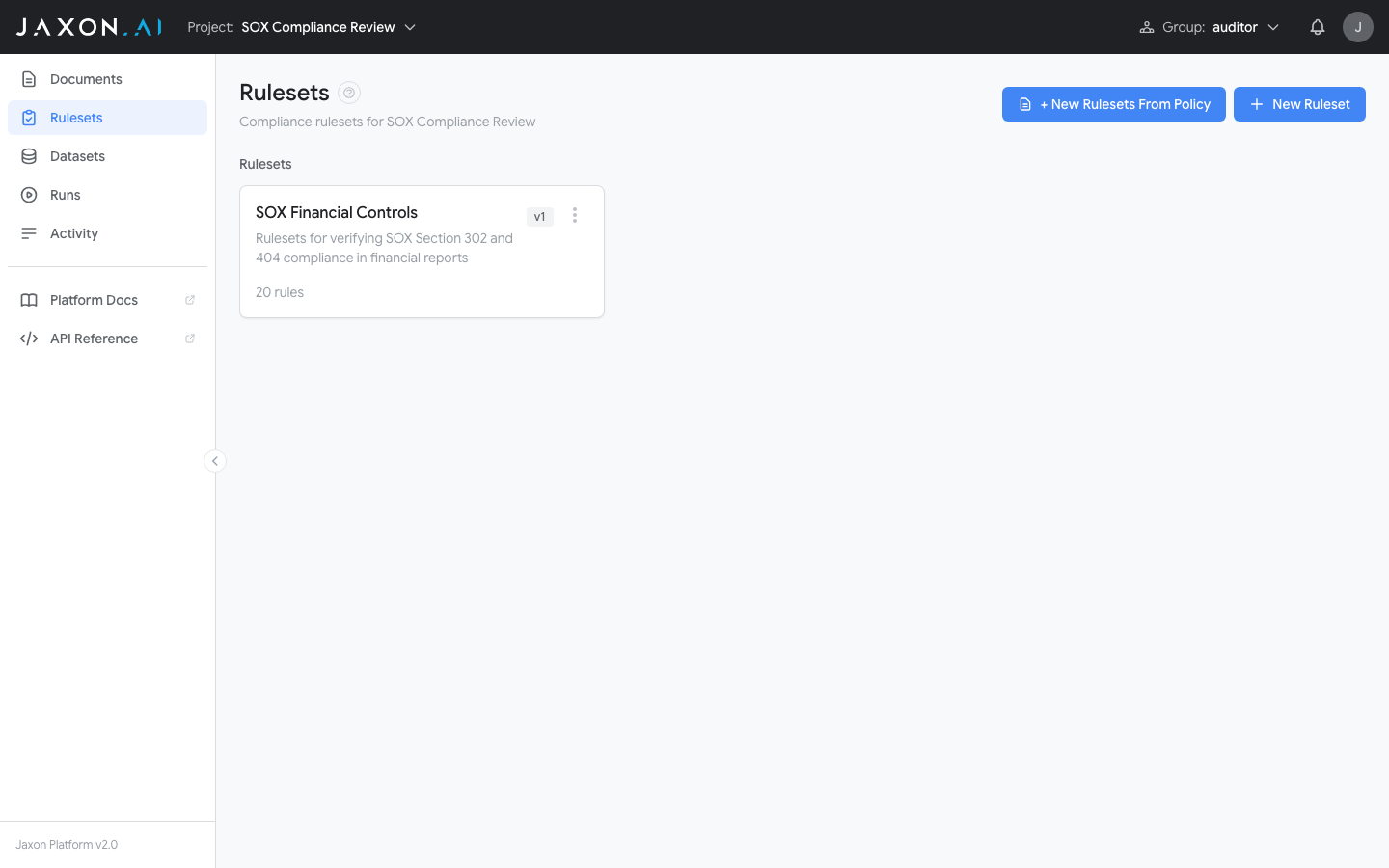
There are two ways to create a ruleset:
- + New Rulesets From Policy opens a wizard that derives rulesets and rules automatically from an existing policy document. This is the recommended starting point when you have a policy to encode.
- + New Ruleset creates an empty ruleset where rules are defined manually in the Ruleset Studio.
Creating Rulesets From Policy
The + New Rulesets From Policy button opens a wizard that walks through five steps:
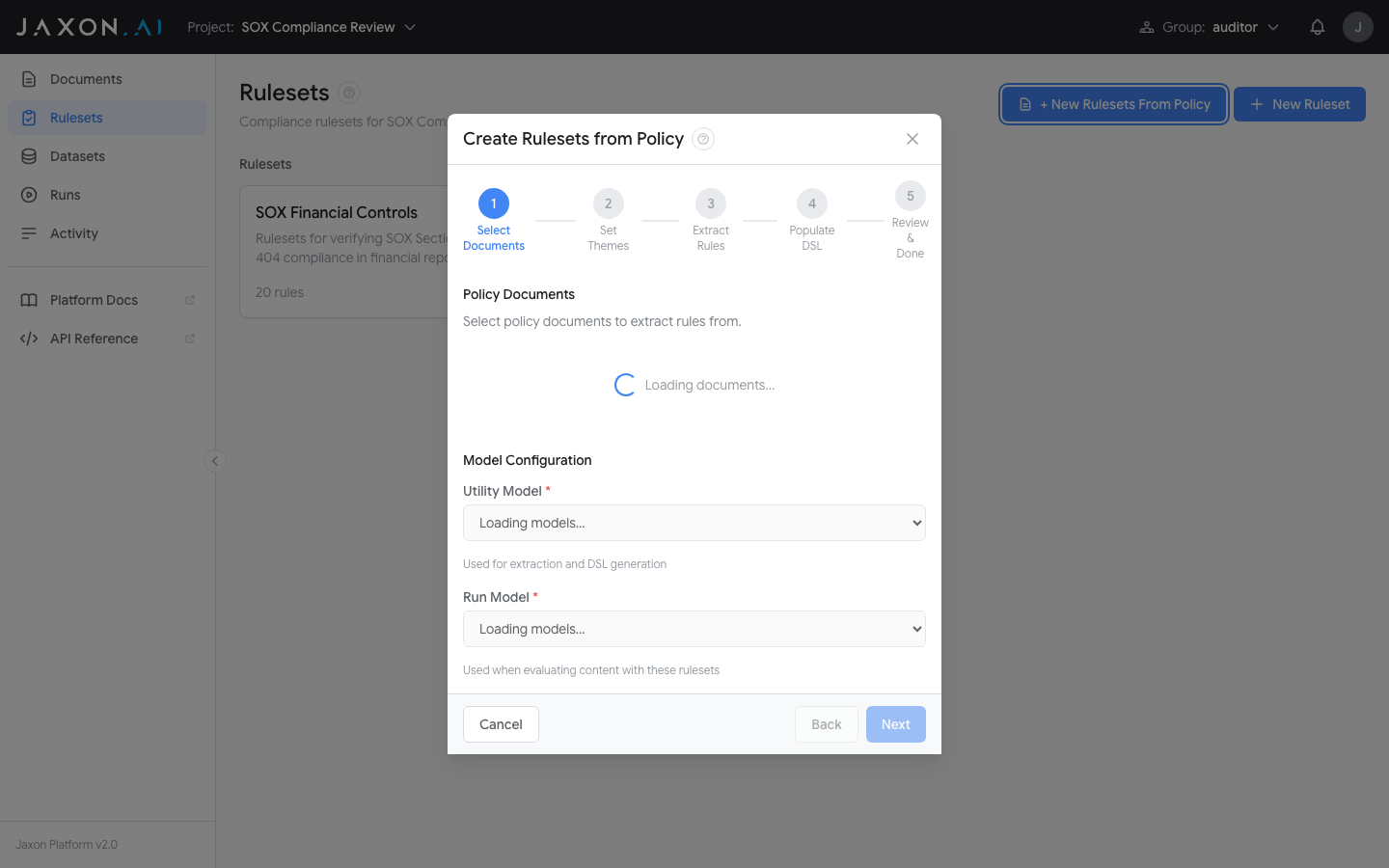
- Step 1: Select Documents
- Choose the policy document to extract rules from. Then select the Utility Model (used for extraction and DSAIL generation) and Run Model (used when evaluating content with these rulesets).
- Step 2: Set Themes
- Themes organize rules into logical groups. Auto-Extract Themes from Documents identifies themes from the policy automatically, or you can add them manually. Create Rulesets & Continue creates a ruleset for each theme.
- Step 3: Extract Rules
-
Choose an extraction method:
- Basic -- Direct LLM extraction, suitable for shorter policy documents
- RAG -- Retrieval-augmented extraction for longer, complex documents
Start Rule Extraction kicks off the analysis. The platform extracts individual requirements as rules. This can run in the background.
- Step 4: Populate DSAIL
- The platform generates DSAIL Language code and data extraction questions for each rule. Start DSAIL Generation begins the process (can also run in background).
- Step 5: Review & Done
- Review the created rulesets and their themes. From here you can open any ruleset in the Ruleset Studio to view and refine its rules.
Creating an Empty Ruleset
The + New Ruleset button opens a dialog to create an empty ruleset. Provide a name, optional description, and select the LLM models to use.
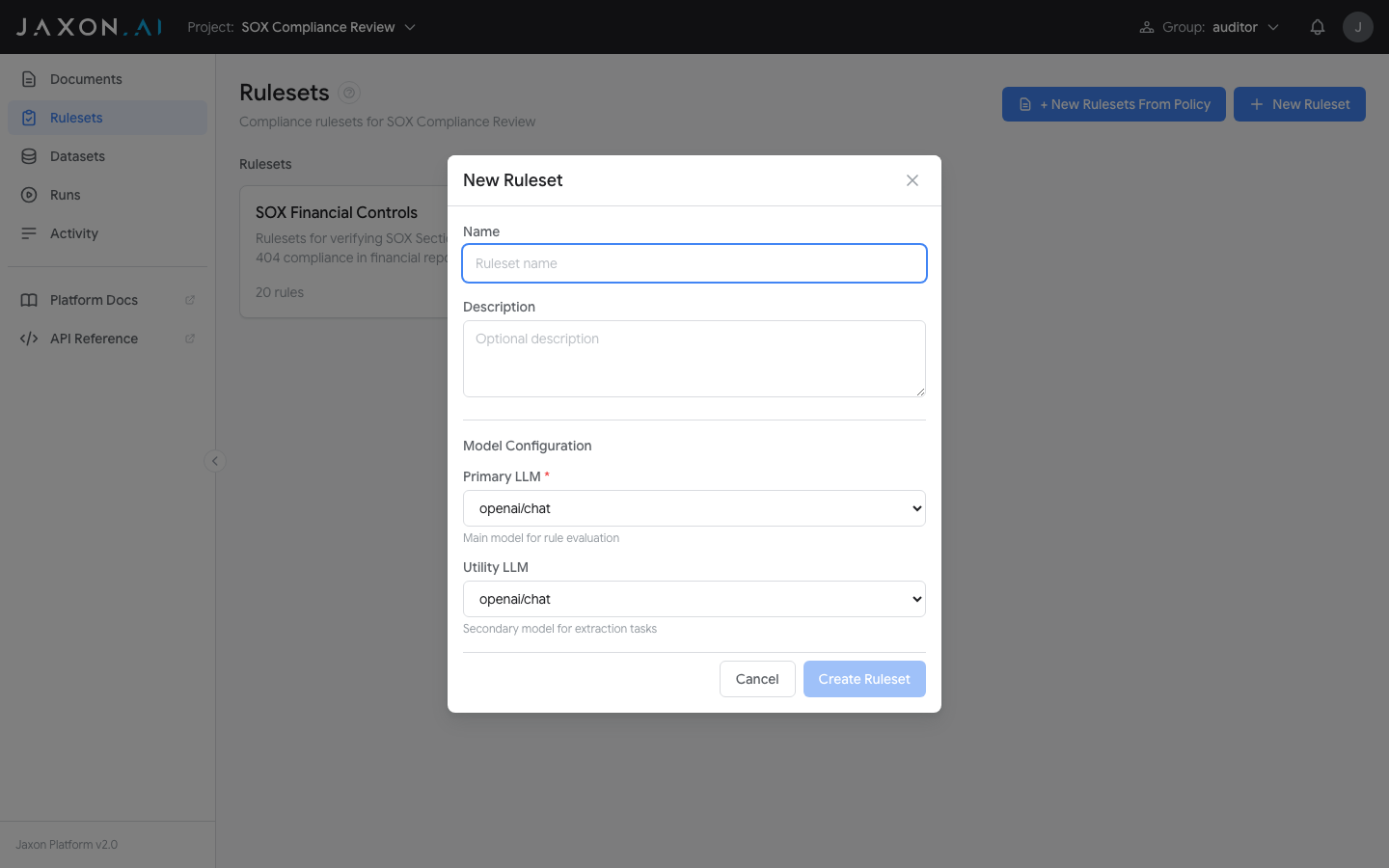
Once created, the ruleset opens in the Ruleset Studio where you define individual rules manually. This gives you full control over each rule's natural language description and DSAIL code, without deriving them from a policy document.
The Ruleset Studio
After the wizard creates rulesets, opening one takes you to the Ruleset Studio -- the editing environment for viewing, modifying, and refining rules.
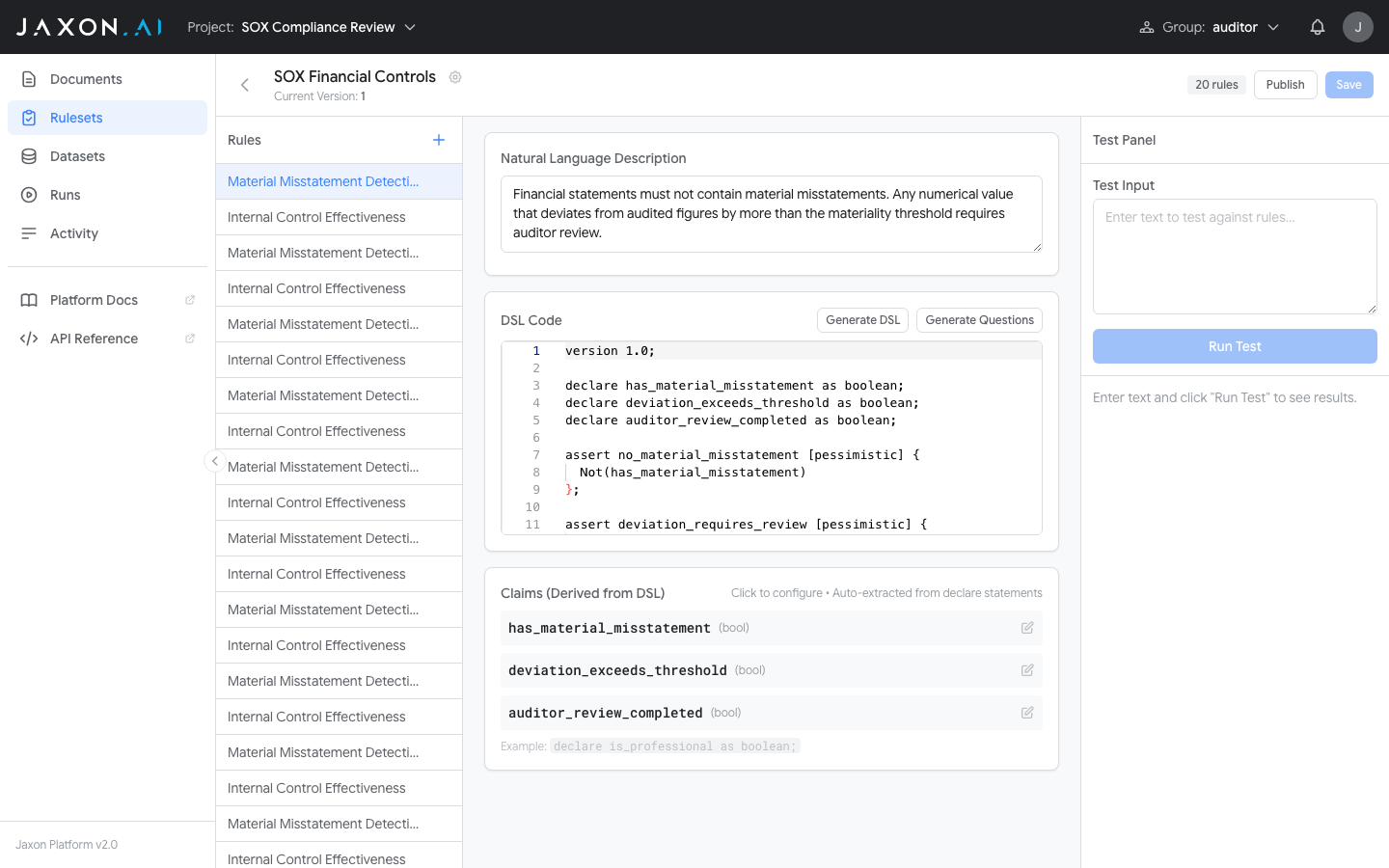
The Studio has a three-panel layout:
- Rule list (left) -- Navigate between rules. The "+" button adds new rules.
- Rule editor (center) -- Edit the natural language description and DSAIL code. "Generate DSAIL" creates code from the description, and "Generate Questions" creates claim questions.
- Test panel (right) -- Enter test input, run a test, and see per-assertion results immediately.
The DSAIL Editor
Selecting a rule opens its details, including the DSAIL code editor.
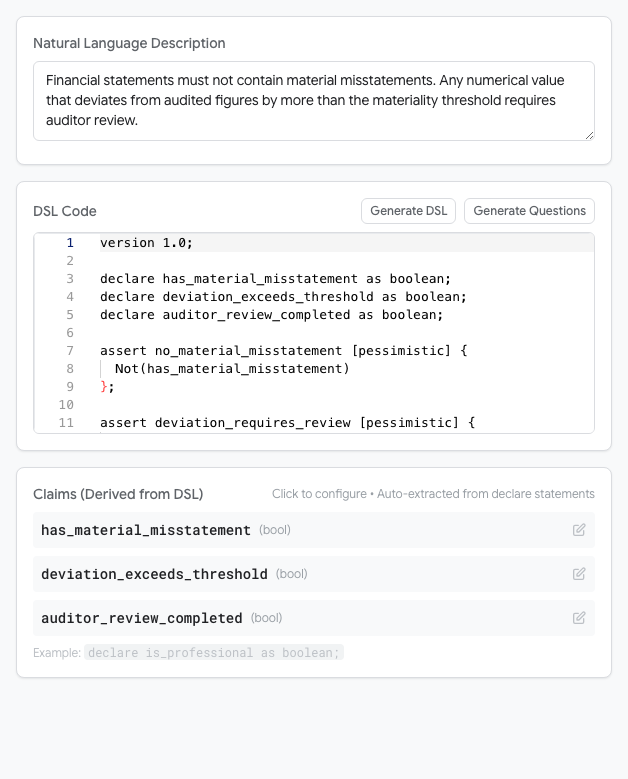
Each rule's DSAIL code contains declarations (variables representing facts about the input text) and assertions (logical expressions that must hold true for compliance). The [pessimistic] annotation tells the solver to treat unknown values as failures -- the recommended setting for compliance checking.
Datasets
With a ruleset configured, test data measures how it performs across a range of inputs. A Dataset groups documents together for batch testing.
The Datasets page, accessible from the sidebar, shows all datasets in your project.
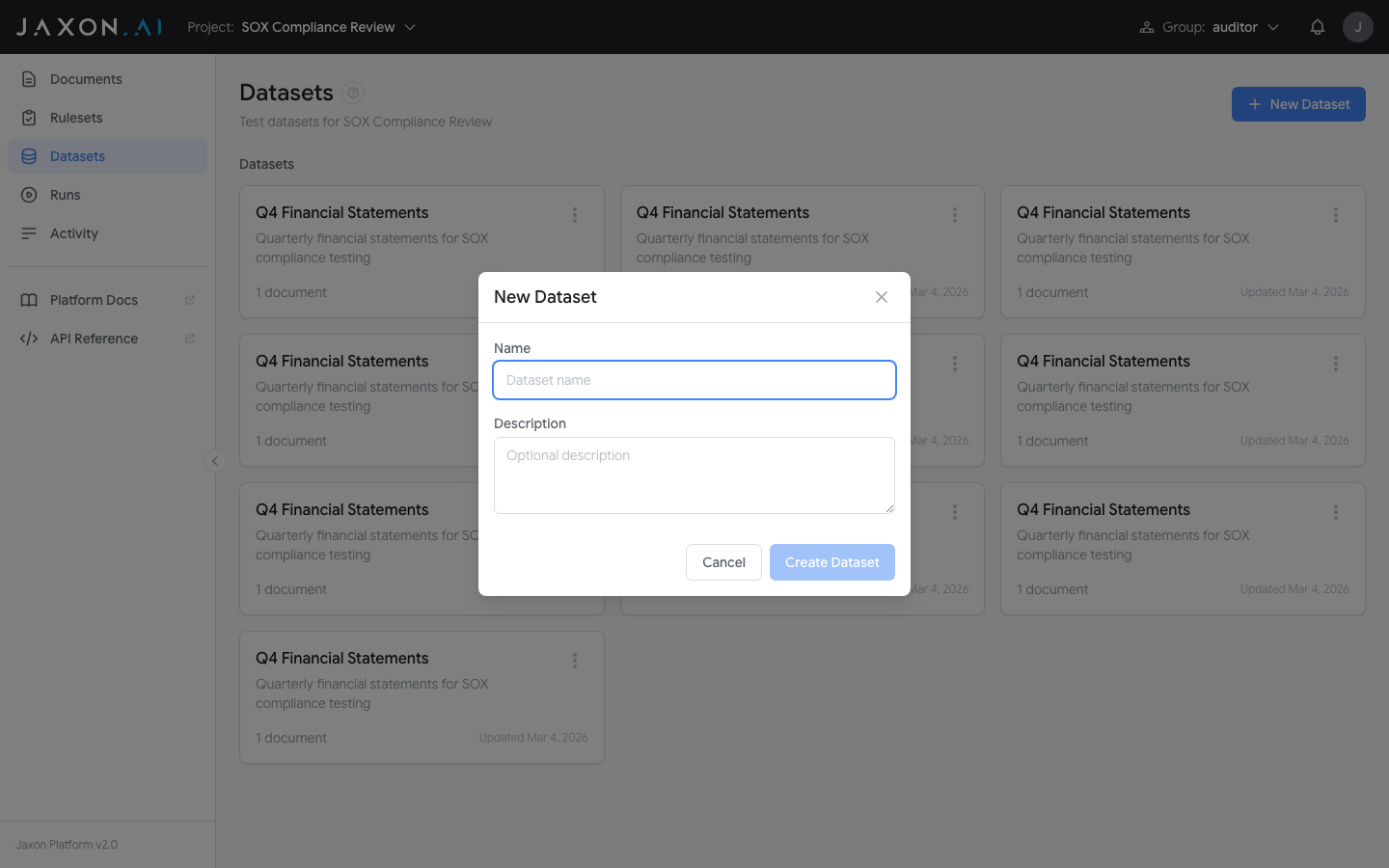
The + New Dataset button creates an empty dataset with a name and optional description.
Once a dataset exists, click on it to open its detail view. From here you can populate the dataset with documents using three methods:
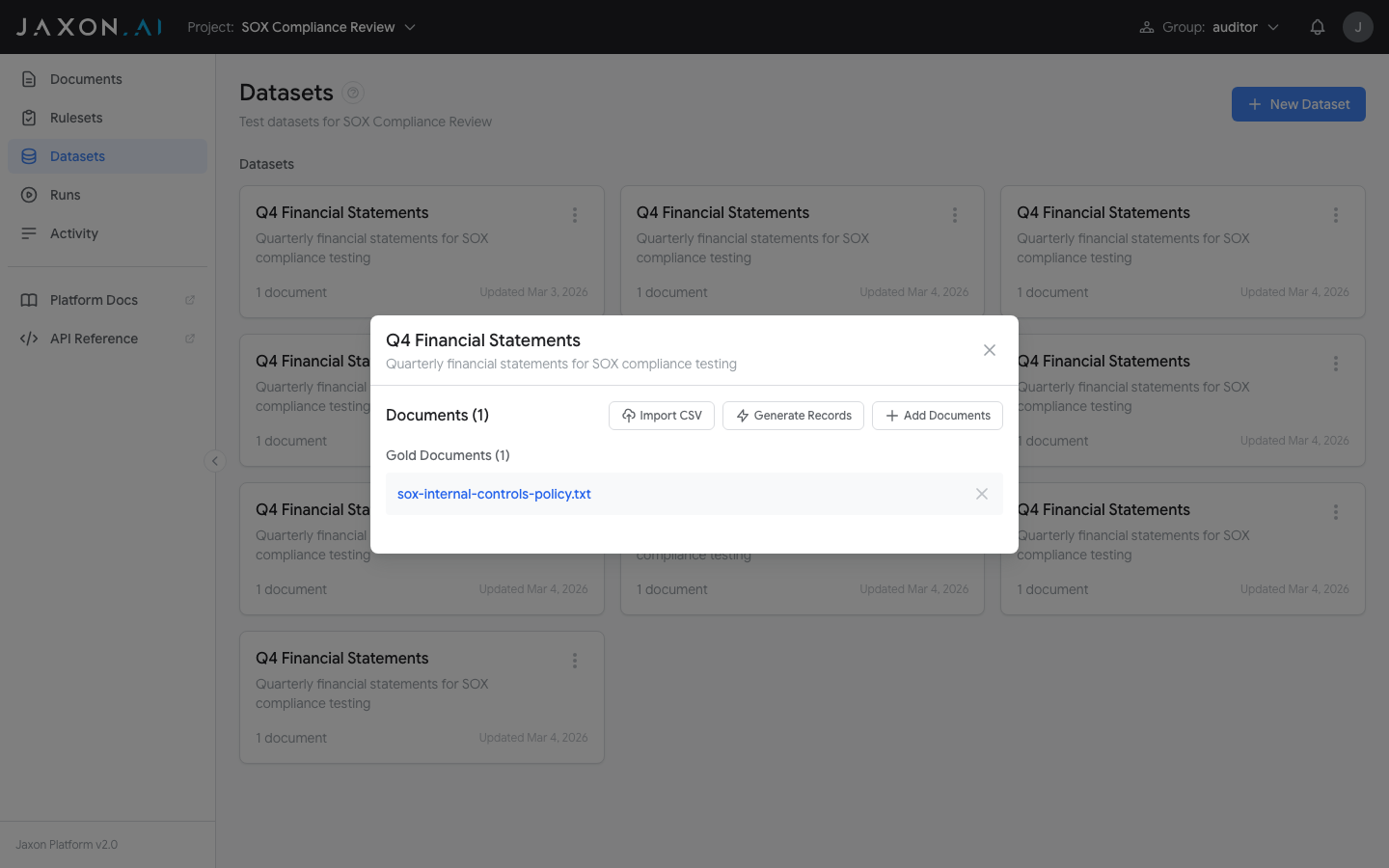
- Import CSV converts each row of a CSV file into a new document in the dataset.
- Generate Records creates new synthetic documents (silver documents) from existing documents in the dataset, using an LLM to expand test coverage.
- Add Documents lets you select documents that have already been uploaded to the Documents section and include them in the dataset.
For meaningful testing, include a mix of compliant and non-compliant examples.
Runs
With a ruleset built and test data prepared, runs execute the ruleset against documents and produce detailed results. A Run is a single evaluation session.
The Runs page, accessible from the sidebar, shows all runs in your project.
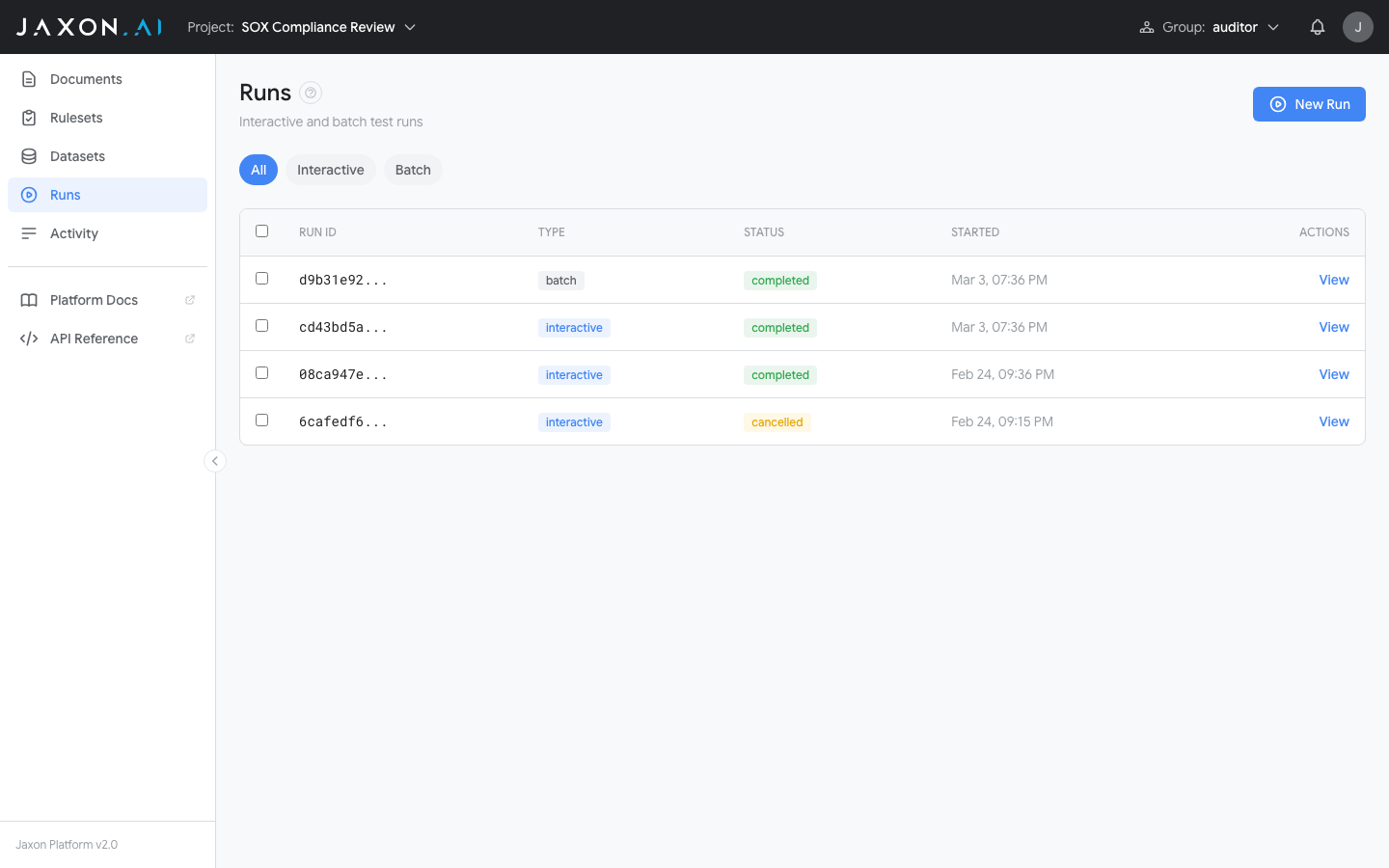
The New Run button opens the configuration dialog.
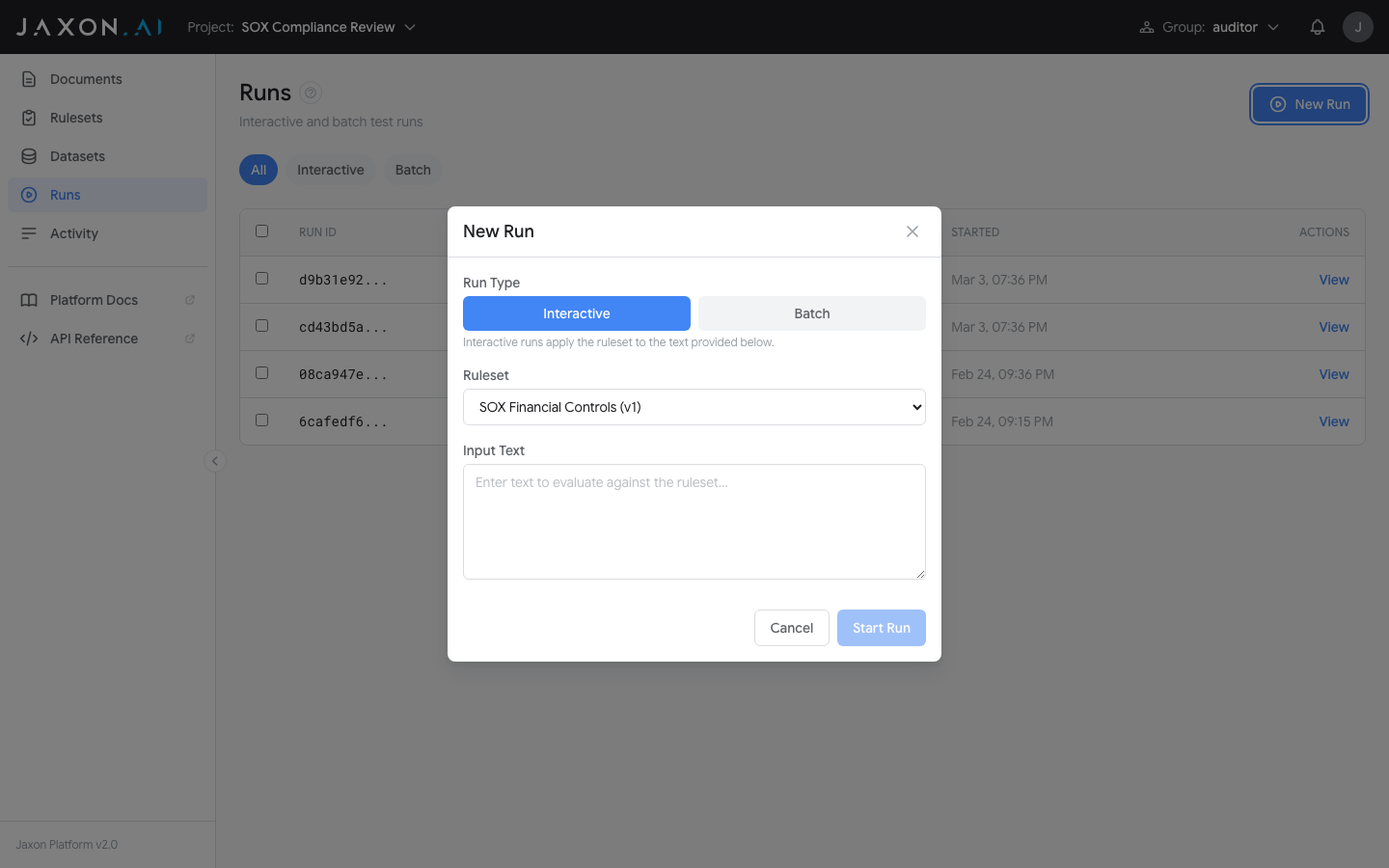
Select a ruleset, then choose a run type:
- Batch -- Select a dataset to run the ruleset against. Two test modes are available:
- Evaluate produces results for each rule against each document in the dataset.
- Variance Test measures the performance of derived questions and claims over a specified number of runs by analyzing variability in the results.
- Interactive -- Run the ruleset against provided input text. The platform evaluates each rule in the ruleset against that content and returns the results immediately.
Understanding Results
After a run completes, the detail view shows per-rule sections for each document:
- Assertions -- Each shows TRUE (compliant), FALSE (violation found), or UNKNOWN (insufficient information)
- Claims -- The questions asked of the document and the LLM's extracted answers
If a variance test was included, the Variance tab shows how consistent results were across iterations, with color-coded variance percentages for each claim. See Runs for a detailed explanation of variance results.
Activity
The Activity page, accessible from the sidebar, shows system activity across the platform. For general users, it displays data auditing information for projects the user has access to. For auditors, many additional activity categories are available and can be filtered using the All Categories dropdown at the top of the page.
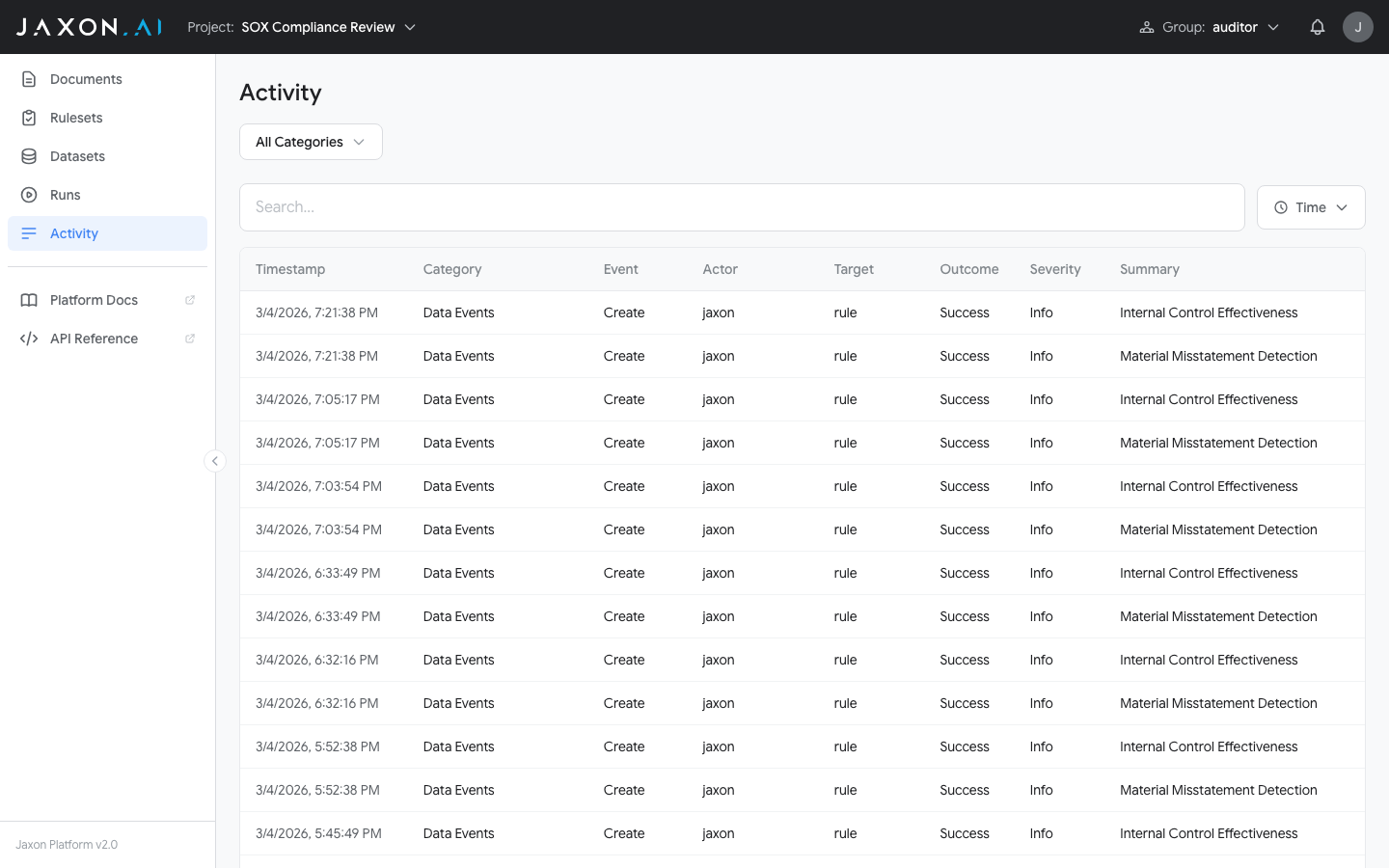
Two additional filters are available alongside the category dropdown:
- Search -- Filter on any input string across all activity content.
- Time -- Select a preset time window looking back from the present (e.g. last hour, last 24 hours), or specify a custom block of time.
What's Next
That covers the core workflow: policy documents, rulesets created with the wizard, rule refinement in the Studio, test datasets, and evaluation runs.
Deepen your understanding:
- Documents -- Versioning, content management, and the two roles documents play
- Rulesets -- Rulesets, rules, DSAIL code, and the Ruleset Studio
- Datasets -- Organizing test data for batch testing
- Runs -- Batch testing, variance analysis, and interpreting results
- DSAIL Language -- The formal logic language behind the verification engine
Follow a hands-on tutorial:
- SOX Compliance Tutorial -- Step-by-step tutorial building a SOX compliance verification setup
Optimize your rulesets:
- Best Practices -- Techniques for improving rule accuracy and getting the most from the platform