Runs
Runs are where you execute rulesets against documents and review results. This is where verification actually happens -- you see whether your rules pass or fail, and why.
Every ruleset encodes policy requirements as formal logic. A run takes that logic, applies it to real document content, and produces per-rule results showing TRUE, FALSE, or UNKNOWN for each assertion. Whether you are spot-checking a single document or running batch tests across an entire dataset, runs are the verification step.
How Runs Work
When you create a run, the platform executes the following steps:
- Select inputs -- Choose a ruleset and either input text (interactive) or a dataset (batch)
- Ask questions -- For each document, the platform asks the ruleset's questions of the document content using an LLM to extract answers
- Evaluate DSAIL -- The extracted answers are fed into the ruleset's DSAIL code as variable assignments
- Solve constraints -- The SMT solver evaluates each assertion to determine if it is satisfied (TRUE), violated (FALSE), or indeterminate (UNKNOWN)
- Display results -- Results are organized by rule, showing each assertion's outcome along with the questions and answers that informed it
Run Types
The platform supports two run modes:
- Interactive
- Enter text directly and run a ruleset against it. Use this during development to rapidly check whether rules work correctly on specific content.
- Batch
-
Run a ruleset against a Dataset of documents. Batch mode supports two test types that can be run together:
- Evaluate -- Runs the ruleset against every document in the dataset, producing per-rule assertion results for each
- Variance Test -- Runs the same evaluation multiple times (configurable 2-10 iterations) to measure consistency
Understanding Results
Run results are organized into tabs:
Evaluation tab -- Shows per-document results. Expand a document to see per-rule sections, each containing:
- Assertions -- Each DSAIL assertion shows TRUE (satisfied), FALSE (violated), or UNKNOWN (indeterminate), along with the DSAIL code that was evaluated
- Claims -- The questions asked of the document and the answers extracted by the LLM
Results can be exported as CSV or JSON.
Why Results Show UNKNOWN
An UNKNOWN result means the solver could not determine whether the assertion is satisfied or violated, usually because one or more input variables were not answered by the LLM. The ruleset's completion policy controls how unknowns are treated -- pessimistic mode fails them, optimistic mode passes them, and neutral mode reports them as-is.
Variance Testing
Variance testing measures how consistent a ruleset's results are across repeated runs. Because LLM-based question answering is non-deterministic -- the same question asked twice may produce different answers -- variance testing reveals how stable your ruleset's results are.
How Variance Testing Works
When you select "Variance Test" in the batch run configuration, the platform:
- Runs the ruleset against each document in the dataset multiple times (you choose 2-10 iterations)
- For each claim (question), records the answer from every iteration
- Computes the mode (most common answer) and variance (how often answers differ from the mode) for each claim
Reading Variance Results
The variance results view shows a summary and a per-claim breakdown:
Summary statistics:
- Documents -- Number of documents tested
- Claims -- Total number of claims across all rules
- Avg Variance -- The average variance percentage across all claims
Per-claim table with columns:
| Column | Description |
|---|---|
| Claim | The claim variable name, identified by both its parent rule name and question key (e.g., "SOX Audit Rule: is_compliant") to distinguish identically-named questions from different rules |
| Question | The data extraction question |
| Mode | The most common answer across iterations |
| Variance | How often answers differed from the mode |
Variance is color-coded:
| Variance | Color | Meaning |
|---|---|---|
| 0% | Green | Perfectly consistent -- every iteration produced the same answer |
| < 25% | Light green | Highly consistent -- occasional variation |
| < 50% | Yellow | Moderate variation -- question or document may be ambiguous |
| < 75% | Orange | High variation -- results are unreliable |
| >= 75% | Red | Very high variation -- the claim is essentially non-deterministic |
Expanding a claim shows per-document detail: each iteration's answer side by side, with answers that differ from the mode highlighted in orange. This lets you pinpoint which documents and claims are producing unstable results.
What to Do About High Variance
High variance typically indicates one of:
- Ambiguous questions -- The extraction question is too vague. Make it more specific.
- Ambiguous document content -- The document doesn't clearly state the information the question asks for. Consider improving the document or adjusting the rule.
- Borderline cases -- The answer genuinely depends on interpretation. Consider whether the rule's DSAIL logic needs adjustment to handle edge cases.
Variance results can be exported as CSV or JSON for offline analysis.
Working with Runs
The Runs page shows all completed and in-progress runs for your project.
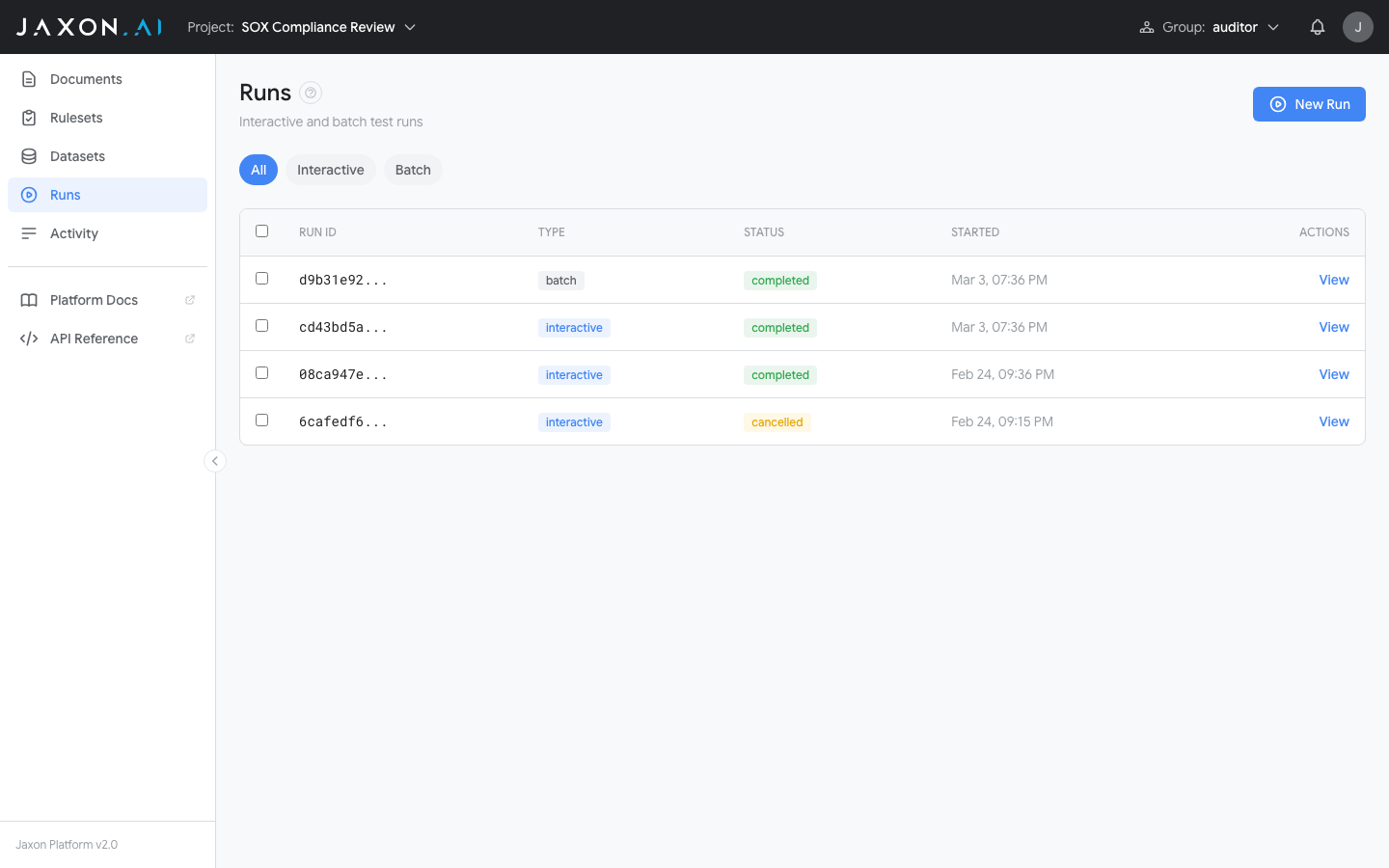
Runs are listed with their ID, type (interactive or batch), status, and start time. Use the filter pills (All, Interactive, Batch) to narrow the list.
Creating a Run
Click New Run to open the run configuration dialog.
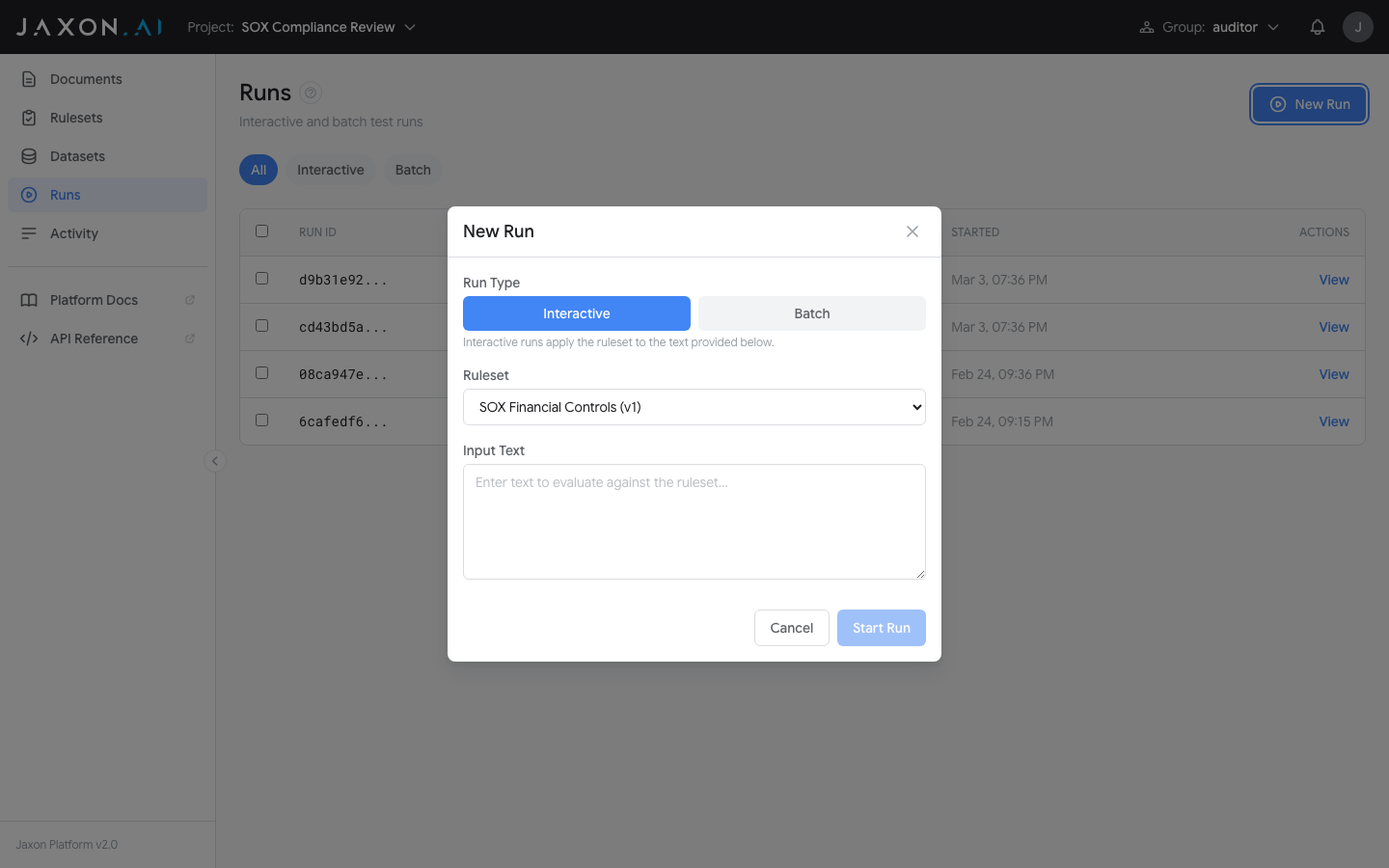
- Choose Interactive or Batch mode
- Select a Ruleset from the dropdown
- For interactive: enter input text. For batch: select a dataset and check which batch modes to run (Evaluate, Variance Test)
- If variance is selected, choose the number of iterations (2-10)
- Click Start Run
The dialog also includes an API snippet section showing how to create the same run via cURL, Python, or JavaScript.
Iterating on Rulesets
Runs are most valuable as part of an iterative development cycle:
- Write or modify ruleset rules in Ruleset Studio
- Run an interactive test against representative text
- Review results -- if assertions produce unexpected outcomes, refine the DSAIL code or questions
- When rules look correct, run a batch test against a Dataset to test across more documents
- Use variance testing to verify consistency before relying on the ruleset
Related Concepts
- Rulesets define the rules that runs execute
- Documents provide the input text that rulesets analyze during a run
- Datasets enable batch testing across multiple documents
- DSAIL Language defines the assertions whose outcomes appear in run results