Jaxon Authentication and Security Guide
Overview
Jaxon uses a secure, account-based login system that supports both browser-based access and authenticated command-line sessions. This guide explains how to log in, manage authentication in the Jaxon Client, and understand access levels across different security groups. How you sign in depends on what you're doing — most users log in through the web app, while developers and automation tools use the Jaxon Client.
Quick Links
Accessing Jaxon via the Web App
Logging In
All users are required to log in when accessing Jaxon through the web interface:
- Go to the Jaxon website.
- Enter your credentials.
- Once logged in, you'll automatically see the features available for your account.
No additional setup is needed — your permissions are applied based on your assigned security group. Administrators can update your security group(s) if needed.
Session Expiry
Sessions automatically expire after a set period for security. When this happens, you will be prompted to log in again.
Using the Jaxon Client
Developers who use the Jaxon Client or build integrations can sign in directly from the command line.
Interactive Login (Developers)
To log in interactively with the CLI, run the log in command below. This will open a browser window where you can log in with your Jaxon credentials.
python -m jaxon user_login
Once complete, your client session will stay authenticated until the token expires, at which point you will need to refresh the token through the same command as above.
To log in programmatically:
from jaxon.auth import PKCESession
session = PKCESession()
session.login()  # Opens browser and authenticates the user
Once authenticated, Jaxon automatically saves a valid token to your local session store for reuse:
~/.jaxon/user_session.json
Service Account Login (Automation)
For automated or production environments, developers can use service accounts instead of individual logins. A service account is provisioned by your administrator, and includes a name and an associated service token.
To log in using the CLI, use the command:
python -m jaxon service_account_login <service_account> <service_token>
To authenticate a service account, run the command below. This authenticates the service account and securely stores credentials for future requests.
from jaxon.auth import ServiceAccountSession
session = ServiceAccountSession("<service_account>", "<service_token>")
session.login()
For long-running or recurring jobs, use this instead of session.login() to ensure you always have a valid token — refreshing automatically when necessary:
session.ensure_service_account_session()
Service account tokens are stored at:
~/.jaxon/service_session.json
Using Authentication in Client Code
You don't need to authenticate when creating a client instance. Authentication is only required at runtime — when sending or receiving data through the client.
Here's how to include your token in client operations:
_, trace_id = client.send_message(rail_id, response_topic, entailment_frame, rail_version, auth_token=token)
response = client.get_response(trace_id, response_topic, timeout=300000, auth_token=token)
A valid token is required for both send_message() and get_response() calls.
If you're logged in as a user or service account, you can access your stored token from the session file, defined above.
Security Groups and Permissions
Access within Jaxon is defined by your assigned security group. Each group grants a specific level of visibility and control.
Developer
Developers are users who build, test, and configure Jaxon guardrails. They have access to both the Jaxon web interface and the Jaxon Client. Developers can create, test, and manage guardrails, and may use service accounts for automation.
Auditor
Auditors have read-only access to system logs, dashboards, and other administrative screens. Their role is to observe and verify system activity for compliance and security purposes. They cannot make configuration changes.
Reviewer
Reviewers are domain experts who participate in human-in-the-loop validation. They access the Review page to evaluate and approve results before deployment. Their permissions are limited to review and approval workflows.
Administrator Access
Administrators manage users, groups, and service accounts through the admin portal at <host>:8443/if/admin/.
They are responsible for:
- Creating and maintaining user accounts
- Assigning users to the correct security groups
- Managing service accounts for automation
Changes to group assignments take effect immediately; users may need to log out and back in to see updates.
Managing Users
Administrators can view, add, or remove users and assign them to security groups from the Directory section in the admin portal.
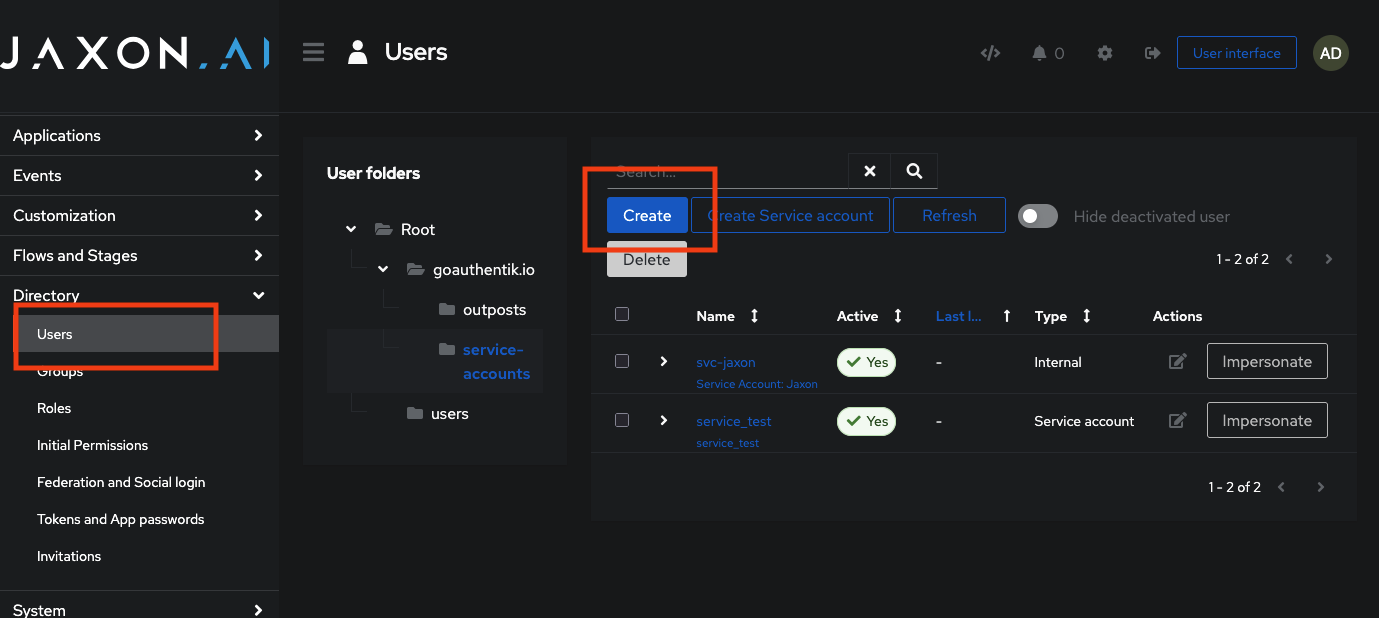
- Log in to the admin portal.
- In the left sidebar, navigate to Directory → Users.
- Click Create to add a new user or select an existing one to modify details.
All changes take effect immediately.
Adding or Changing a User’s Group
Groups are managed under Directory → Groups. To modify a user’s access level:
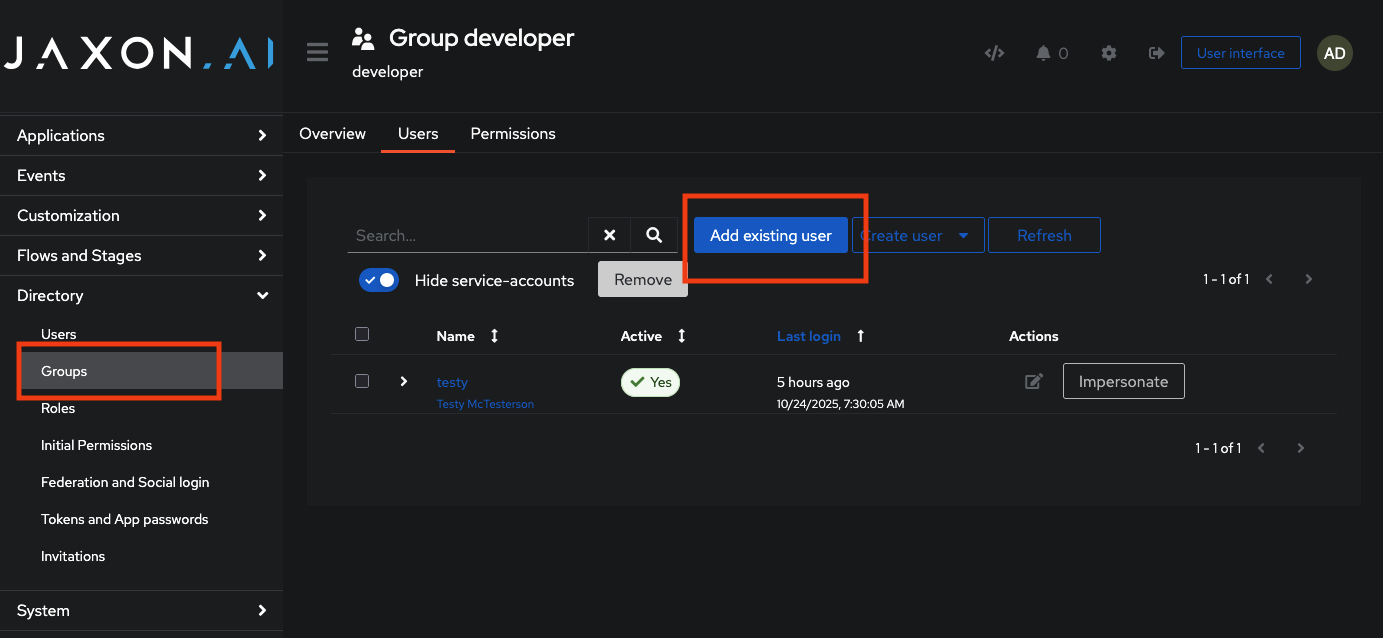
- Navigate to Directory → Groups.
- Select the desired group (e.g.,
developer,auditor, orreviewer). - Under the Members tab, add or remove users as needed.
Changes take effect immediately; users may need to log out and back in to refresh their permissions.
Security Group Assignment Guidelines
System administrators are responsible for ensuring that security group assignments align with security and compliance requirements.
- Assign developer by default for standard application access.
- Assign auditor for compliance, legal, or review personnel who require read-only visibility, including human review.
- Assign reviewer only to trusted users who should have access to the review screen to approve/disapprove guardrail outputs.
Creating and Managing Service Accounts
Service accounts are created and managed under Directory → Users.
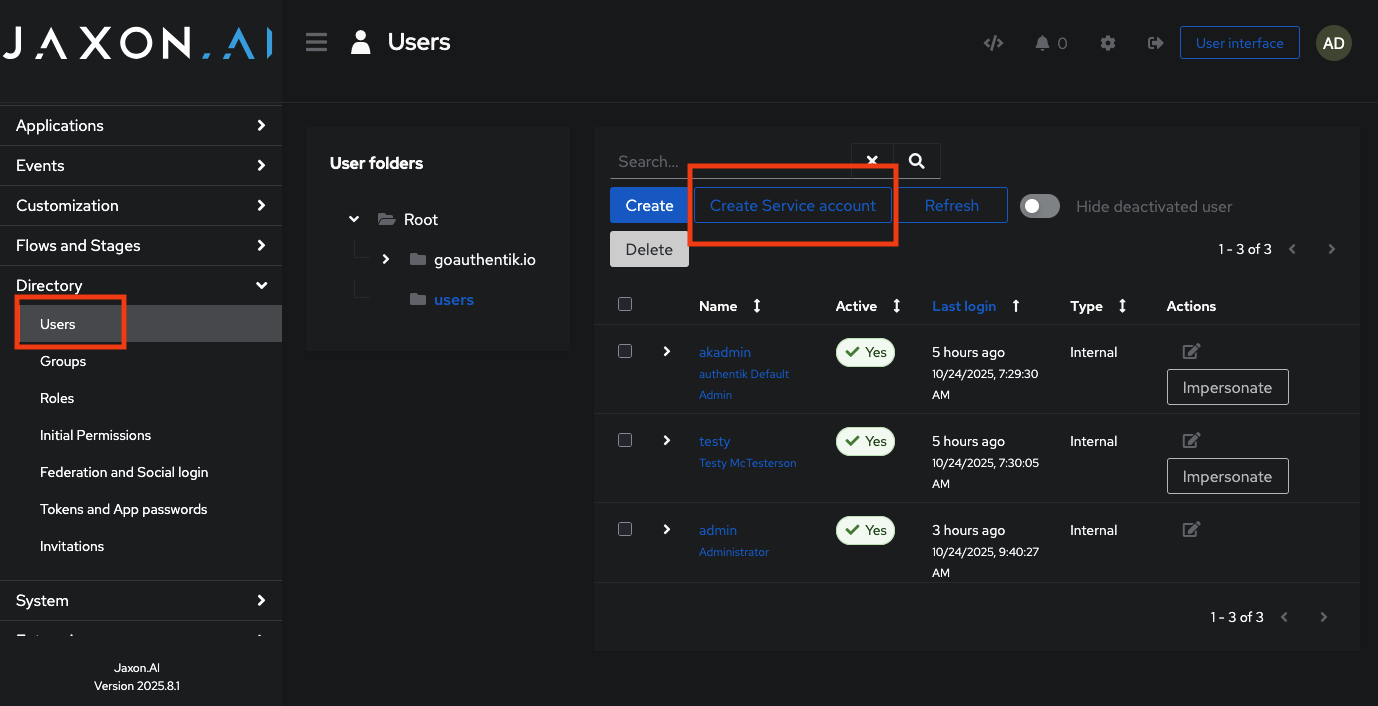
- Go to Directory → Users.
- Click Create Service account.
- Enter the account name (for example,
jaxon-prod-bot). - Assign it to the appropriate Group (usually
developer) under the Groups tab. - After saving, go to Applications → Tokens and App passwords and copy or update the service token for this account.
- Distribute the service token securely to the responsible developer or automation pipeline.
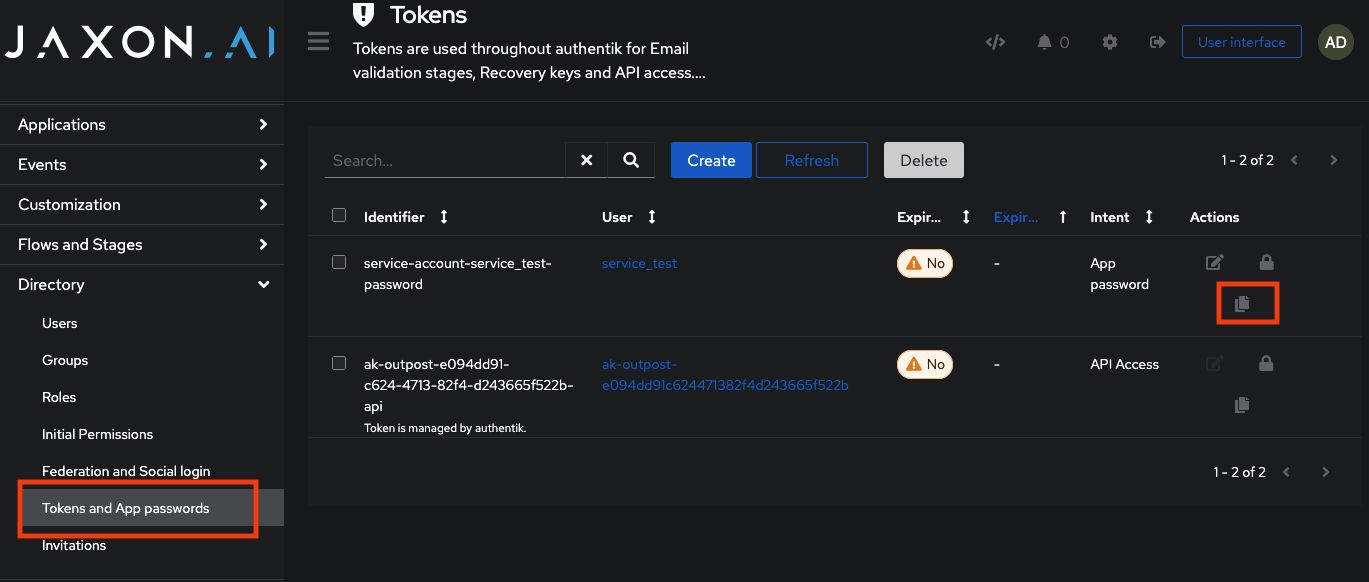
Service account credentials should be rotated periodically, especially for production use.